Writing data to a CSV text file with help of "Local database" plug-in
Task:
We should create other ASCII file with different structure in
the CSV format.
Requirements:
- Advanced Serial Data Logger (ASDL) Professional or a trial version;
- ASCII data parser and query plug-in for the data logger;
- DDE server plug-in for the data logger (optional);
- Local database plug-in for Advanced Serial
Data Logger.
It is assumed that:
You've prepared parser items for export.
For this tutorial all items were prepared in the previous part.
Also you may read other examples:
- Parsing data from barcode scanner and writing to a log file with a date/time stamp (data at fixed positions, no data packet signatures);
- Processing data from barcode scanner (data at fixed positions, data packets with the end signature);
- Parsing data with help of regular expressions (complex data format, regular expressions, data filter);
- Receiving and parsing data from aircraft engine monitor (usage example, custom data parser);
- Processing data from the lab equipment (simple data format, regular expressions);
- Receiving and parsing data from Garmin Geko301 GPS receiver (simple data format, data at fixed positions, data packets with both signatures);
- Parsing data from the filling machine (simple data format, delimited data, data packets with the end signature, data filter);
- Parsing and processing data from PBX (simple data format, data at fixed positions, data packets with the end signature, data filter);
- Logging and parsing data from an intellectual pressure measuring device (sending requests to the device, simple data format, data at fixed positions, data packets with the end signature, data filter);
- Serial data acquisition in the Checkweigher Management Information System (complex data format, regular expressions, filtering data);
- Serial port data aggregation. Combine a data of two different com-ports (simple data format, data at fixed positions, data packets with the end signature, data filter);
- Weight data logger. Parsing weight data from scales (simple data format, data at fixed positions, data packets with the end signature, data filter).
- Send data to a port from a file (data requests, send data by a schedule).
Solution:
All parser items are ready for export. Now we should configure the Local database plug-in. This process is very simple.
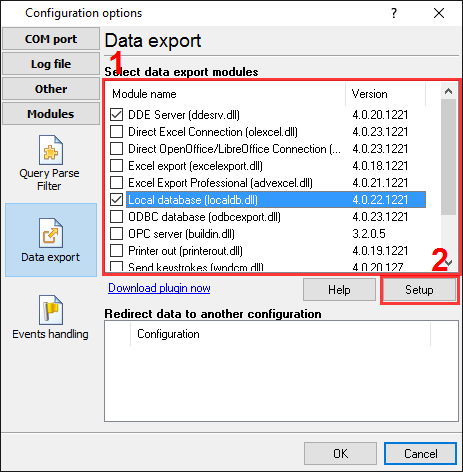
Please, open the configuration window of the Local database plug-in (fig.1) by selecting the module in the list and clicking the "Setup" button on the "Data export" tab.

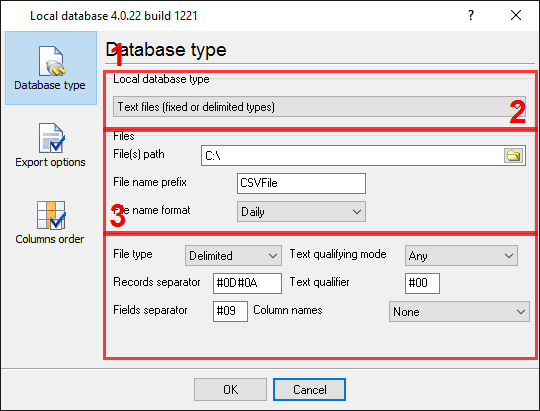
Fig.1. CSV export. Selecting a database type.
You should:
- Select a database type at the field #1,
- In the field #2 specify a path, where new files
will be created
- In the
field #3 specify a file name prefix
- Configure parameters of your CSV file with the group of options #4. All options in this group are optional. You may use default values.
On the "Data formats" page you
can specify a data format of your data. Because all our variables are with
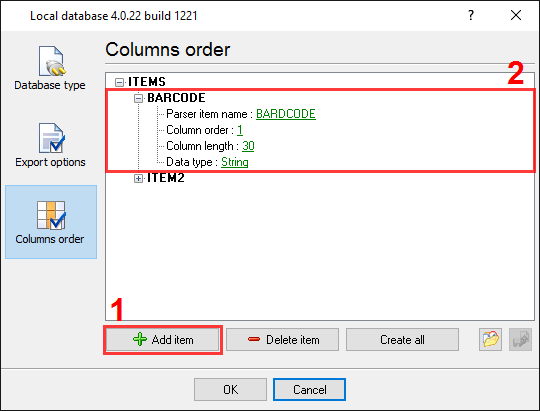
the "string" data type, then we don't need to change format options. On the "Columns order" page (fig.2) you can specify,
how variables will be placed in a spreadsheet. Because we need 2
variables only, therefore, we need to create 2 items on this page by clicking
the "Add item" button (fig.2, pos.5).

Fig.2. CSV export. Columns order options.
Before adding an item the program will ask you about an item
description. You can type any characters here, which will help you to remember
a variable's content.
Each data export item has following properties:
- Parser item name - it is a parser variable name, which we specified in the parser module. You may select a variable
name from a drop-down box, which appears by clicking on a link of this
property;
- Column order - it's a position of a variable in a spreadsheet.
A minimum value is 1;
- Column length - it's a column width. This options are not
required in our case, because we are using a delimited CSV file;
- Data type - the module will use this type for formatting a value.
Now, please, click the "OK" button and close the configuration
window of the "Local database" plug-in. The click the "OK" button in the options window.
Ok. All settings had been configured and we are now ready for capturing barcodes.