
RS232 Terminal Software for Windows: Send, Receive and Log
An RS232 terminal lets you talk to a serial device by hand: open the COM port, type a command or pick a file, press Send, read the reply. The terminal mode of Advanced Serial Port Monitor does what HyperTerminal and PuTTY do not: it takes hex as well as text, inserts control characters from a menu, switches DTR and RTS with a click, stamps every packet with the time, logs the whole session to a file, and keeps your frequent commands on buttons.
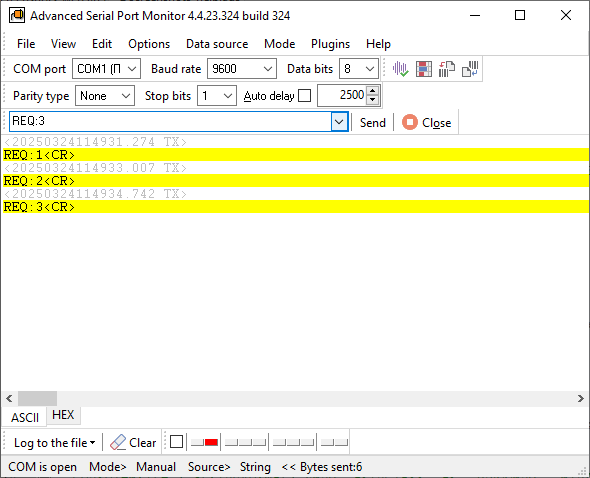
What the terminal mode does
Terminal mode is called Manual in the Mode menu. With the port open you can:
- Type a command as text or as hex bytes, insert any control character from 0 to 31 from a popup menu, and send it with one click or a hotkey.
- Send a whole file, text or binary, exactly as it is on disk.
- Keep sending while data is arriving. The port is full duplex, so a device that streams at you does not block your input.
- Read the reply in ASCII and hex side by side, with sent and received data in different colors, either as it arrives or split into packets.
- Stamp every packet with the date and time to the millisecond, plus the time since the previous packet, so a slow device shows up as a number, not a feeling.
- Write everything to a log file as it happens, sent and received together or in separate files.
- Change the baud rate, data bits, stop bits, parity and flow control while the port stays open. Standard rates go up to 921,600, and you can define your own.
- Open several copies of the program, each on its own port with its own settings.
The port list shows every COM port with its device name, for example "COM10 - USB SERIAL CH340", so you do not need Device Manager to find the right number.
Send a command and read the reply in four steps
Step 1: Open the port
Start the program, choose Mode → Manual, pick the port from the list at the top left, and set the speed and framing the device expects; 9600 8N1 is the common default. Click Open. If the button does not change to Close, another program holds the port, and the program tells you which one; see port busy, access denied.
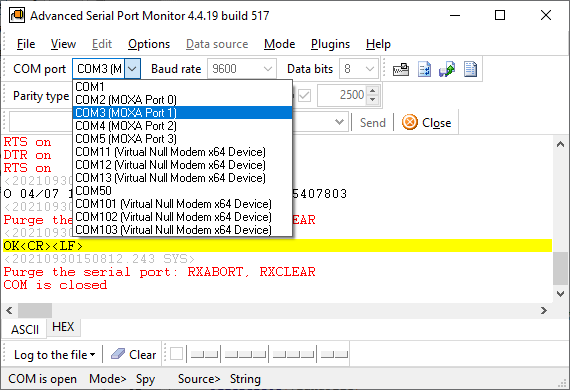
Step 2: Type the command and send it
Type the command in the input field. The line terminator you set in the options, for example CR LF, is added for you; for anything unusual, insert the control character from the popup menu or switch the field to hex. Press Send.
Step 3: Read the reply
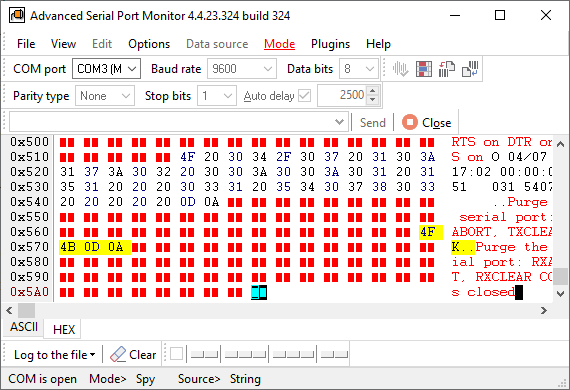
The reply appears in the data window. Use the ASCII view for text protocols and the hex view for binary ones; the hex view shows the bytes in rows with the characters beside them. A reply that never comes, or comes after the device's timeout, is visible in the timestamps.
Step 4: Keep a record
Click Write to file before a session you may need to show someone. Sent and received data can go to one file or to two, with timestamps on every line, and the program can start a new file whenever a signature you define appears in the data.
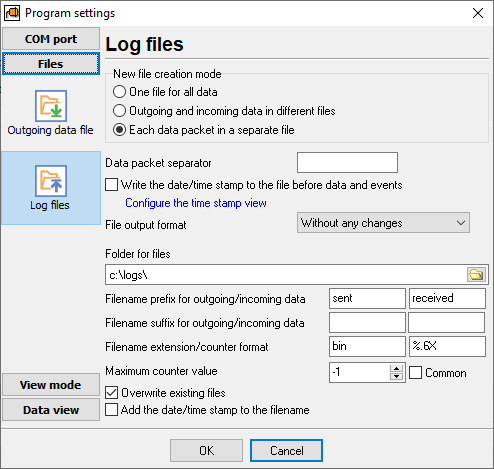
Hex, binary and files
Most industrial protocols are not made of readable words. In the terminal you can enter bytes as hex, for example #02 #10 #03, and see the answer as hex with the byte count per row set the way you like. A binary file is sent unchanged, which is the quickest way to replay a captured packet or to push a configuration blob to a controller. For a soak test, switch to Automatic mode: it sends a file to the port on a timer from 10 ms to 10 s and logs whatever comes back. The program can also append a checksum to a packet, CRC16, CRC32 or the MODBUS CRC, so you do not calculate it by hand.
Control lines and error simulation
The indicators at the bottom of the window show the state of the RS232 lines. Click DTR or RTS to raise or drop the line by hand, which is how you wake some devices or test flow control. RTS and CTS changes are logged with the data. For an RS485 converter that needs the PC to switch direction, the RS485 mode drives RTS for you. To check how a device's firmware copes with damaged input, the program can send packets with parity and framing errors on purpose.
Repeat without retyping
Bench work repeats, and a terminal that only takes typed input wastes the afternoon. Three ways out, from simplest to most flexible:
- Command panel. A plugin with 24 buttons; each button sends the data packet you assign to it, in text or hex. Added in the January 2026 release.
- Test Sequence plugin. A list of request and expected reply pairs with a timeout for each; the program runs them and reports pass or fail per step.
- Scripts. Commands for sending, waiting, matching and branching, saved to a file and started from the command line with -f script.txt, so a test bench comes up with one shortcut.
If the device speaks MODBUS RTU or ASCII, skip the typing entirely: the MODBUS plugin reads and writes registers as values and shows the raw frames beside them.
When a terminal is the wrong tool
- You need to see what another program sends. A terminal must own the port, and Windows gives a port to one program at a time. Use Spy mode, which watches the port while the other program keeps it open.
- The traffic runs between two external devices. Use dual-port mode with an RS232 monitoring cable.
- You need to record a device for weeks and push the values into a database. That is a job for a COM port logger, not an interactive terminal.
- Linux or macOS. The program is Windows only; it runs in a Windows virtual machine with the port passed through.
FAQ
Is the RS232 terminal free?
The download is the full program with a 14-day trial; each session stops after 128 KB of traffic. A licence key removes both limits in the same installation. Prices are on the product page.
Does it replace HyperTerminal on Windows 11 and 10?
Yes. HyperTerminal has not shipped with Windows since Vista and never showed hex. The terminal here does text and hex, logs to file with timestamps, and runs on Windows 11, 10, 8 and 7 and on Windows Server 2012 through 2025. The HyperTerminal comparison lists the differences.
Which ports and adapters work?
Any port Windows lists as a COM port: built-in RS232 ports and PCIe cards, USB-to-serial cables and USB-UART dongles, RS232-to-Ethernet converters, Bluetooth serial links, and virtual COM ports. RS485 and RS422 devices are reached through a converter, with an RS485 mode for converters that need the PC to switch direction. If you wire the cable yourself, the RS232 pinout of DB9 and DB25 connectors and the null modem cable are on our pinout pages.
Can I use a baud rate that is not in the list?
Yes. Type any rate the driver of your port accepts; the standard list goes up to 921,600. Data bits from 5 to 8, one or two stop bits, all parity types, and hardware or software flow control can be set and changed while the port is open.
Can I watch what another program sends through the port?
Not from the terminal, because the port is held by that program. Switch to Spy mode in the same window: it attaches to the port before the other program opens it and shows both directions with timestamps. See the serial port sniffer page.
For the full feature list, the price and the three modes side by side, see the Advanced Serial Port Monitor page.
See also
RS232 Monitor
RS232 Port Sniffer
Serial Port Spy
RS232 Terminal
UART Monitoring Using Our Serial Port Monitor
COM Port Scanner
5 Common Errors with COM Port Operations on Windows
Related topics: Advanced Serial Port Monitor
hereRS232 monitor RS232 analyzer COM Port Debug RS232 terminal Serial port sniffer Serial port spy UART monitor RS232 pinout and signals Data monitor cables.