|
|
Advanced Serial Data Logger
For Windows 2000 - Windows 8 (2012) (incl. Server, x86 and x64). Latest version: 4.0.7 build 613. June 13, 2013.
Trust In Confidence!
How to display serial port's incoming data on a dashboard with guages, indicators, charts, etc.
Problem scenario:
I would like to parse incoming data string into different variables and
then have a dashboard with gauges, indicators, charts, etc.
Requirements:
It is assumed that:
You've created a configuration (using the "Green Plus" button in the main window and configured communication parameters (baud rate, number of data bits, flow control etc) in the data logger and can receive any data without communication errors.
Solution:
General description
You may combine our two software products: Advanced Serial Data Logger and OPC Scada Viewer. The data logger will receive, process, parse incoming data and export it using the built-in OPC server. It will allow to get real-time data in any OPC compatible software. OPC Scada Viewer can visualize data from any OPC DA and DA2 server.
Rs232 data parsing
First of all you need to configure a parser. The parser will parse incoming data string into different variables. Below you can find links to several examples:
- Parsing data from barcode scanner and writing to a log file with a date/time stamp (data at fixed positions, no data packet signatures);
- Processing data from barcode scanner (data at fixed positions, data packets with the end signature);
- Parsing data with help of regular expressions (complex data format, regular expressions, data filter);
- Receiving and parsing data from aircraft engine monitor (usage example, custom data parser);
- Processing data from the lab equipment (simple data format, regular expressions);
- Receiving and parsing data from Garmin Geko301 GPS receiver (simple data format, data at fixed positions, data packets with both signatures);
- Parsing data from the filling machine (simple data format, delimited data, data packets with the end signature, data filter);
- Parsing and processing data from PBX (simple data format, data at fixed positions, data packets with the end signature, data filter);
- Logging and parsing data from an intellectual pressure measuring device (sending requests to the device, simple data format, data at fixed positions, data packets with the end signature, data filter);
- Serial data acquisition in the Checkweigher Management Information System (complex data format, regular expressions, filtering data);
- Serial port data aggregation. Combine a data of two different com-ports (simple data format, data at fixed positions, data packets with the end signature, data filter);
- Weight data logger. Parsing weight data from scales (simple data format, data at fixed positions, data packets with the end signature, data filter).
- Send data to a port from a file (data requests, send data by a schedule).
Say, for example, you have configured a parser to extract one floating point value with the "VALUE1" name.
Activating the built-in OPC server
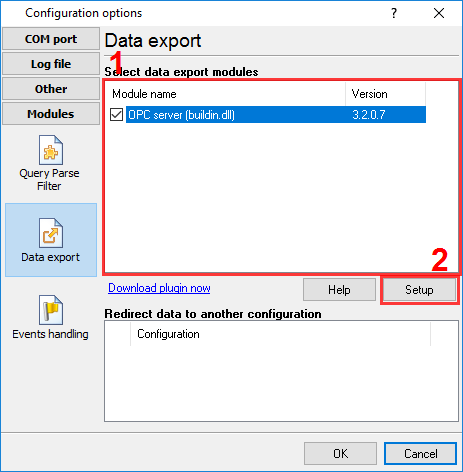
You need to enable the OPC server plug in on the "Data export" page (fig.1).

Fig.1. OPC server plug in
Configuring the OPC server
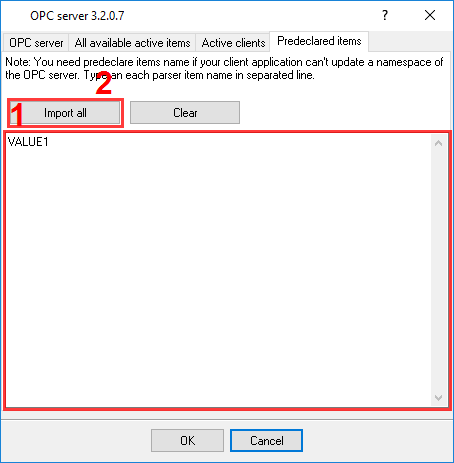
Please, open a configuration window of the OPC server plug-in (click the "Setup" button near a drop-down box fig. 1, pos.2). The dialog window will appear on the desktop (fig. 2).
Fig.2. OPC settings
- Specify names of your parser items (one per row);
- You may also try to automatically import all names from the parser. Note: some parsers don not allow import names. In this case, specify all names manually.
Connecting to the OPC server
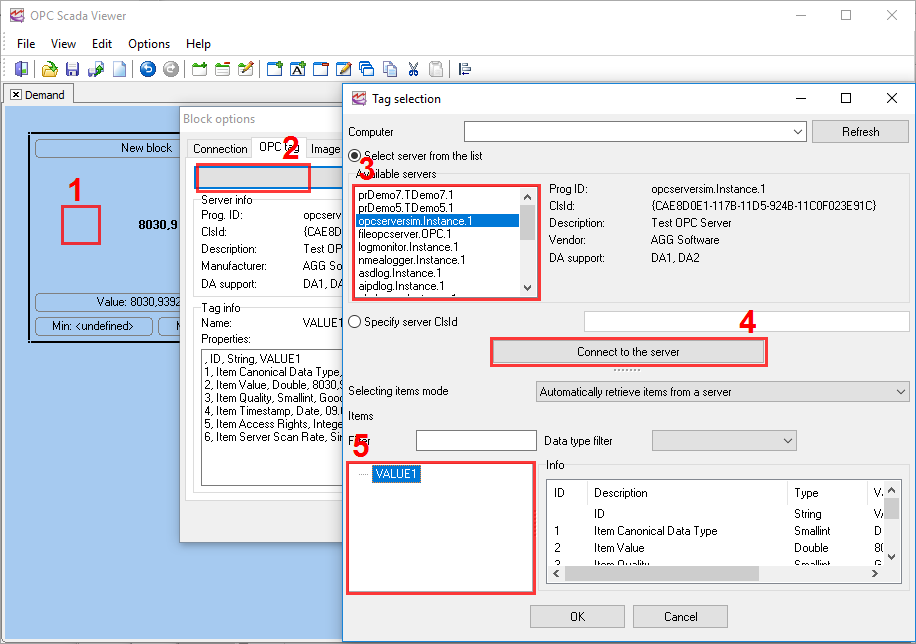
Please, verify that you have configured DCOM as it is described here. Launch the OPC Scada Viewer software (fig. 3).

Fig.3. Adding a visualization block
- Add a page and visualization block;
- Go to the "OPC tag" page and click the "Select..." button;
- Select the "asdlog" server and connect to the server;
- Select your variable name from the list;
- Click the "OK" button.
Go to the "Image options" page (fig. 4).
- Select a necessary indicator type;
- Configure properties.

Fig.4. Indicator
Related articles:
- Parsing data from barcode scanner and writing to a log file with a date/time stamp (data at fixed positions, no data packet signatures);
- Processing data from barcode scanner (data at fixed positions, data packets with the end signature);
- Parsing data with help of regular expressions (complex data format, regular expressions, data filter);
- Receiving and parsing data from aircraft engine monitor (usage example, custom data parser);
- Processing data from the lab equipment (simple data format, regular expressions);
- Receiving and parsing data from Garmin Geko301 GPS receiver (simple data format, data at fixed positions, data packets with both signatures);
- Parsing data from the filling machine (simple data format, delimited data, data packets with the end signature, data filter);
- Parsing and processing data from PBX (simple data format, data at fixed positions, data packets with the end signature, data filter);
- Logging and parsing data from an intellectual pressure measuring device (sending requests to the device, simple data format, data at fixed positions, data packets with the end signature, data filter);
- Serial data acquisition in the Checkweigher Management Information System (complex data format, regular expressions, filtering data);
- Serial port data aggregation. Combine a data of two different com-ports (simple data format, data at fixed positions, data packets with the end signature, data filter);
- Weight data logger. Parsing weight data from scales (simple data format, data at fixed positions, data packets with the end signature, data filter).
- Send data to a port from a file (data requests, send data by a schedule).
|