
OPC Server Simulator - Online help | OPC Server Simulator
Introduction
This simple OPC DA2 and UA server allows you to add multiple OPC tags and specify their names, data types, and values. Tag values can be updated from time to time. For numeric data types, the server can use several built-in functions to generate random values.
You can interactively change tag values and their quality. You can monitor the connected clients and the data requested by them.
This OPC server allows you to quickly test your or our software that works with OPC. For the duration of the test, it can replace the OPC server that works with the real hardware. Possibly, this simple server will start much faster than any other server of yours, which could allow you to do your development and initial tests in less time.
Key features:
•You can add variables with different data types and simulation modes.
•You can see all settings of the program in one window, which allows you to quickly change any parameter.
•You can save all server settings and the OPC tags list to a file and then load them from that file.
•The program supports different data types for OPC tags.
•Any tag value or all tag values can be updated by timer.
Using the program
When you launch the program, you will see the following window:
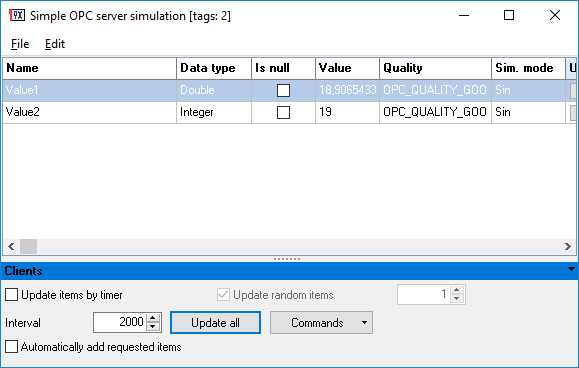
Figure 1: The main window
The program is straightforward to use:
1.Add as many tags as needed to the list via the "Edit" menu.
2.Start the automatic update timer, or click the "Update" button when necessary.
OPC tag parameters
Name - The OPC tag name. The dot character is used as a path delimiter. For example, the "TA7.COMMON.Time" tag name sets the following data tree hierarchy:
TA7
|--- COMMON
|---- Time
Data type - The OPC tag data type.
Is null - If this option is turned on, the value is unspecified (indeterminate).
Value - The tag value. If the "Is null" option is turned on, the value is ignored.
Quality - The OPC value quality. You can use one of the following values defined in the OPC standard:
•GOOD - Good quality (the variable value is defined).
•UNCERTAIN - Uncertain quality (the variable value is unknown).
•BAD - Bad quality (the variable value is known but unreliable).
Sim. mode - You can use one of the following simulation modes.
•None - A fixed value.
•Random - A random value for the selected data type. For example, a byte value can change from 0 to 255.
•Sine - A sine value in the range of the selected data type.
•Sawtooth 1 - A sawtooth value (Option 1, one side, increment and drop).
•Sawtooth 2 - A sawtooth value (Option 2, two sides).
If you selected the "String" data type for the OPC tag, you can use these additional simulation types:
•ASCII - ASCII characters only.
•Latin - Latin characters only.
•Latin lower - Lowercase Latin characters only.
•Latin upper - Uppercase Latin characters only.
If you selected the "Date". "Time", or "DateTime" data type for the OPC tag, you can use these additional simulation types:
•Current - the current local date or time.
•Time: Hour, Minute, Second - the part of current time.
•Unix timestamp - the current time as an Unix timestamp.
Update - Click the button in the column to update the value for the respective OPC tag.
Options
Update items by timer - If this option is turned on, the server will periodically update all values or random values in the list.
Interval - The time interval to update values by timer (in milliseconds).
Update random items - If this option is turned on, the server will periodically update only the specified number of random values in the list.
Update all - Updates all values in the list.
Automatically add requested items - If this option is turned on, each time an OPC client requests a non-existing tag, the tag will be added to the list. Otherwise, the server will return the error code to the OPC client.
OPC server info
You can find the server info (server name, Class ID, URL) in the "Help - Show OPC Server Info" menu.