Advanced Serial Data LoggerTrust In Confidence! For Windows 2000 - Windows 11 (2022) (incl. Server, x86 and x64). Latest version: 4.7.7 build 417. April 17, 2024. Log and parse data from an intellectual pressure measuring devicePressure data loggerWe require software that can log data from an intellectual pressure measuring device from Paroscientific Inc into our data acquisition system. Paroscientific is the leader in the field of precision pressure measurement, resolution of better than 0.0001%, and typical accuracy of 0.01% are achieved even under difficult environmental conditions. When Data Logger receives the information from the serial port, he adds a date and time stamp. We are using the Digiquartz ® pressure instrumentation. The RS-232 interface user manual for intelligent pressure devices exists on a corporate web-site. Short hardware overviewDigiquartz ® Intelligent Transmitters, Portable Pressure Standards, Intelligent Depth Sensors, MET stations, and Water Stage Sensors consist of a standard Paroscientific pressure transducer and a digital interface board in an integral package. The digital interface boards are also available separately for customer systems where separate packaging of the transducer and interface board is desired. Programming and operation are the same in all configurations. The digital board has a microprocessor-controlled counter and RS-232 port. The microprocessor operating program is stored in permanent memory (EPROM). The device stores all user-controllable parameters in user-writable memory (EEPROM). The user interacts with the unit via the two-way RS-232 interface. The microprocessor monitors incoming commands from the computer. When a sampling command is received, the microprocessor selects the appropriate frequency signal source and makes a period measurement using a 14.74 MHz timebase counter. The counter integration time is user selectable. Some commands require measurements of both temperature and pressure signals. In that case, the temperature period is measured first, followed by the pressure period. When the period measurement is completed, the microprocessor makes the appropriate calculations and loads the data onto the RS-232 bus. Short protocol overviewAll commands have the form: *ddsscc__<cr><lf>
A typical message from the PC to transmitter #1 asking for pressure: *0100P3 <cr> <lf> A typical reply from the transmitter to the PC: *000114.573 <cr> <lf> Requirements:
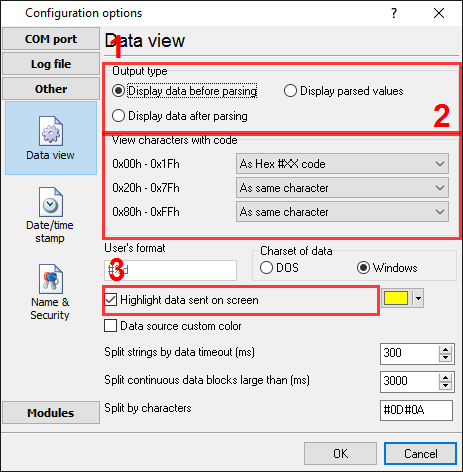
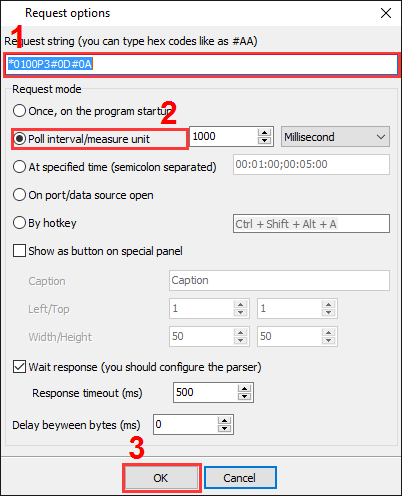
It is assumed that: You know and can configure communication parameters (baud rate, the number of data bits, flow control, etc.) in the logger. Solution: Thanks to Paroscientific for a detailed description of the RS-232 protocol. The description above shows that a data flow contains non-printable characters (CR and LF). If you want to look at it, please, set the following options. The option in the pos.3 allows you to identify request, which the logger will send to a device.
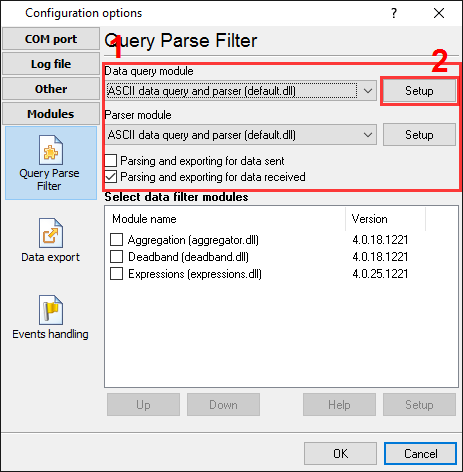
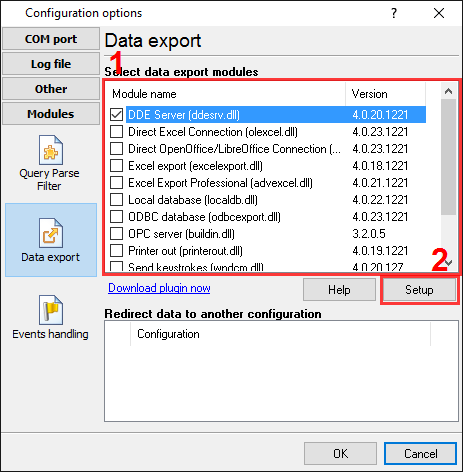
Now, click the "OK" button and try to receive data from a serial port. Nothing? Sure, the protocol specification says that a pressure device requires a request from a computer's side. OK. It's simple. We should configure additional modules. First, please, select the "ASCII data parser and query" plug-in from two drop-down lists (fig.2a, pos. 1 and 2). Then, enable a parsing option for data received (fig.2a, pos. 3) and select necessary data export plug-ins. The DDE server (fig.2b, pos. 3) will help to check the accuracy of the parser's configuration. The "Local database" plug-in (fig.2b, pos. 4) will create Microsoft Excel files.
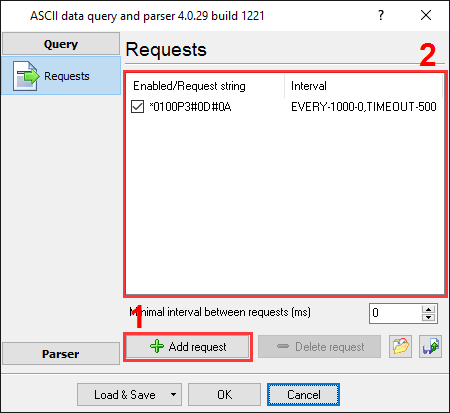
Now, please, open the ASCII query configuration window (click the "Setup" button near a first drop-down box on pic.2a, pos.1). The dialog window will appear on the desktop (fig.3).
The window allows you to add one or more requests at the same time. All available requests (fig.3, pos.1) are listed in the requests list (fig.3, pos.4). Each request has several properties: the request data (fig.3, pos.2) and the request interval (fig.3, pos.3). You may edit a request by double-clicking over the request in the list. Any new requests may be added by clicking the "Add request" button (fig.3, pos. 5). The new dialog window will appear over the previous window (fig.4)
The request properties:
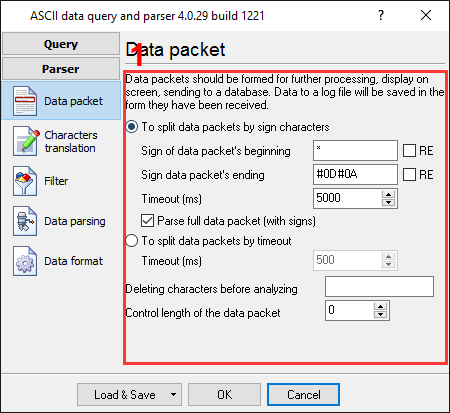
Click the "OK" button in this dialog window. The module will add a new item to the requests list (fig. 3, pos.1). Note: You can add a byte with any code to a request. For example, if you want to send byte with the 0x02 hexadecimal code to a device, type the #02 string. If you're going to send the "#" character, then you should type it twice. Please, open the next page (fig.5) by clicking the "Parser" button. Then click the "Data packet" button.
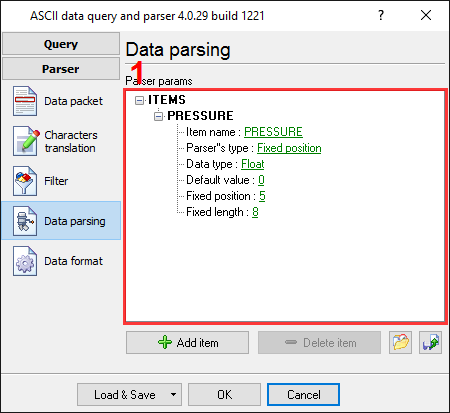
On this page, you should specify the framing characters of a data packet. Field #1 is the data packet's start ("*" in this example), and field #2 is the data packet's end (#0D#0A in this example, same as in the request above). You should also specify a timeout value in field #3, which the plugin uses if it cannot receive ending characters, and it should wait for a new data packet. You can also easily add a datetime stamp to each data packet that the parser will process. Just enable the "Add date/time stamp" option in the pos.4. The next page (fig.6) is a significant part of the parser configuration. The data parser uses this information for data extraction from the data packet. The data packet from this example contains only one data item, which should be placed into one variable. Later, this variable (a pressure value) will be used in a data export module and placed in a column of a database.
Any new items may be added by clicking the "Add item" button (pic.6, pos. 7). Before adding an item, the program will ask you about an item description. You can type any characters here, which will help you to remember a variable's content. For this example, one variable with a corresponding description has been added. Each parser item has some properties:
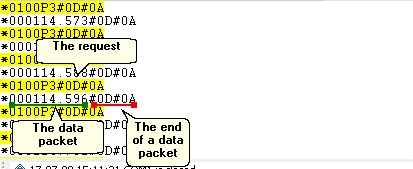
Other options (on other pages) are unnecessary in our case because we don't need to filter our records and our data type doesn't require additional format options. We are now ready to configure the data query and the data parser modules. Click the "OK" button in the configuration window. Connect your device and power it on if necessary. You should get something like the image below.
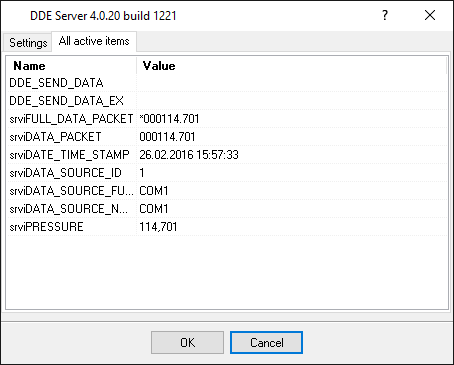
It's another view of the received data. All non-printable characters have been replaced with their code like #0A or #0D. The yellow color has highlighted the requests. If the parser has been configured correctly, then in the DDE server window, you'll see our variables' names and values (fig.8).
All parser items are now ready for export to any database, Microsoft Excel, or Microsoft Access. Related articles: |
|