Advanced Serial Data LoggerTrust In Confidence! For Windows 2000 - Windows 11 (2022) (incl. Server, x86 and x64). Latest version: 4.7.7 build 417. April 17, 2024. Serial data acquisition in the Checkweigher Management Information SystemDownload a Free Trial Version. It allows you to try all features! Plugins can be downloaded separately here
Serial data acquisition in the "Checkweigher Management Information System"We require a "Checkweigher Management Information System" compatible software to acquire the serial data from our present Checkweighers completely automatically without the need for operator intervention. We want reports to be viewed and printed on-demand at any time based upon products, batches, production runs, lines, and periods.
We want the software to hold a copy of the original data in raw format, to make the system "Trading Standards" friendly format to provide us with traceability, and a paperless environment to view current production and historical analysis. We want information from the multiplexor to flow into either Microsoft Access or Microsoft Excel fields in a systematic order. Hardware overview
Requirements:
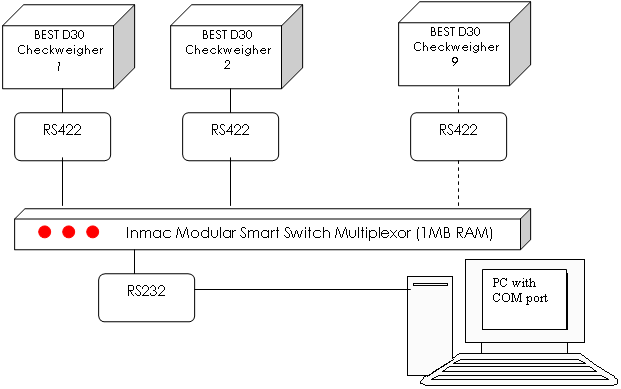
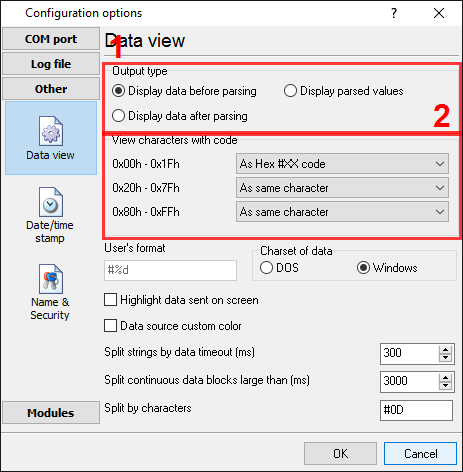
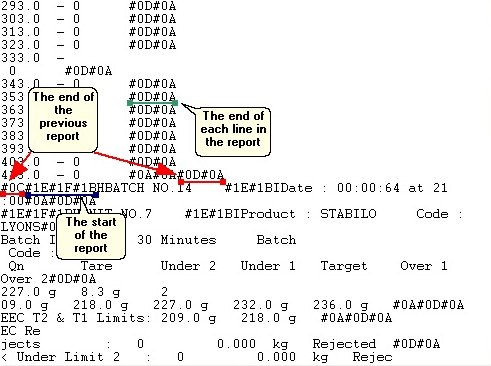
It is assumed that: You have configured all communication parameters (baud rate, the number of data bits, flow control, etc.) in the data logger, and you can receive all data without communication errors. Solution: The image (Fig.1) above shows a data flow. As an example, for a single report, all non-printable characters with a code of less than 20 Hex are selected for display. The indicated radio buttons are set, as shown below.
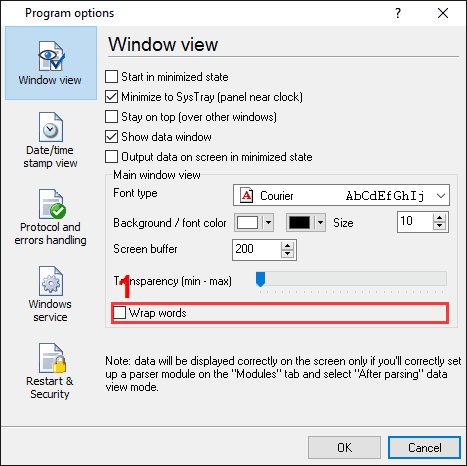
If your data flow is fast, then ASDL will not split your data into separate lines, and you will get one long line on the screen. For this reason, it is necessary to tick the "Wrap words" tick box. It effectively adjusts the line length to the width of the window (Fig.4, pos #1)
Click the "OK" button and attempt to receive data from a serial port. You should get something like the image below.
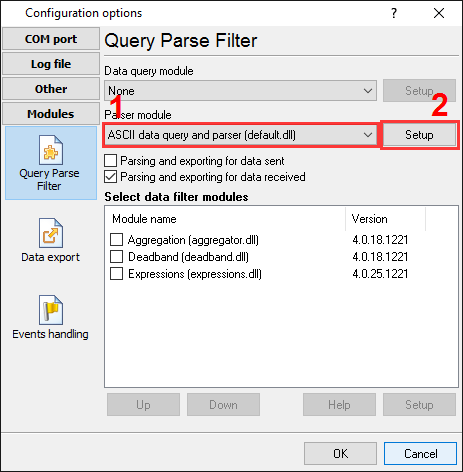
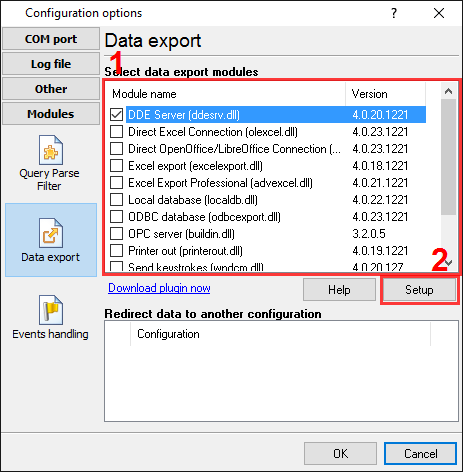
It is the other view of the data received. Notice that all non-printable characters were replaced with their code i.e., #1E, #1F, and #1B. It is clear from the data screen above that the data block (within the green rectangle) begins with #1E#1F#1B (underlined by blue) ends with #0D#0A#0C (underlined by red). We are now ready to configure the modules. First, select the "ASCII data query and parser" plugin (Fig.6a, pos. #1) from a drop-down list. Then, enable a parsing option for data received (Fig.6a, pos. #2) and select the necessary data export plugins. The DDE server (Fig.6b, pos. #3) will help to check the accuracy of the parser's configuration. The "Local database" plugin will write the data to a Microsoft Excel file (Fig.6b, pos. #4).
Pic.6a. Serial data acquisition. The data parser plugin.
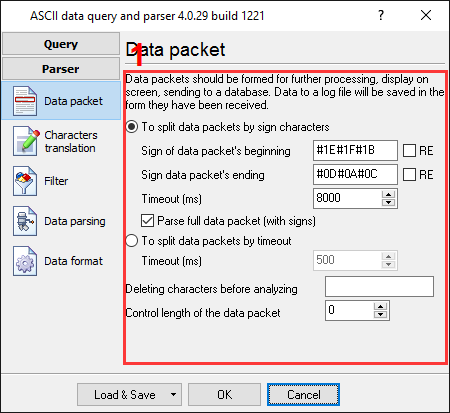
Pic.6b. Serial data acquisition. Data export plugins. Now, please, open a configuration window of the ASCII parser and query plugin (click the "Setup" button near a drop-down box fig.6a, pos.1). The dialog window will appear on the desktop (fig.7).
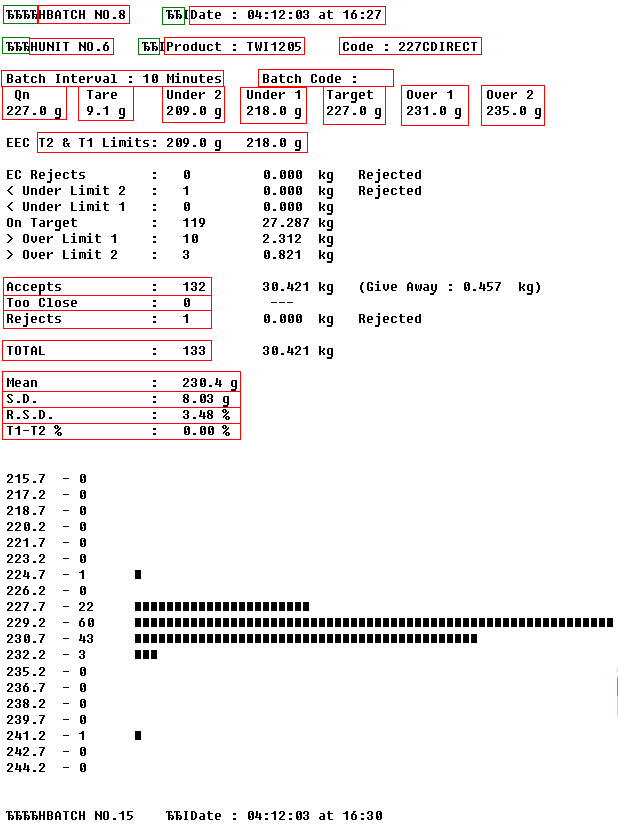
The configuration process should be straightforward if you have examined your data flow in the data logger window (Fig.5). You should type in the same as in the data logger window in fields 1 and 2. Field #1 marks the beginning of the data block, and field #2 marks the end. In the example, our start marker is #1E#1F#1B, and the end marker is #0D#0A#0C. The values to be typed in here are as underlined in red in Fig.5 above. Because the report in this example is very long, we should increase the "Timeout" value (pos.#3) to prevent losing reports. You can add a date/time stamp to your data export. You need to activate the "Add date/time stamp" option in position #4. The next tab is an important part of the parser configuration. The data parser uses this information for data extraction from the data block. In the example, the report contains 23 data items (see Fig.2), namely: BATCH NO, date and time, unit no, and so on, which should be separated out into different variables. Later, these variables will be used in the data export and will be placed in different columns of our Excel spreadsheet.
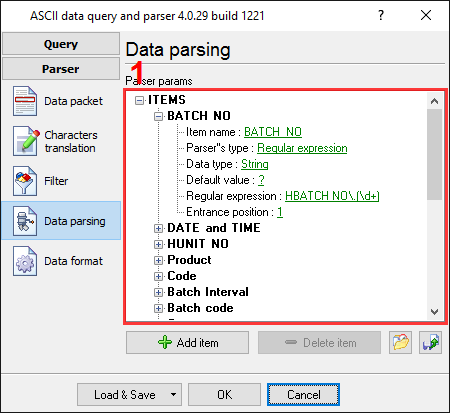
Any new items may be added by clicking the "Add item" button (Fig.8, pos.#7). Before adding an item, the program will ask you about an item description. You can type any characters here, which will help you to remember a variable's content. For this example, we add all 23 variables with their corresponding descriptions. You can import all data parsing items from a file by clicking the button at pos. #8 in Fig.8. The file with all variables you can download here (right-click over the link and select the "Save target as..." menu item). Each parser item has several properties:
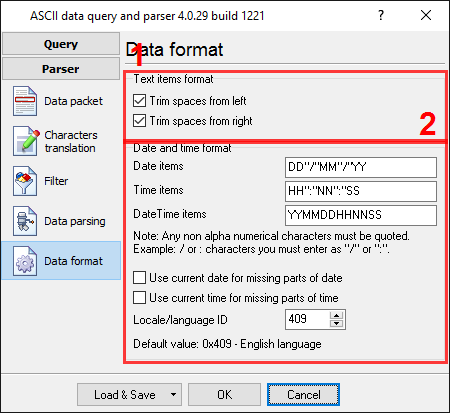
All other items have identical parameters, except a data type and a regular expression. In the next tab, you can specify basic format options as per (Fig.9). If you had specified the data type "String" in the item's parameters, then the first two options allow you to remove blank spaces from a value. Our called and caller number contain blank spaces at the start of a value. The second option will enable you to convert the date-time string to a field with the DateTime data type. We specified YYMMDDHHNNSS here, according to the specification above. For a detailed description of formatting characters, please, see the help file.
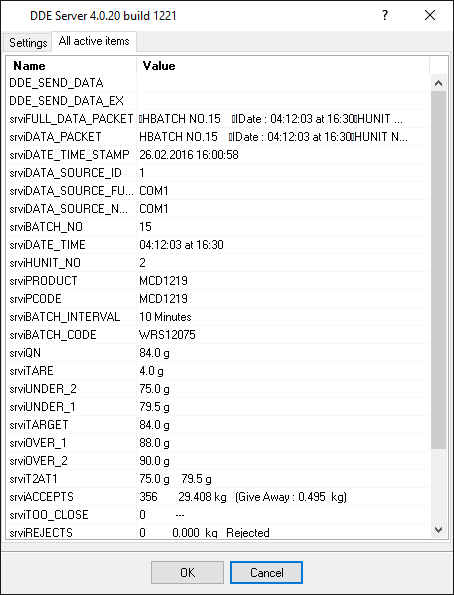
Other options are unnecessary in our case because all our items do not have the date or time data type. Click the "OK" button and close the parser configuration window. Then click the "OK" button in the options window. Now that our parser is ready, it is time to test it. Connect your device and power it on if necessary. Check to see if you can receive a data block from the specified serial port. If the parser had been correctly set up, then you should see all parser items and their values (Fig.10) in the DDE server window below.
All parser items are now ready for export to an Excel file. Related articles: |
|