

Advanced Serial Port Monitor: COM Port Sniffer and Terminal
For Windows 2000 - Windows 11 (2022) (incl. Server, x86 and x64). Latest version: 4.7.3 build 703. July 3, 2026.
What it does
Advanced Serial Port Monitor is a Windows program for anyone who needs to see what travels through a serial port. It is a terminal for sending commands and reading the replies, a sniffer that watches a COM port another application already has open, and a test tool that polls or emulates a device, including MODBUS RTU and ASCII slaves. It works with any real or virtual COM port: built-in RS232 ports, USB-to-serial adapters, Bluetooth serial links, and RS485 or RS422 buses through a converter.
What you can do with it
Find out why a device does not answer, by watching the exact bytes each side sends and the pauses between them. Recover an undocumented protocol from a working application and reproduce it in your own software. Check what a legacy program sends to a scale, printer or controller before you replace it. Send commands by hand, in text or hex, and log the whole session with timestamps. Poll a MODBUS RTU slave or stand in for one while you test a PLC or SCADA. Run the same request sequence against a batch of devices and record pass or fail.
No extra hardware. Watching a port that another program uses needs nothing but this program; the spy driver installs with it. To watch traffic between two external devices with no PC in the loop, add an RS232 monitoring cable and use the dual-port mode.Getting started
- Install and start the program. It lists every COM port on the computer with its device name, so you do not need Device Manager to find the right number.
- Select the port, set the baud rate and framing or keep the defaults, and click Open. Type a command or send a file; the reply appears in ASCII and hex with a timestamp.
- To watch another program, switch to Spy in the Mode menu and start that program. Both directions of its traffic appear in the window. Four short video lessons cover installation, the three modes, hex view and timestamps, and logging to a file.
Features
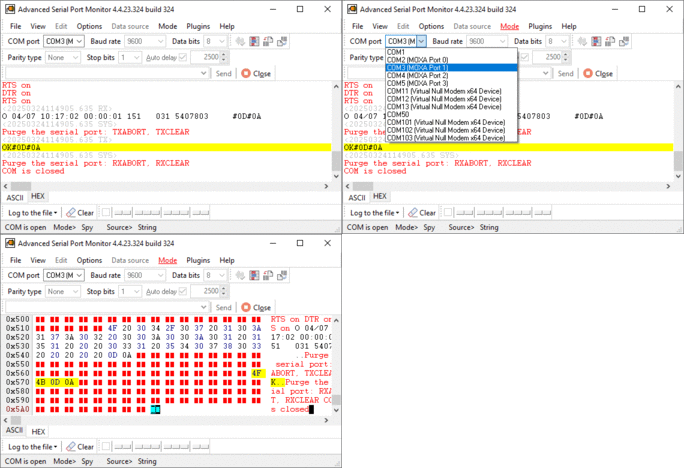
Spy (sniffer) mode. Watch data exchange between an external device and any Windows application that has the port open, without stopping it. Both directions are shown with timestamps. Read about the serial port sniffer and the spy mode.
Terminal mode. Send and receive data yourself: text, hex bytes, control characters from a popup menu, or a whole file. Full duplex, so you can transmit while data is coming in. See the RS232 terminal guide.
Automatic mode. Send a text or binary file to the port on an interval from 10 ms to 10 s and log the replies, for soak tests and device simulation.
Dual-port mode. Open two ports side by side to watch traffic between two external devices through an RS232 monitoring cable.
RS485 and RS422. An RS485 mode drives the RTS line for converters that need the PC to switch direction; RS422 works as a normal full-duplex port. See RS485 monitoring.
HEX, ASCII and binary views. Switch the view of incoming and outgoing data at any time; color-code directions; choose fonts and colors. Data can be shown as it arrives or reformatted by packet.
Timestamps. Every packet can carry a date and time stamp with millisecond precision, in the window and in the log file, so pauses and timeouts become visible.
Any port settings. Standard baud rates up to 921600 and user-defined rates, 5 to 8 data bits, 1 to 2 stop bits, all parity types, hardware and software flow control. All parameters can be changed while the port is open.
Log files. Save everything received and sent to a file, with timestamps and direction markers, for later analysis or for replaying to a port.
MODBUS master and slave. The MODBUS plugin polls RTU and ASCII slaves and emulates one or more slave devices with the registers you define. Function codes 01 to 06, 07, 08, 11, 12, 15, 16, 17 and 22. Read the MODBUS plugin guide.
MODBUS device scan. Finds the addresses that answer on an RS485 bus, so you can stop guessing slave IDs. See the device scan plugin.
Test sequences. Define request and expected response pairs and run them without writing a script; each step reports success or failure. See the test sequence plugin.
Scripting. The Scripter plugin executes scripts with commands for sending, waiting, matching and branching, for repetitive bench work. See scripting and macros.
Device emulation. The ASCII and binary simulation plugins answer requests with the responses you define, so software can be developed against a device that is not on the desk. Source code is included. See device emulation.
File transfer and log replay. Send and receive files over X-modem, Y-modem, Z-modem, Kermit or plain ASCII; replay a captured log to a port with the original timing. All plugins are listed on the plugins page.
Three modes in one window
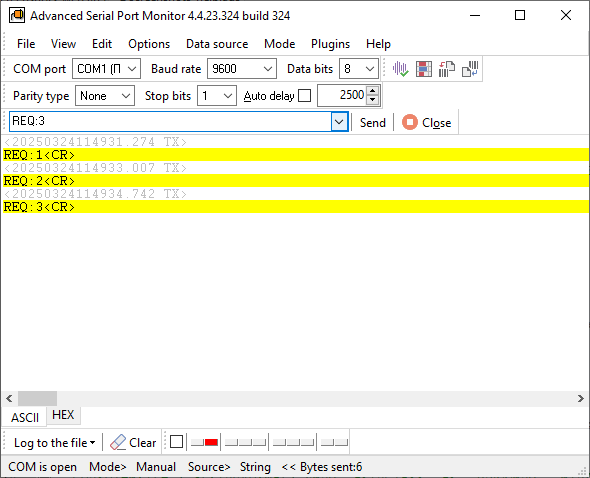
Terminal (manual) mode is where most sessions start. Open the port, type a command or pick a file, press Send, and read the reply. The window shows ASCII and hex side by side, marks the direction of every packet, and stamps it with the time. Because the port is full duplex, you can keep sending while a device streams data at you.
Spy (sniffer) mode attaches to a port that another program already has open. Nothing is unplugged and the other program keeps running; you see every byte it sends and receives, in order, with timestamps. This is the mode for debugging someone else's software, checking a driver, or recovering a protocol that was never documented. The spy driver was rewritten over the years for high baud rates and is included in the installer.
Automatic mode sends a data source, such as a file, to the port on a timer and logs what comes back. Combined with the device simulation plugins it turns a spare PC into a stand-in for the device you are waiting for.
MODBUS RTU and ASCII: master, slave simulator and scanner
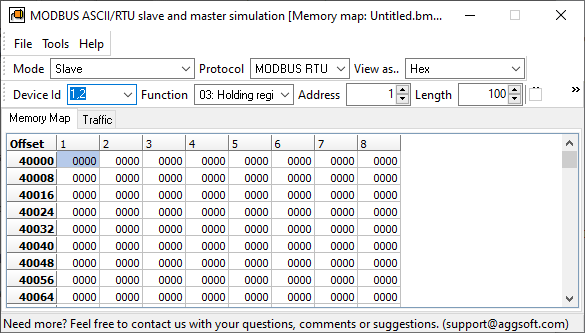
The MODBUS plugin ships with the program and works in both directions. As a master it reads and writes coils and registers in one or more slaves and shows the raw request and response next to the decoded values, which is what you need to verify a wiring change or a new device. As a slave simulator it emulates devices with the registers you define, with register maps saved to CSV and several simulation modes, so a PLC, HMI or your own master can be tested without hardware. The simulation plugin received a new interface and new modes in the July 2026 release.
Two more tools round this out: the MODBUS device scan plugin lists the addresses that answer on a bus, and our online MODBUS RTU/ASCII slave simulator does the slave part in a browser with nothing to install. For logging MODBUS registers to a database around the clock, use Advanced Serial Data Logger instead; the MODBUS software page compares the options.
Automation: test sequences, scripts, device emulation
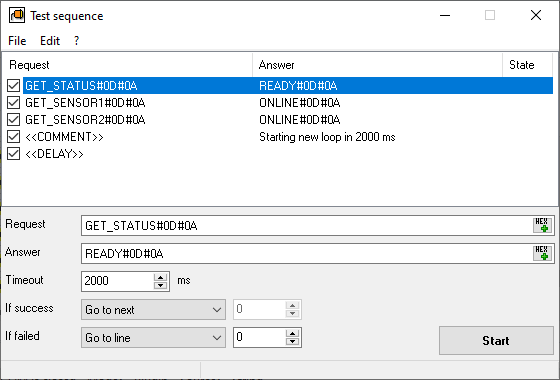
Bench work repeats. The Test Sequence plugin (added in April 2026) lets you define request and expected response pairs, run them in order and get a pass or fail per step, without a line of code. The Scripter plugin goes further with commands for sending, waiting, pattern matching and branching, for the cases where a sequence depends on what the device answered. The ASCII and binary protocol simulation plugins answer defined requests with defined responses, and ship with source code so you can adapt them. Replay log plays a captured log back to a port with the original pauses, and File transfer moves files over X-, Y- and Z-modem, Kermit and ASCII.
Guides: automated hardware validation, scripting and macros, ASCII and binary device emulation.
Who uses it
- Embedded and firmware developers watch the UART of a board through a USB-to-serial adapter, send test commands and keep a timestamped log of every session. See UART monitoring.
- System integrators check what a scale, barcode scanner, PLC or GPS receiver really sends before they configure a logger or write a parser, and use the spy mode when a vendor application misbehaves.
- Support and IT staff diagnose receipt printers, POS terminals and label printers that stopped responding, and find out which COM port a device landed on after a driver update.
- Test engineers run the same request sequence against a batch of devices and record the results, or emulate a device so that software can be tested without it.
- Automation engineers poll and simulate MODBUS RTU devices on RS485 buses and scan the bus for live addresses.
Worked examples: COM port debugging, RS232 analyzer, RS232 monitor, COM port scanner.
Compared with other serial tools
HyperTerminal has not shipped with Windows since Vista, and PuTTY and similar terminals cannot watch a port another program has open. Advanced Serial Port Monitor combines a terminal, a sniffer and MODBUS tools in one program. We keep four comparison pages current:
- Six serial port monitors compared
- Docklight vs. Advanced Serial Port Monitor
- HyperTerminal replacement for Windows 11 and 10
- Advanced Serial Port Monitor vs. 232analyzer
If you need to record a device for weeks and push the values into Excel or a database rather than look at them, the right tool is Advanced Serial Data Logger. Read when you need a logger rather than a monitor.
Price and licence
One edition, licensed per computer. The licence covers one PC or server; it is not per port or per user. Volume and unlimited licences are available from sales. Payment by card, PayPal, wire transfer and more than 15 local methods, and purchase orders are accepted from companies. The order page shows the current price for your country and the payment details.
The free trial is the full program for evaluation; buying a licence key unlocks the same installation.
System requirements
- Windows 11, Windows 10, Windows 8 and Windows 7, and Windows Server 2012 through 2025, 32-bit and 64-bit.
- Any COM port the operating system can see: built-in, PCI or PCIe card, USB-to-serial adapter, Bluetooth serial profile, or a virtual port created by another program.
- RS485 and RS422 devices through a converter.
- Download size about 7 MB. No other software is required.
Guides and tutorials
Lessons: installation · manual and spy modes · hex data and timestamps · log files and data from a file · all tutorials
COM ports on Windows: list all COM ports and find which one an application uses · COM port not working · garbled serial data: seven checks in order · how to test a COM port · add a COM port device · reset, delete or restore a COM port in Windows 11 · five common COM port errors · why applications fail to open a serial port · send data to a COM port from the command line
Cables: RS232 pinout and signals · monitoring cable · all cable diagrams
Reference: user manual (PDF) · plugins · screenshots · version history
What's new
[July 3, 2026] Advanced Serial Port Monitor gets a couple of updates. 1. We've significantly improved the MODBUS slave simulation plugin (new interface, storing registry maps to CSV files, new simulation modes). 2. We've fixed some minor bugs in the ASCII/Binary device simulation plugins.[May 15, 2026] The Advanced Serial Port Monitor software has been slightly modified to version 4.7.2 build 515. Continuation of optimizations. The new version starts noticeably faster. It handles data better at high speeds.
The full list is in the version history; the version and release date at the top of this page come from the current installer.
Frequently asked questions
Can it watch a COM port that another program already has open?
Yes. That is the spy mode. The other program keeps working, and you see both directions of its traffic with timestamps. No cable, second port or hardware analyzer is needed.
Does watching a port disturb the program or the device that uses it?
No. The spy driver copies each request and each byte as it passes through the port's driver stack and hands it on unchanged. It does not open the port itself, sends nothing to the device, and does not alter the baud rate, framing or flow control the application set, so a running link to a PLC, meter or instrument keeps running while you watch. The one rule is order: start the monitor before the application opens the port, because Windows gives the port to the first program exclusively. For a link between two external devices, dual-port mode with a monitoring cable only listens on the TX and RX lines.
Does it work with USB-to-serial adapters, Bluetooth and virtual COM ports?
Yes. Windows presents all of them as COM ports and the program opens them like a built-in port. It also lists every port with its device name, which helps when an adapter changes its number.
Can I monitor an RS485 bus?
Yes, through an RS232-to-RS485 or USB-to-RS485 converter. Use the RS485 mode if the converter needs the PC to switch direction. To listen to a running bus without disturbing it, tap the A and B lines with a second converter; the RS485 software page shows the wiring.
Does it support MODBUS?
Yes. The MODBUS plugin works as an RTU or ASCII master and as a slave simulator, and the device scan plugin finds live addresses on a bus. For unattended logging of MODBUS registers to a database, use Advanced Serial Data Logger.
What is the difference between this and Advanced Serial Data Logger?
The monitor is interactive: you open a port, send, look and save what you saw. The logger runs as a Windows service, parses the data into values and exports them to files, Excel, databases or other programs continuously. Many customers use the monitor to understand a device and the logger to collect from it.
Is it a one-time purchase?
There are two options: a yearly subscription or a perpetual licence that does not expire. Both are per computer; the order page shows the current prices for your country.
Does it run on Linux or macOS?
No. It is a Windows program. It runs in a Windows virtual machine if the serial port or USB adapter is passed through to the guest.