
How to Scan Barcodes into Excel (USB and COM Port Scanners)
A USB barcode scanner types into Excel the moment you plug it in, and for a simple list that is all you need. The first section shows that setup in two minutes. The rest of the page is about the cases where typing is not enough: a timestamp for every scan, codes that must land in a sheet that is not the active window, several scanners into one workbook, QR codes with control characters, or a scanner that has a COM port and types nothing at all. Those are the jobs for a data logger, and both of ours are free for the first 100 codes.
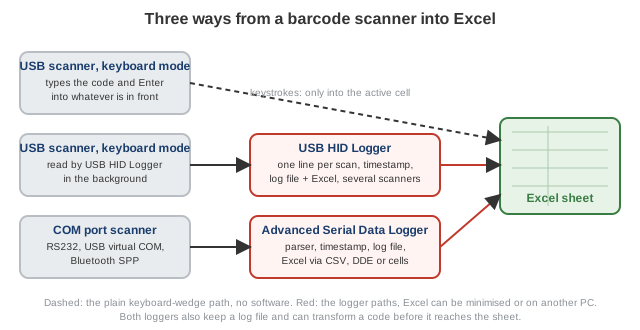
Fig. 1. Three ways from a barcode scanner into Excel
The two-minute way: USB scanner in keyboard mode
Almost every USB scanner leaves the factory in keyboard (HID) mode. Windows needs no driver, and each scan arrives as keystrokes followed by Enter.
- Plug it in. The scanner shows up in Device Manager under Keyboards or Human Interface Devices. Scan a code into Notepad to see what it sends.
- Set the terminator. Scan the "Add Enter" (carriage return) setup barcode from the scanner's manual so the cursor moves down one row after each code. Choose "Add Tab" instead when each row has several columns to fill.
- Format the column as Text. Select the target column, Format Cells, Text. Otherwise Excel turns a 13-digit EAN into 9.78E+12 and drops the leading zeros of UPC-E codes.
- Click the first cell and scan. The code appears, the cursor moves to the next row, the next scan fills it.
- Optional. A VLOOKUP or XLOOKUP in the next column turns the code into a product name from a second sheet. Data Validation with a length rule rejects mis-reads. A Worksheet_Change macro can write a timestamp next to each new code, which is the point where many people switch to a logger instead of writing VBA.
When the keyboard trick is not enough
- Excel must be in front. The keystrokes go to whatever window is active. Click into an e-mail while scanning and the codes end up there.
- No timestamp. Excel has no way to record when a cell was filled unless you write a macro.
- QR and DataMatrix codes. They can contain tabs, line breaks and group separators. As keystrokes those characters jump cells or are lost.
- Several scanners. Two people scanning into one workbook through the keyboard cannot be told apart, and they fight over the active cell.
- No record. Once a row is overwritten or the file is closed without saving, the scan is gone.
- COM port scanners. A scanner on RS232, on Bluetooth SPP or on USB in virtual-COM mode sends bytes to a port, not keystrokes. Nothing appears in Excel without software.
A data logger sits between the scanner and Excel and solves all of these: it captures every scan itself, stamps it, keeps a log file, cleans the code if needed, and writes it into the workbook whether Excel is in front or not.
USB scanner in the background: USB HID Logger
USB HID Logger reads the scanner as a USB HID device, directly from the USB bus, so the keystrokes never reach the active window. It groups the keystrokes of one scan into a line, adds the date and time, writes a log file, and exports each code to Excel as a CSV file, straight into the next row of an open workbook, or through DDE.
- Plug the scanner in and set its terminator to Enter, as above.
- In USB HID Logger click the green plus, select the scanner in the list of HID devices, and enable grouping keystrokes into a line.
- Switch on the date and time stamp and the log file.
- Choose the Excel export: CSV file, direct export into the workbook, or DDE.
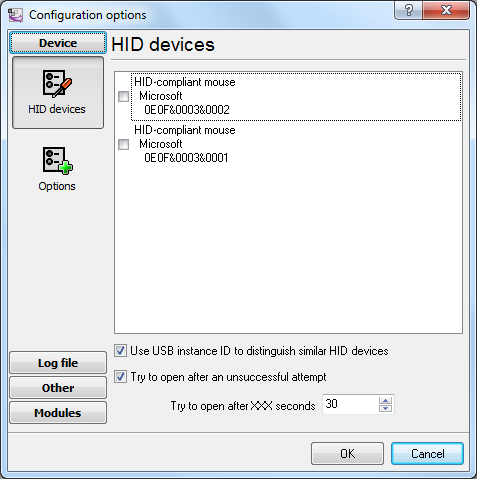
Fig. 2. Selecting the scanner among the HID devices
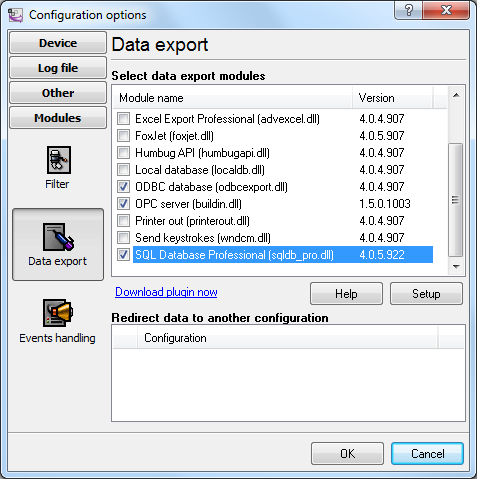
Fig. 3. Choosing how the codes reach Excel
The full walk-through with every dialog is in USB barcode scanner to Excel with USB HID Logger. The same configuration can write to a database instead of, or in addition to, the spreadsheet.
Scanner with a COM port: Advanced Serial Data Logger
Advanced Serial Data Logger opens the port, shows the bytes as they arrive, splits them into scans by the terminator or by a pause, and passes each code to Excel. Its parser can take a fixed part of the code or match it with a regular expression, so a code that carries a scanner number, a weight or a batch can be split into columns before it is exported.
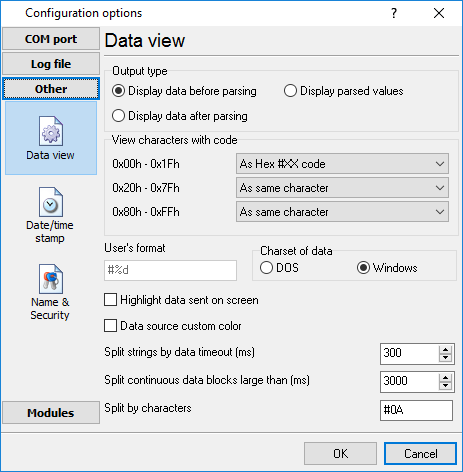
Fig. 4. Scans arriving on a COM port
Step-by-step guides:
- Process data from a barcode scanner: port settings, spotting the terminator, splitting a code into fields.
- Log every scan with a timestamp to a file, one line per code.
- RS232 to Excel: four methods, from the CSV file to the live cell, and filling a column as codes arrive.
- Sending a value to a chosen cell through DDE, and the ActiveX API for VBA that must react to each scan.
Which way for which scanner
| Your scanner | How Windows sees it | Into Excel |
|---|---|---|
| USB, keyboard mode (factory default), one scanner, someone sits at the sheet | a keyboard | no software: section 1 |
| USB, keyboard mode, but you need timestamps, a log file, background capture or several scanners | a keyboard, read as a HID device | USB HID Logger |
| USB in virtual-COM mode, RS232, Bluetooth SPP, serial-to-Ethernet | a COM port | Advanced Serial Data Logger |
| Scanner on a network (TCP/IP, Wi-Fi) | a TCP connection | Advanced TCP/IP Data Logger, same export options |
Not sure which mode the scanner is in? Scan into Notepad: characters appear, it is keyboard mode; nothing appears but a new COM port exists in Device Manager, it is virtual-COM mode. Most scanners switch between the two with a setup barcode from the manual.
Phone scanner apps
Scanner apps for Android and iPhone save a list of codes and export it as a spreadsheet, or push it to a cloud sheet that Excel refreshes. They suit a stock count in the field. For a workstation, a warehouse desk or a production line, a dedicated scanner reads faster, works with gloves and never needs its battery charged, and a logger on the PC gives the timestamped, unattended capture that the apps cannot.
Troubleshooting
- The scanner is not in Device Manager. Check the cable and try another USB port. A device with a warning icon needs the maker's driver; the VID and PID on its Details tab (for example USB\VID_2516&PID_0015) find it.
- Codes land in the wrong place. Keyboard mode types into the active window and the selected cell. Use a logger when the sheet cannot stay in front.
- 9.78E+12 or missing zeros. The column is numeric. Format it as Text before scanning.
- All codes in one cell. The terminator is missing. Scan the "Add Enter" setup barcode.
- QR codes come in mangled. Control characters were typed as keys. Use a logger, which receives the raw data, or switch the scanner to virtual-COM mode.
- The scanner does not read a code type. Some symbologies are disabled by default. Enable them with the setup barcodes in the manual; if the scanner does not support the symbology, no software helps.
- Your application rejects the code. Fixed length, check digit or a required prefix. Both loggers can cut, add or reformat characters before the code is delivered, without a macro.
Further reading
- USB barcode scanner to Excel with USB HID Logger: the keyboard-mode scanner captured in the background.
- Process data from a barcode scanner and log every scan with a timestamp: the COM port scanner.
- WinWedge alternative and TWedge comparison: how the loggers compare with classic keyboard-wedge software.
- Combining data from two COM ports: two scanners, one sheet.