
USB Barcode Scanner to Excel: Log Every Scan With a Timestamp (Keyboard Mode)
Most USB barcode scanners work as a keyboard: every scan is typed into whatever window is in front, followed by Enter. That is enough for a quick list, and the barcode scanner to Excel guide shows the two-minute setup. It stops being enough when the codes must go into a sheet that is not in front, when every scan needs a date and time, when several scanners feed one sheet, or when a log file has to exist next to the spreadsheet, when it should work in backgroud, when a scanner code should be reformatted, etc. USB HID Logger reads the scanner directly, as a USB HID device, so Excel can stay minimised or even run on another computer.
1. Prepare the scanner
- Plug the scanner in. Windows needs no driver for keyboard mode; the scanner appears in Device Manager under Keyboards or Human Interface Devices.
- Make sure the scanner adds a terminator after each code. Scan the "Add Enter" (carriage return) setup barcode from the scanner's manual. The logger uses that character to separate one code from the next.
- Scan a code into Notepad once. If it appears as expected, the scanner side is done.
2. Add the scanner to USB HID Logger
2. Create a new configuration and select necessary USB HID devices from a list. If your USB device is not plugged yet, connect it temporarily before creating the configuration (fig. 1).
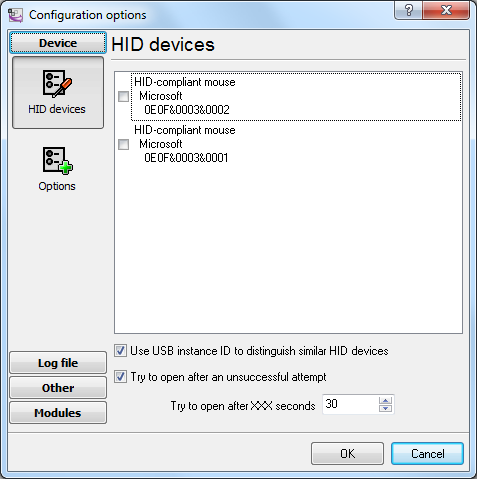
Fig. 1 Selecting a USB device
3. Select the following options:

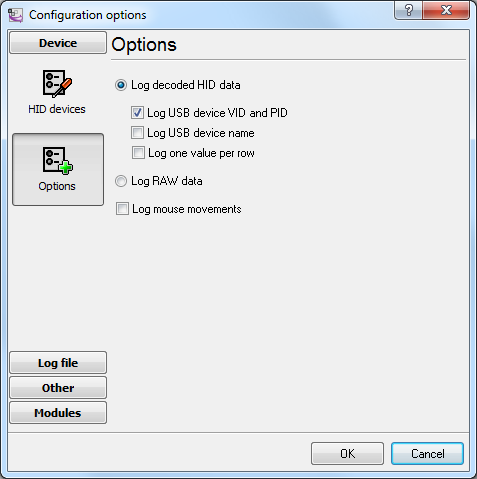
Fig. 2 Selecting a logging mode
4. In the same configuration, enable the option that groups keystrokes into a line of characters. The program reads the scanner's keyboard reports one key at a time; this option collects them until the terminator arrives and hands over the whole code. It was added for barcode and RFID scanners in keyboard mode and is off for other HID devices.
5. Click OK. Scan a few codes: each one appears as a separate line in the main window.
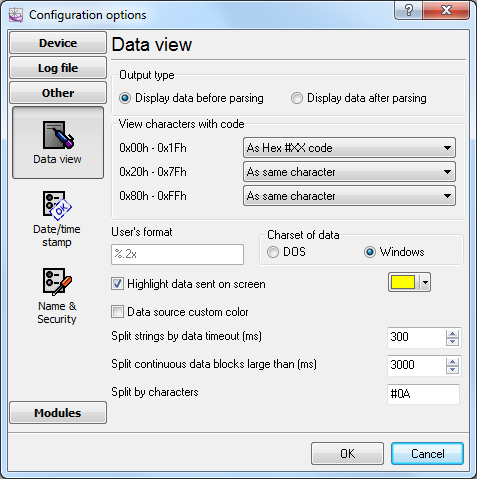
Fig. 3 Scanned codes in the main window
3. Add a timestamp and a log file
Open the configuration again and go to the log file settings. Enable the log file for received data and switch on the date and time stamp, so that every scan is written as one line with the moment it was read. The file can be rotated by day or by size, which keeps a permanent record independent of what happens to the spreadsheet.
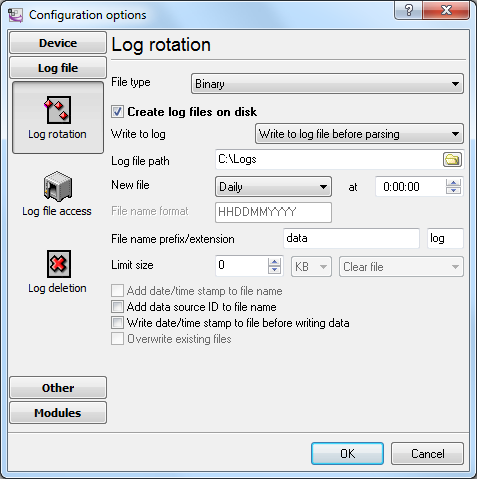
Fig. 4 Log file with date and time stamps
4. Send the codes to Excel
There are two ways, and they can run at the same time.
- CSV file for Excel. Enable writing the received data to a log file in the CSV format (fig. 5). The file opens in Excel with one row per scan: date, time, code. This is the simplest way when the sheet is filled in once a day or once a shift. The USB to Excel tutorial describes the file options.
- Live export. Select the Excel export in the data export plugins (fig. 6) to put every code into the next row of an open workbook as it is scanned, or use the DDE server to feed a formula in a cell. Excel does not have to be the active window for this to work, and it can be a workbook on another computer that reads the CSV from a shared folder.
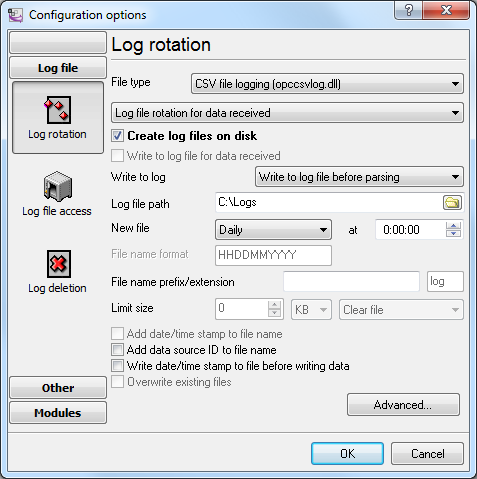
Fig. 5 CSV log file for Excel
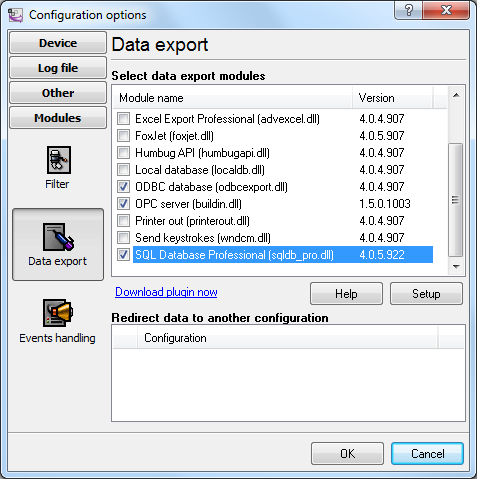
Fig. 6 Data export plugins
Note 1. The log folder must be writable. Do not write to the root of drive C:, to Program Files or to the Windows folder; since Windows Vista only the administrator can write there.
Note 2. When the program runs as a Windows service, the service account has restricted rights to create files; give it a folder of its own.
5. Check the result
Scan a code with Excel minimised. The line appears in the main window with its timestamp, the log file grows by one row, and the workbook or CSV file gets the new row. If the code comes in as single characters instead of one line, the terminator is missing: scan the "Add Enter" setup barcode again and check step 2.4.
Variations
- Several scanners. Add each scanner as its own configuration; each can log to its own file and to its own column or sheet, or all of them to one sheet with the device name in a column.
- Clean up the code first. The data filter can cut a prefix, keep only the digits, or reject codes of the wrong length before the export, so the sheet never needs a formula for that.
- Scanner with a COM port. A scanner that appears as COM port (RS232, Bluetooth SPP, USB in virtual-COM mode) does not type anything. Use Advanced Serial Data Logger instead: process data from a barcode scanner and log every scan with a timestamp.
- Database instead of Excel. The same configuration can write to a database, MS SQL Server or MySQL.
- Play a sound for evert processed barcode. The event notification plugin can play any WAV file when for the "NEW-DATA-PACKET" event generated automatically in the program.
Related articles: USB Barcode Scanner to Excel: Log Every Scan With a Timestamp (Keyboard Mode)
- USB barcode scanner to Excel: log every scan with a timestamp (keyboard mode).
- Write HID report items to a database.
- USB HID to MSSQL (write a lot of HID report items).
- USB HID to MS SQL Server (write several HID report items to separate columns).
- Write HID report values to the MySQL database.
- USB to Excel: Write HID report data to Excel in real-time.