
ScanBridge: Android Barcode Scanner to PC over Wi-Fi
ScanBridge is an Android app that sends every barcode you scan to a PC the moment it is scanned. It takes the code from the built-in scanner of an industrial handheld or from the phone camera, sends it over Wi-Fi as a text line to Advanced TCP/IP Data Logger or Data Logger Suite, and keeps it on the device while the network is down. The logger adds the time stamp and writes the codes to Excel, a CSV file or a database.
Time-limited demo for Android 7.0 or newer, APK of about 6 MB. The demo terms and requirements are below.
Why an app is needed
Most Android handhelds deliver a scan to the device itself: the scanner service types the code into the app that has the focus, the way a USB scanner types into Excel. Phone scanner apps keep a list on the phone and export it later. Neither puts the code into a program on a PC at the moment it is scanned, and neither leaves a time-stamped record there. ScanBridge does both over a plain TCP connection, so the PC needs no driver and no cloud service.
Scanners and inputs
- BARTEC Scan Engine (SC9EX1 Smartscanner) through BARTEC's SDK, with no setup on the device. The app was first built for this scanner; the customer case tells the story.
- Zebra DataWedge. One tap in Settings creates a DataWedge profile that sends the scans to the app.
- Urovo, Newland, iData, Seuic/M3, Chainway, Sunmi, Datalogic, Unitech and Bluebird. The default scan broadcasts of these devices are received without setup.
- Any other scanner app with a broadcast intent output. Enter its intent action and the extra that holds the barcode in Settings.
- The phone camera: QR, Data Matrix, PDF417, Aztec, EAN/UPC, Code 128, Code 39, Code 93, ITF, Codabar and GS1 DataBar, one code at a time or continuously.
- A Bluetooth scanner in keyboard mode paired with the phone, while ScanBridge is on the screen.
Not sure how your device delivers its scans? Settings > Scanner diagnostics shows every scanner broadcast and key press the app receives, and Share report sends the result to us.
What arrives on the PC
One line per scan. In the plain format (the default) a scan is the code followed by a line end: LF, CRLF or none.
Or one JSON object per line, with the device name, a sequence number, the source, the barcode type and the capture time:
{"seq":42,"device":"SC9EX1-1A2B","source":"scanner","symbology":"EAN13","data":"4006381333931","time":"2026-11-06T14:03:05.123+01:00"}The device name and the sequence number identify every scan, so duplicates can be dropped. Control characters, such as the group separators in GS1 codes, are escaped, so the line is always valid JSON. The logger's JSON parser splits the fields into columns.
No lost scans. While the PC cannot be reached, scans are stored on the device, survive a restart or a flat battery, and are sent in the order they were made once the connection is back.
In the background. Scans from the built-in scanner are received and sent while another app is in front. A notification shows the connection state and the number of waiting scans.
Several devices. Each handheld keeps its own connection open and reconnects by itself, and one logger configuration in server mode accepts them all.
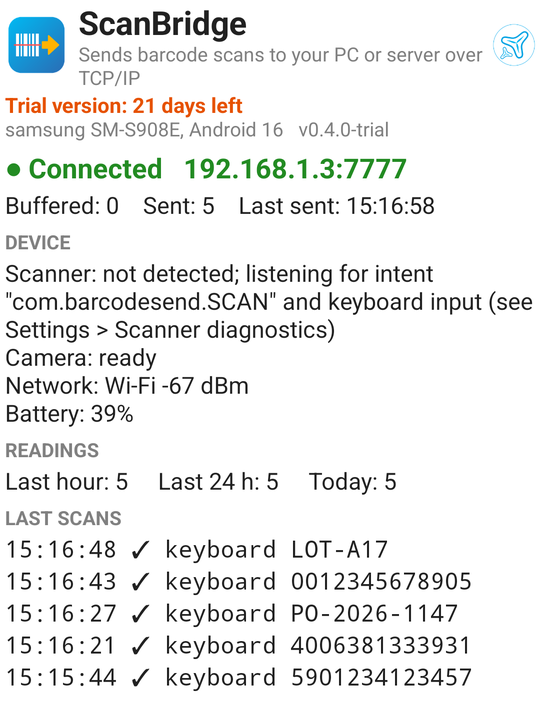
Fig. 1. Connected to the PC, five codes sent (here typed into the input field, the path a Bluetooth scanner in keyboard mode uses)
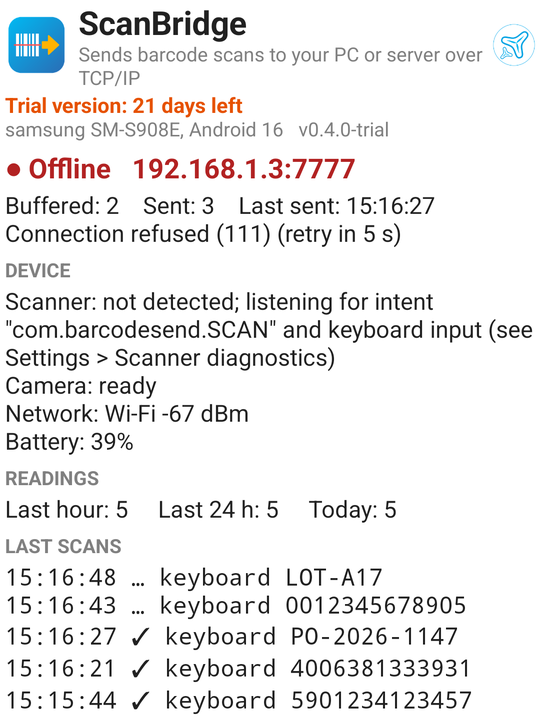
Fig. 2. The PC cannot be reached: two scans wait on the device and go out in order when the connection is back
Any program that accepts TCP connections can receive the lines. Advanced TCP/IP Data Logger does it without programming and passes each scan on to the export you choose.
Setup with Advanced TCP/IP Data Logger
- On the PC. In Advanced TCP/IP Data Logger, add a TCP/IP data source in server mode on port 7777 (the app's default). Set the parser to split the data at the line end, so one scan is one record, and choose the export: Excel, CSV or a database. Allow the port in Windows Firewall.
- Install the app. Open the download link on the device, or copy the APK to it. Android asks once to allow installs from the browser or file manager. For many devices, install it with adb or through your MDM.
- Point it at the PC. In ScanBridge's Settings, enter the IP address or DNS name of the PC and the port, tap Test connection, then Save. The main screen shows Connected.
- Keep it running. In Settings, tap Allow unrestricted battery use, so that Android does not pause the app. On a Zebra device, also tap Create DataWedge profile.
- Scan with the trigger, or with the Camera button on a phone. The code appears in the logger and goes on to the workbook or the database.
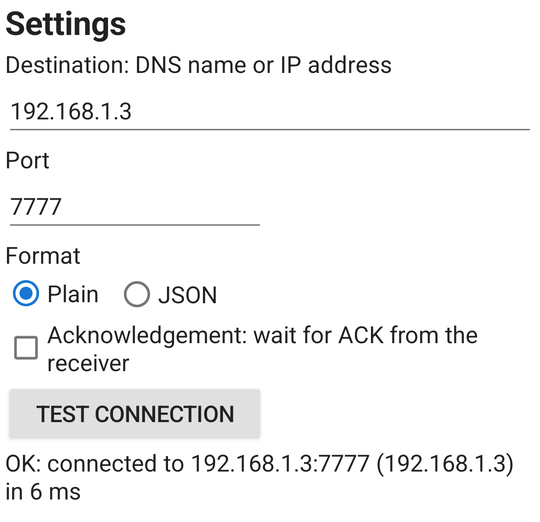
Fig. 3. Settings: the address and port of the PC, the format and the connection test
Download and demo terms
- Version 0.4.0 of 13 November 2026, for Android 7.0 or newer: phones, tablets and handheld scanners, ARM or x86. One APK fits all of them. The app is not on Google Play.
- Demo terms. The demo works for 21 days from the first start. Each start runs for about half an hour; after that the app takes no new scans until it is started again. Scans that are already waiting are still sent.
- Languages: English, German, French, Spanish, Italian, Portuguese, Japanese, Chinese and Russian, following the device language.
- Privacy. Scans go only to the address you enter. The app sends anonymous usage statistics and error reports, without barcodes, server addresses or device IDs; Settings > Send anonymous usage statistics and error reports switches them off.
- Signature. Signed by AGG Software. Certificate SHA-256: F6:95:D7:4A:DB:16:E9:1B:CB:AF:36:7E:72:4B:8B:B9:4E:9F:8C:C9:E8:B2:6F:3C:5E:DF:9C:57:07:05:17:87.
Full version and other scanners
ScanBridge shows what we can build for a device that has no network output of its own. Write to us if you need it without the time limit, or for a scanner that is not on the list above: the scan input is a small module, and a new device can be added from its SDK or its intent documentation.
Troubleshooting
- The main screen shows Offline. "Connection refused": the logger is not listening on that port, or the Windows Firewall blocks it. "Timed out": a wrong IP address, a different network, or a Wi-Fi that isolates its clients from each other. "Cannot resolve": the network does not know the DNS name; enter the IP address instead.
- "Scanner: not detected", and scans appear as typed text. The scanner service types the codes instead of sending them to apps. Open Scanner diagnostics, press the trigger, and share the report with us.
- Scans stop after the device has been idle for a while. Android paused the app to save power. Tap Allow unrestricted battery use in Settings; on Samsung devices also set the app to Unrestricted with Power saving settings for this app.
- The app takes no new scans after about half an hour. That is the demo's limit per start. Close it with Back twice and open it again.
- "App not installed". The device runs an Android version older than 7.0, or a ScanBridge build with another signature is installed; uninstall that one first.
Frequently asked questions
Does ScanBridge send my barcodes anywhere else?
No. Scans go only to the address and port entered in the app's settings. The anonymous usage statistics contain no barcodes, server addresses or device IDs, and they can be switched off.
Does it need Google Play or a cloud account?
No. The APK is installed directly, and the app connects to the PC over your own network.
Can several scanners send to one PC?
Yes. Each device opens its own connection, and one logger configuration in server mode accepts them all. In the JSON format the device field tells the scanners apart.
Does it work over the internet, not only over Wi-Fi?
Any network that reaches the port on the PC works, including mobile data. The connection is not encrypted, so use a VPN when the scans cross the internet or a shared network.
What happens when the Wi-Fi drops?
Scans are stored on the device, survive a restart or a flat battery, and are sent in the order they were made once the PC can be reached again.
Related pages
- Barcodes from an Android handheld scanner into a data logger over Wi-Fi: the customer case behind ScanBridge.
- How to scan barcodes into Excel: USB and COM port scanners, and which way suits which scanner.
- Advanced TCP/IP Data Logger and its JSON parser.