
ESI (csv) SMDR setup and CDR format
This page shows how to get call records out of the ESI (csv) into Advanced PBX Data Logger: the connection settings, the parser to select and the 11 fields the logger extracts for reports or a database. The settings apply to our logger; other call accounting software may expect a different configuration.
Quick facts
| Item | ESI (csv) |
|---|---|
| Interface | LAN. The PBX accepts a connection on TCP port 59003; the logger connects to the PBX IP address. |
| Port | 59003 |
| Parser to select | ESI (csv) |
| Fields extracted | 11 |
| Other ESI systems | ESI SMDR formats: IVX128, tabular, CSV v2 and v3 |
| serial parameters (documented) | 8 data bits, 1 stop bit, no parity |
SMDR formats
Supported models: ESI-1000, ESI-600, ESI-200, ESI-100, ESI-50
Advanced PBX Data Logger supports: CSV and Extended SMDR formats
Capturing SMDR data over Ethernet
The NSP1 can be used to output SMDR data over an IP network. The TCP can be xx003 (default value is 59003). For more information about PBX settings, see NSP Installation Made Simple (ESI # 0450-0669).
Capturing SMDR data through RS-232 port
Use an RS-232C cable to connect a PC's serial port to the system's Maintenance/SMDR port. If necessary, consult the Hardware Installation Manual. SMDR data will be stored temporarily if a laptop is connected for programming (5-15 minutes). The buffered SMDR data will resume output to the serial port.
Entering programming mode
You may program from any ESI desktop phone in the system:
1. Press PROG/HELP at any station. The normal station programming menu prompts will begin to play.
2. Press HOLD. The "enter password" prompt will play.
3. Enter the Installer password (default is 789). Then, to confirm the password, either press # or wait two seconds. You are now in programming mode.
The extension will be automatically placed in DND, and its display will show:
INSTALLER
CMD:
4. The system will play the system programming menu. Follow it to program as you wish.
5. When finished, hang up.
Function 18: Maintenance/SMDR serial port
Real-time SMDR call records are continuously output to the SMDR port.
1. Select the output device by pressing the scroll keys (SERIAL or ETHERNET (if connecting to a LAN through an NSP board)).
2. The system will then prompt you for the serial port baud rate. You can change this rate by pressing the scroll keys.
3. Select the SMDR format, STANDARD, EXTENDED, or CSV, by pressing the scroll keys.
If necessary, consult the ESI Communications Servers: Programming Manual
Settings from the manufacturer's documentation
Taken from ESI SDMR Outputs. Values are those stated in the documentation; confirm them against your firmware release.
| Setting | Documented value |
|---|---|
| serial parameters | 8 data bits, 1 stop bit, no parity |
| SMDR format default | tabular (CSV is the alternative, selected in system programming) |
Record format notes
- CSV format fields are quoted and comma-separated: type, MMDDYYYY, HHMMSS start, HHMMSS duration, extension, digits dialed/caller ID (up to 28 chars, null-filled), caller ID name (up to 24 chars), Esi-Link home/remote location, line number; null fields are still output as empty quoted placeholders.
- CSV format does not support account codes, unlike the tabular format.
- Each CSV record is terminated with a line feed and carriage return.
Configuring PBX Data Logger as a TCP client
Our software should work in the TCP client mode. It means that our software will initiate connection with the PBX and the PBX will work as a server. Add one or several PBX IP addresses here (the IP address of the ESI). The port number should match the port that you have defined within the PBX (59003 in the example below).
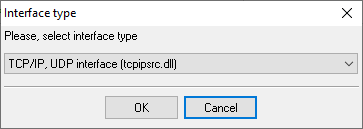
1. Add a new configuration with the TCP data source (if you didn't it before).
2. Configure the TCP settings as shown below.
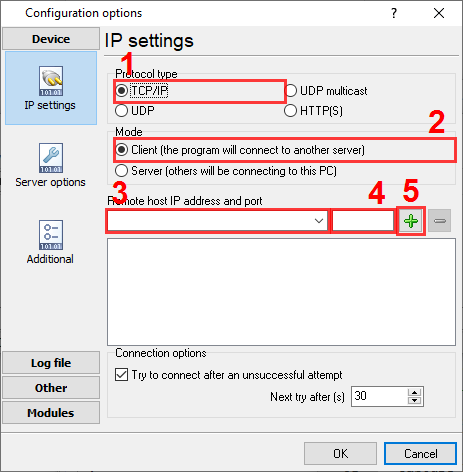
192.168.1.220
59003
192.168.1.220:59003
Selecting the correct parser for ESI (csv)
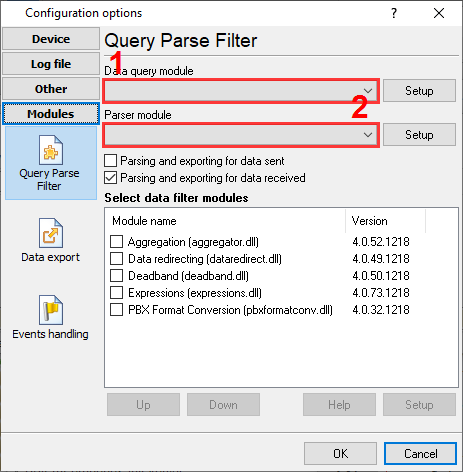
ESI (csv)
ESI (csv)
Data items
| Description | Data type | Column name |
|---|---|---|
| Call type | string | CALL_TYPE |
| Direction | string | DIRECTION |
| Call time | datetime | CALL_TIME |
| Call duration | datetime | CALL_DURATION |
| Call duration (s) | integer | CALL_DURATION_S |
| Extension | string | EXT |
| Phone | string | DIALED_PHONE |
| Caller ID name | string | CALLER_PHONE |
| Esi-Link home location number | string | FLAG1 |
| Esi-Link remote location number | string | FLAG2 |
| Line number | string | TRUNK |
Sample record
As delivered by the system; phone numbers, names and public addresses are masked.
I,070xxxxx,000852,000059,"101","214xxxxxxx","NAME   SYS INC. ","01","04","54"
"I","070xxxxx","000852","000059","101","214xxxxxxx","NAME   SYS INC. ","01","04","54"
"O","103xxxxx","221502","020512","190","121xxxxxxxx",""," "," ","11"
Reports and a database
Once records arrive, the logger writes them to a text file or to any ODBC database in real time, or hands them to the PBX Reports utility for manual, scheduled and e-mailed reports with a built-in web server. See exporting call log data to a database for the database setup.
Related ESI systems
ECI Telecom Coral IIIDigium Switchvox (Event Notifications)
ESI (tabular)
ESI IVX128
ESI SMDR formats: IVX128, tabular, CSV v2 and v3
All supported PBX systems
Note: Products and companies mentioned here are used only for definition and identification purposes and can be trademarks and/or registered trademarks of the respective companies.
Related topics: Advanced PBX Data Logger
hereCall logging Call accounting SMDR to SQL SMDR Listener Cables and signals