
How to Open dcomcnfg and Set DCOM Permissions for OPC (Windows 10, 11)
OPC and DCOM on Windows 10, 11, Server 2019 and 2022: 1. OPC Core Components · 2. Users and permissions · 3. Firewall · 4. DCOM settings (dcomcnfg) · 5. Troubleshooting. Older systems: the Windows 7 and Server 2008 version of this part.
This part sets the DCOM permissions that let an OPC client on one computer reach an OPC DA server on another. If you only need to open the DCOM configuration tool, the commands are right below; the settings follow, and part 5 lists the errors you see when something is wrong.
How to open dcomcnfg (Component Services)
- Run dialog: press Win+R, type
dcomcnfgand press Enter. The same console opens withcomexp.msc, or from the Start menu as Component Services. - Command line: in cmd or PowerShell run
dcomcnfgormmc comexp.msc. Start the console as administrator, otherwise most settings are greyed out. - 32-bit OPC server on 64-bit Windows: run
mmc comexp.msc /32; the 32-bit COM applications are missing from the DCOM Config list of the 64-bit console. - Where the settings are: Component Services → Computers → My Computer. The computer-wide defaults are in the properties of My Computer (section 4.1); the DCOM Config folder holds the per-application settings of every registered OPC server and of OpcEnum (section 4.2).
4. Specifying DCOM properties
For OPC servers to run correctly, you should specify the DCOM network and security properties.
There is no need to configure OpcEnum because this service is automatically configured when you install OPC Core Components.
This example shows how to specify the properties for the test OPC server "Test OPC Server" (it is a 32-bit application). You can configure the DCOM parameters using the control panel of the Windows ComponentService. Depending on the word size of the operating system and the OPC server application, you should run the corresponding version of the control panel:
- 32-bit version of Windows - dcomcnfg command (fig. 19.1).
- 64-bit version of Windows and 64-bit OPC server executable file - dcomcnfg command (fig. 19.1).
- 64-bit version of Windows and 32-bit OPC server executable file – mmc comexp.msc /32 command (fig. 19.2).
To run the command from the command line, open the Run dialog box by pressing Win+R on the keyboard.
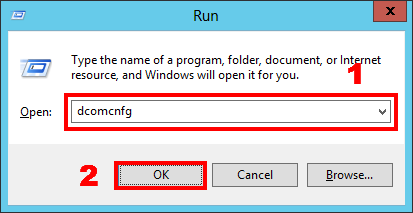
Fig. 19.1 Starting Component Services (case 1)
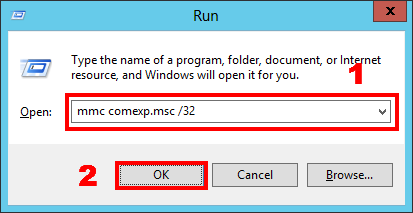
Fig. 19.2 Starting Component Services (case 2)
4.1 Specifying the default properties
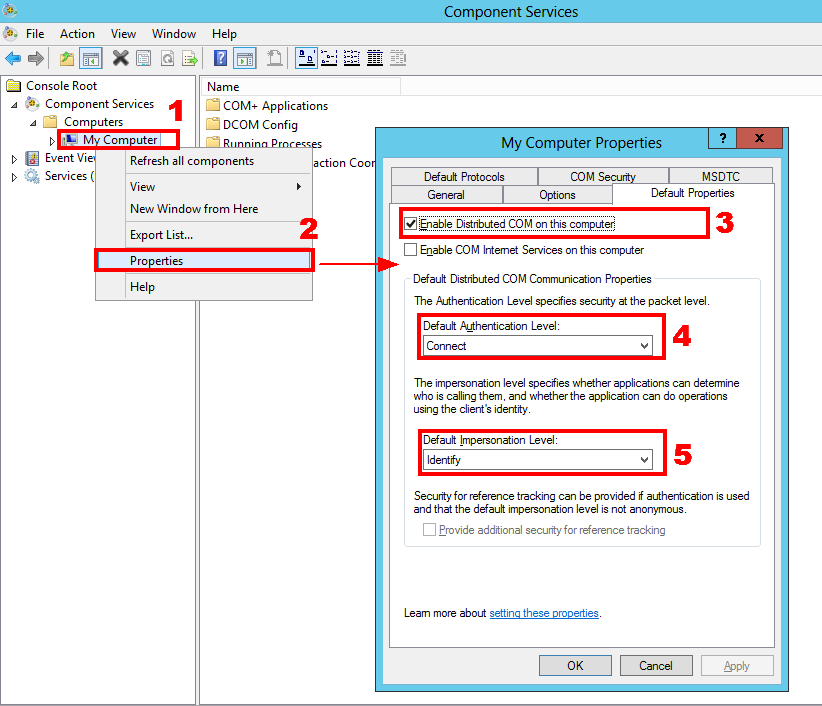
Fig. 21 Properties
Authentication level after the DCOM hardening updates. Since the Windows updates of June 2022, enforced from March 2023 (KB5004442), a DCOM server rejects activation requests with an authentication level below Packet Integrity. OPC DA links that worked for years then fail with "access denied", and the System event log shows event 10036 on the server or 10037 and 10038 on the client. Updated Windows clients raise their level automatically; for programs that set a lower level in their own code, and for non-Windows clients, set the Default Authentication Level on this tab to Packet Integrity on both computers and update the software. Part 5 has the full procedure.
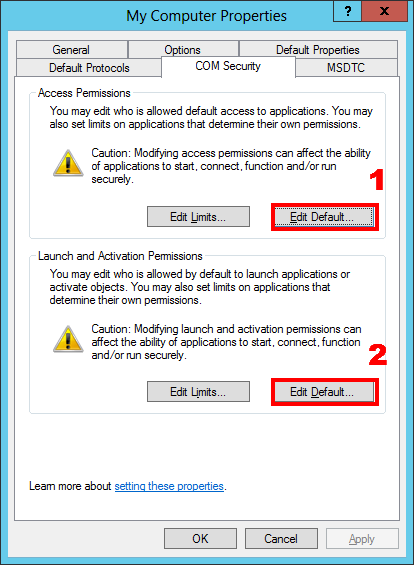
Fig. 22 COM security
Click button 1 (fig. 22). In the new dialog box (fig.23):
- Click the Add button;
- Add the DCOM users group by performing operations similar to those shown in figures 7 – 9;
- Set access permissions for it;
Click the OK button to save the changes.
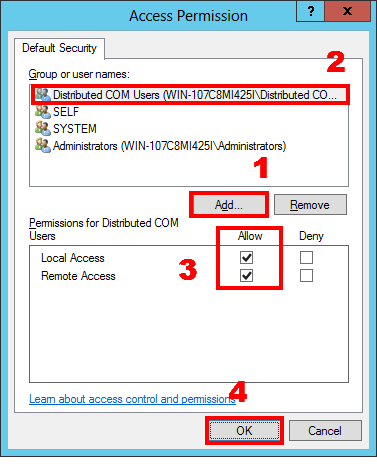
Fig. 23 Configuring access permissions
Repeat the operations in the Launch and Activation Permission dialog box (fig.24) that appears when you click the Edit Default button (fig. 22).
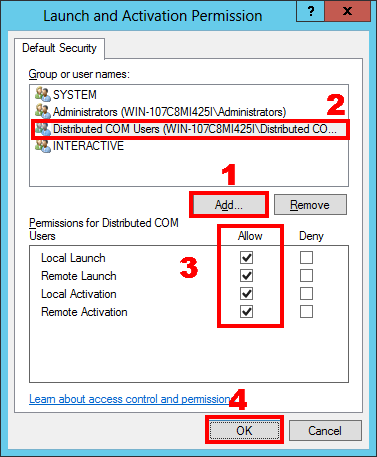
Fig. 24 Configuring launch permissions
Delete all protocols except for TCP/IP on the Default Protocols tab (fig.25) and click OK to save the changes in the My Computer - Properties dialog box.
DCOM ports. A client first calls the RPC endpoint mapper on TCP port 135, then the server answers on a dynamic port that Windows Vista and later take from the range 49152 to 65535 (1024 to 5000 on older systems). Both must be open in the firewall, as described in part 3. To keep the range small, select TCP/IP on this tab, click Properties and add a port range of your own; that range is then the only one the firewall has to allow.
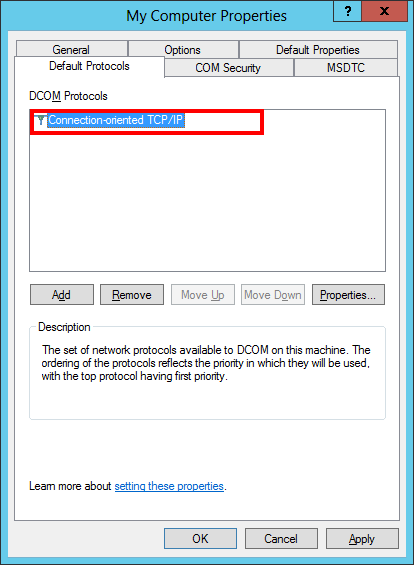
Fig. 25 Configuring protocols
4.2 Specifying OPC server properties
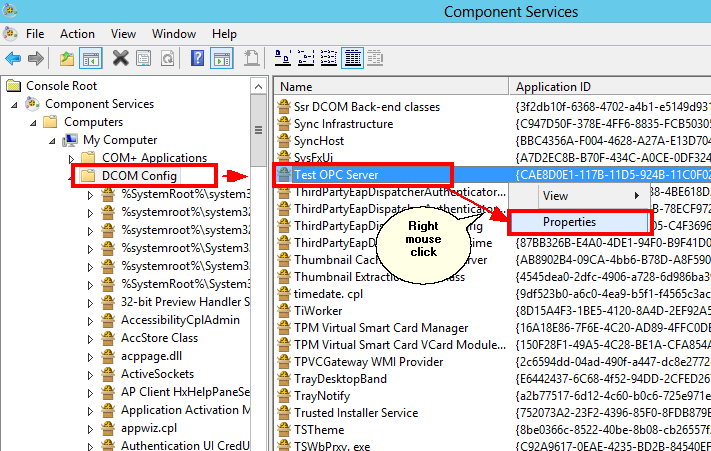
Fig. 26 Specifying DCOM properties for the OPC server
Since all properties have already been specified for the entire computer, you should make sure that the OPC server uses the default properties.
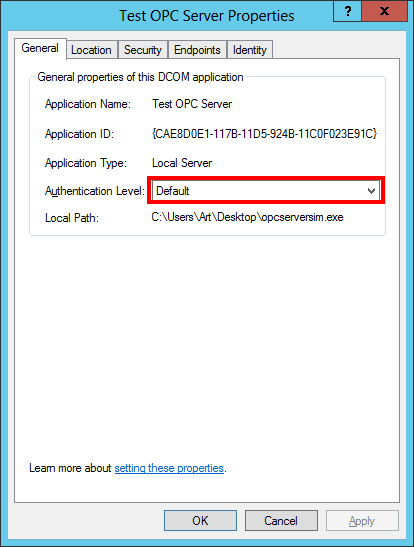
Fig. 27 General OPC server properties
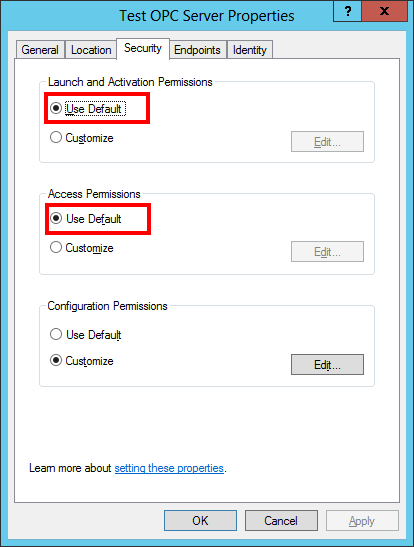
Fig. 28 Security properties
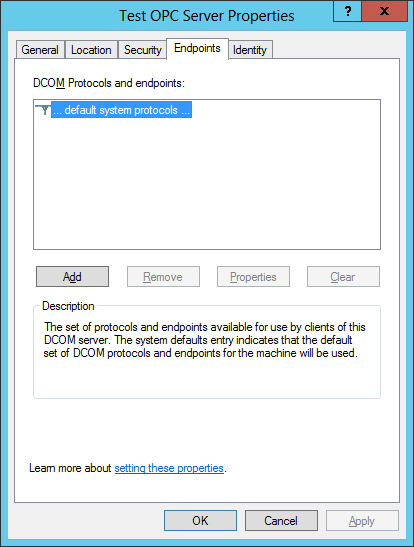
Fig. 29 Endpoints
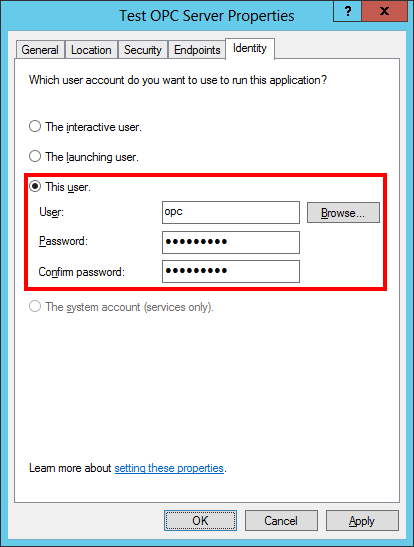
Fig. 30 Identity
You should specify the previously created user that will launch the OPC server on the Identity tab.
Note 1. Before you edit the properties of the OPC server, you should make sure that it is not running and is absent in the list of active processes. Or restart the OPC server after you edit its properties.
Note2. It is necessary for some OPC servers to be launched with administrator permissions at least once in order to get registered in the system and initialize the parameters of the OPC server. They will be available for detection via OpcEnum and connection only after such initialization.
4.3 Configuring the Everyone access to OPC servers
Attention! Access permission for everyone may lower the security level of the computer.
Sometimes it may be necessary to permit access to the OPC server for everyone, including anonymous users. For example, when the computer with the OPC server does not belong to a domain, and many clients connect to the server.
Advantages:
- It is possible for the computer with the server not to belong to the domain;
- No need to create users on the computer with the OPC server;
- Users can run the OPC client using their own account.
Disadvantages:
- Lower security because of the remote access to DCOM for everyone.
If you want to provide access to the OPC server for everyone, you should configure individual access permissions for the selected OPC server.
Open the DCOM properties for the OPC server, as shown in section 4.2, and edit them according to fig.31 – fig.34. The other properties must correspond to the ones specified in section 4.2.
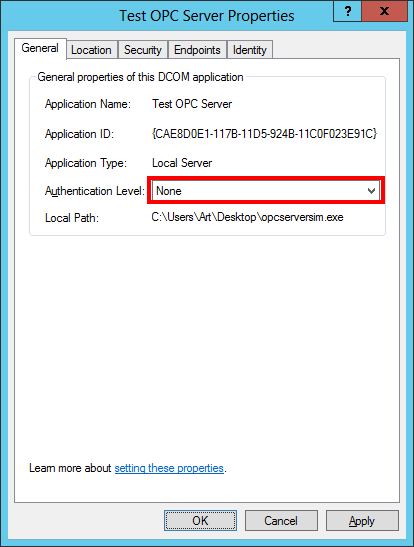
Fig. 31 General properties
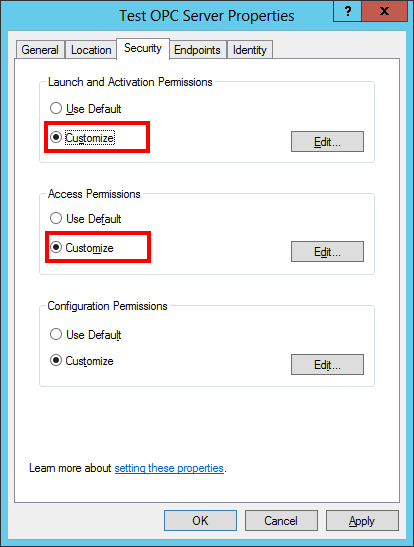
Fig. 32 Security properties
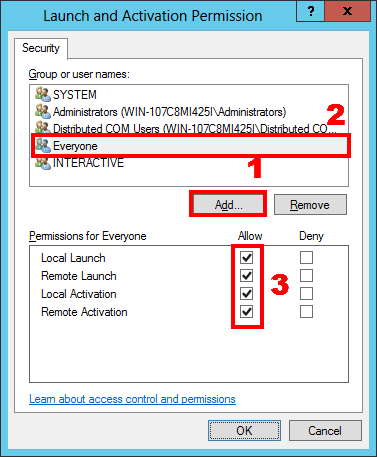
Fig. 33 Launch and activation permissions
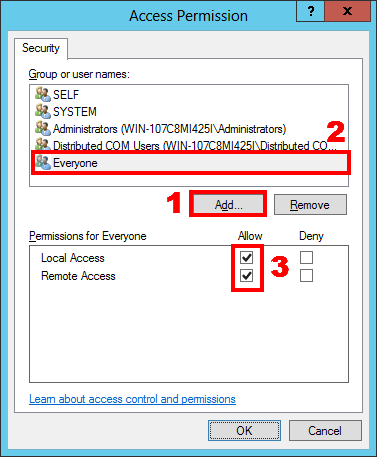
Fig. 34 Access permissions
You should configure the local security policy. To do it, you should open the Local Security Policy console. You can open the console by moving the mouse pointer to the corner and selecting Settings - Control Panel - System and Security - Administrative Tools - Local Security Policy. You should go to the Local Policies: Security Options section. And set the rule Network access: Let Everyone permissions apply to anonymous users to Enabled (fig. 35).
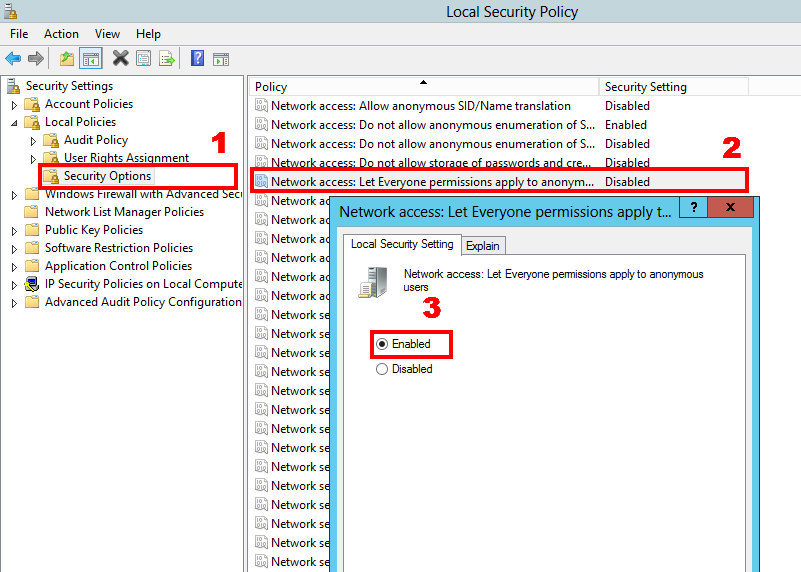
Fig. 35 Security policy properties
If you change the security policy (as shown in fig. 35) and OPC clients cannot get the list of OPC servers and connect to them, you should specify and save advanced security policy properties (fig. 36-37).
- DCOM: Machine Access Restrictions in SecurityDescriptor Definition Language (SDDL) syntax
- DCOM: Machine Launch Restrictions in Security Descriptor Definition Language (SDDL) syntax
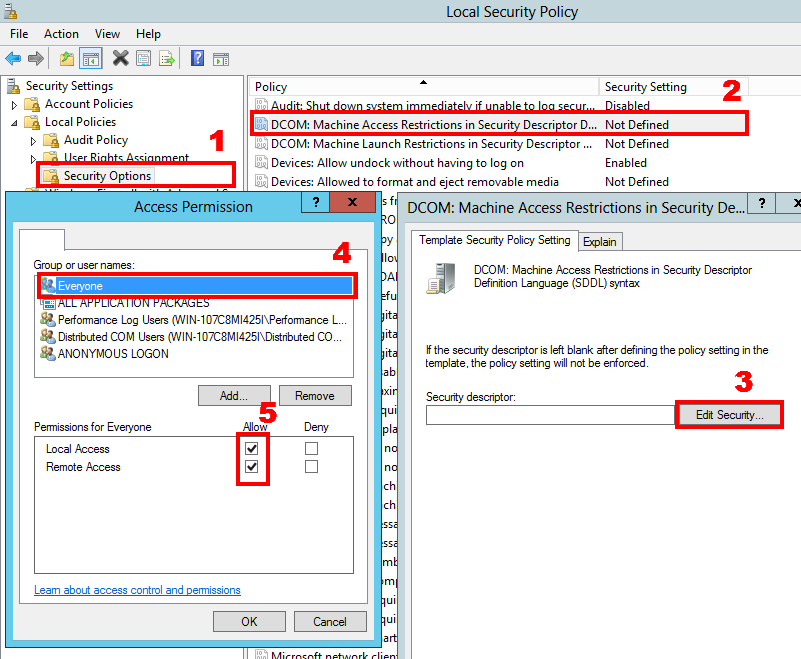
Fig. 36 DCOM: access restrictions
You can find a detailed description of how to add a group or user in section 2.2.
Test the DCOM setup, or avoid DCOM altogether
Test with our tools. The free OPC Server Simulator is a small OPC DA and OPC UA server you can install on the server computer to check the DCOM settings before the real server is involved. On the client side, Advanced OPC Data Logger or the OPC Scada Viewer show at once whether tags arrive, and their message logs name the DCOM error, which part 5 explains.
Avoid DCOM. DCOM is needed only when an OPC DA client and its server sit on different computers. Three ways around it: install Advanced OPC Data Logger on the server computer and let it write the tags to a SQL database, which every other computer reads without DCOM; bridge the OPC DA server to OPC UA with Datatag Link, because OPC UA runs over TCP with its own security, and group tags from several DA servers in one UA server while you are at it; or hand the tags to web applications through the OPC HTTP Gateway. The OPC software overview compares all of them.
Related articles: How to Open dcomcnfg and Set DCOM Permissions for OPC (Windows 10, 11)
OPC and DCOM Configuration on Windows 10, 11, Windows Server 2019, 2022
- Part 1. Installing OPC Core Components.
- Part 2. OPC and DCOM Configuration. Creating a user and giving access permissions.
- Part 3. Configuring the Windows 10, 11, Windows Server 2019, 2022 firewall for DCOM and OPC.
- Part 4. DCOM Configuration. Dcomcnfg.
- Part 5. OPC and DCOM Configuration. Typical problems and solutions.
Related topics: Advanced OPC Data Logger
hereOPC Logger RS232 pinout and signals Cables and signals Data monitor cables