
Advanced Serial Data Logger Screenshots: Every Window Explained
Advanced Serial Data Logger records the data that devices send to a serial port and writes it to files, Excel, databases or other programs, around the clock as a Windows service. The screenshots below follow the way a configuration is built: the port, the raw data, log files, the modules that turn bytes into values, the export targets, and the options for unattended operation. Each window is shown with the task it solves and a link to the guide that explains it; click a thumbnail to see it in full size.
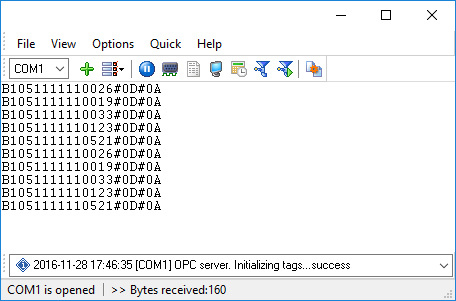
Main window
The main window lists the configurations, one per port or data source, and shows the data as it arrives on the selected one, with the byte counters in the status bar. It is the place to check that a device is wired and set up correctly before any parsing or export is configured: if lines appear here, the port settings are right. Everything else, from parsing to export, runs in the background once a configuration is set up. The RS232 data logger overview explains the workflow.
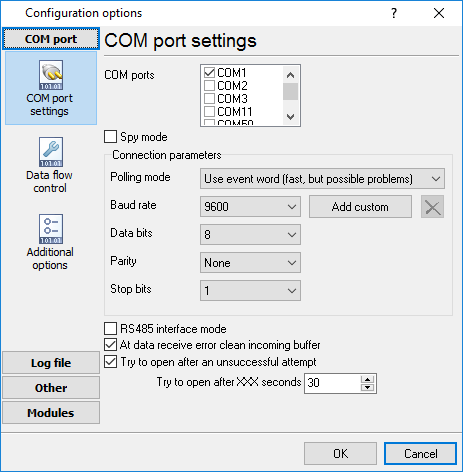
COM port settings
The first page of a configuration: the port, the baud rate (standard and custom rates), data bits, parity, stop bits and flow control, exactly as the device manual specifies them. One configuration usually covers one port; identical devices on different ports can be grouped into one. An RS485 converter that needs the PC to switch direction is supported through the RTS control option. The RS232 port logger page shows a typical setup.
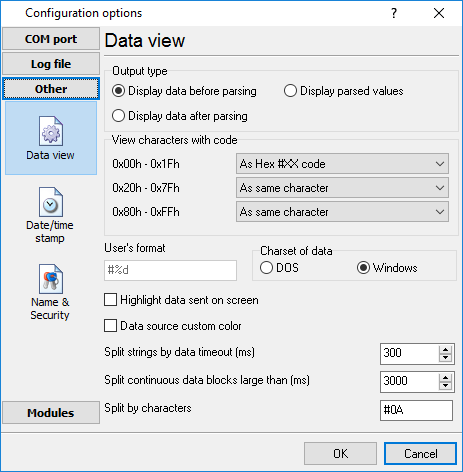
Data view: the raw stream
Before anything is parsed, this page decides how the raw bytes are displayed and which characters end a line, so that each reading of a scale or each barcode scan appears as one line in the main window. Seeing the stream this way is how you learn what a device actually sends, which is the information a parser needs. The video lesson installing and first steps starts here.
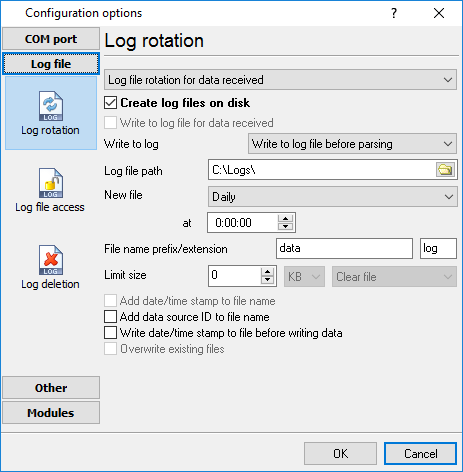
Log files
Everything received can be saved unchanged to log files, with a date and time stamp in front of every line, a new file per day or per size, and automatic deletion of old files. For many users this raw log is the whole task: a record of what the device sent, for diagnosis or audit, that Excel opens as a table. It is also the safety net when a parser or a database is set up later, because the original data is still there. The lesson logging to a file shows the options.
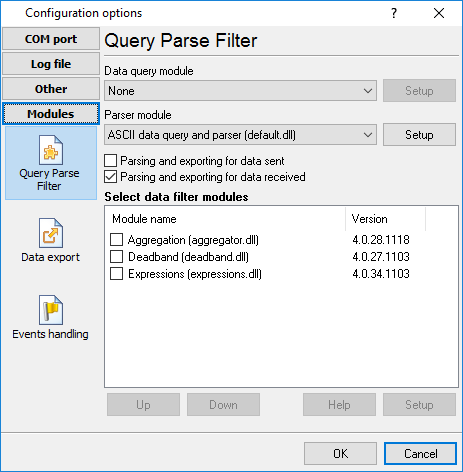
Modules: query, parser and filters
This page turns a stream of bytes into values. A query module sends the requests that make a device answer, a parser cuts each packet into named values such as a weight or a register reading, and the filter modules calculate, round, drop unchanged values or combine several packets into one record. Each module is a plugin with its own settings dialog, so a configuration is built by filling in forms rather than by programming. The guide parsers compares the ASCII, CSV, JSON, XML and protocol parsers.
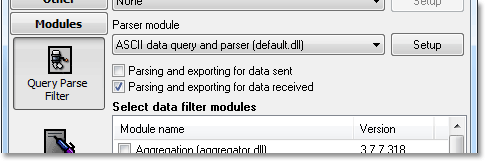
Parser items
A parser item is one value with a name and a rule for finding it in the packet: a fixed position, a delimiter, or a regular expression. The names you give here become the columns of the export, the fields of the database table and the cells in Excel. The video lesson data parsing defines the items for a real device and follows them to the export.
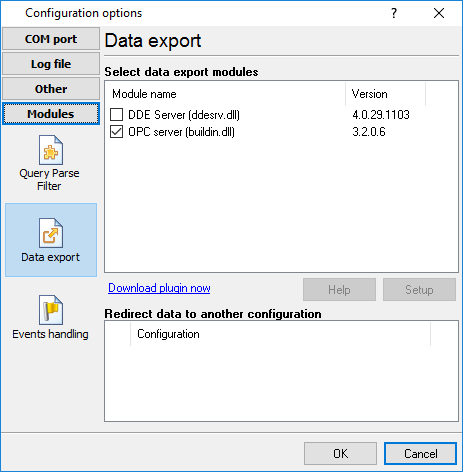
Data export
Here you choose where the parsed values go: an open Excel or Calc sheet, Excel and CSV files, any ODBC database, SQL Server, MySQL, PostgreSQL and Oracle directly, cloud databases, an OPC UA or DDE server for SCADA, MQTT and HTTP for IoT platforms, or keystrokes into any window. One configuration can export to several targets at once, for example a database for the record and a sheet for the people on the floor. The RS232 to database page compares the database options.
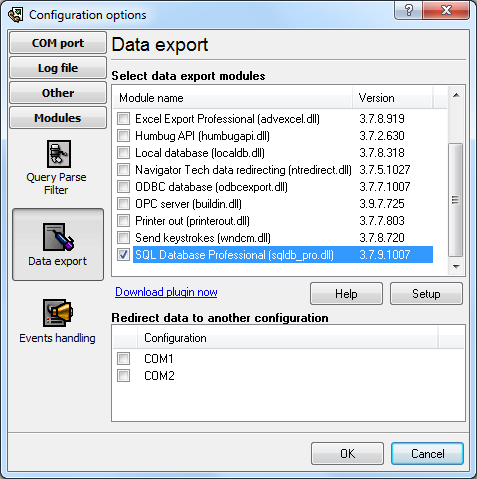
SQL database export
The SQL export dialog connects to the server and maps parser items to the columns of a table. Records are written as they arrive, so a report or a dashboard sees the latest reading within seconds. If the server is unreachable the module queues the queries and writes them when it is back. The tutorial RS232 to SQL Server goes through every field of this dialog.
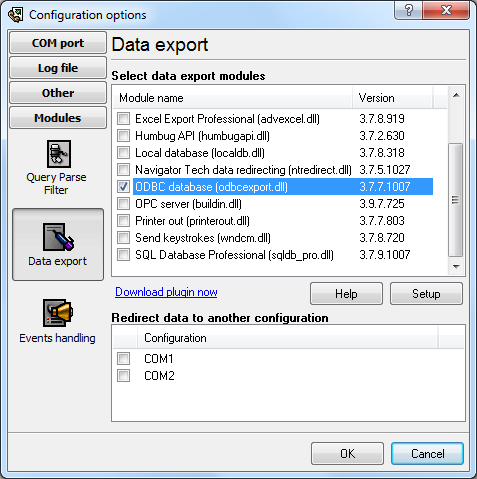
ODBC export: Access and any other database
Any database with an ODBC driver can receive the data, from Access to a mainframe: choose the data source, the table and the columns. This is the route for an existing database that must not change, or for a desktop database that a department already uses. The example RS232 to ODBC uses Access.
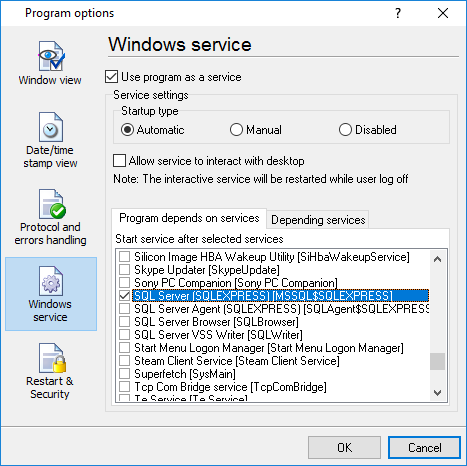
Windows service mode
Data logging usually has to run for months. As a Windows service the logger starts with the computer, before anyone logs in, and keeps running while users log on and off. This page enables the service, sets it to start after the services it depends on, such as SQL Server, and lets the program restart itself or reopen the port at a set time. Read unattended logging as a Windows service.
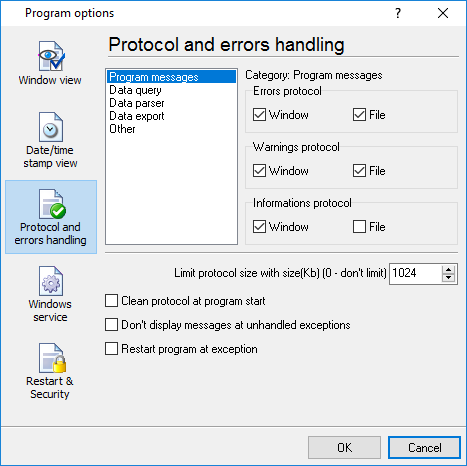
Program messages log
The program keeps its own log of what it did: ports opened, modules loaded, export errors, reconnects. When a logger runs unattended as a service this file is the first thing to read if data stops arriving, because it says whether the port, the parser or the database was the problem. The detail level is set here. The tutorials page collects the step-by-step guides for the most common setups.
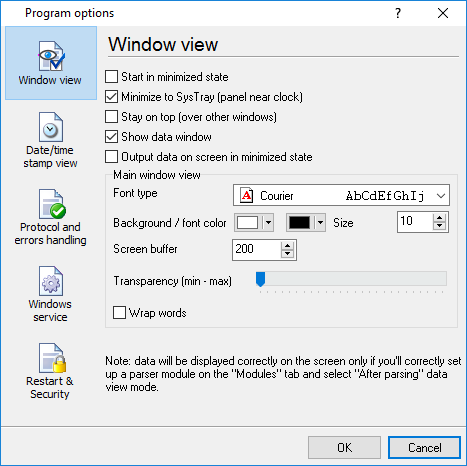
Main window view settings
What the main window shows and how much of it is kept on screen is configurable, which matters on a computer that logs several fast devices around the clock: the display can be limited so that the program stays responsive while the files and databases receive everything. The tutorials show these options in the context of a complete setup.
The free trial is the full program, so every window above can be tried with your own device. The tutorials and the plugins page describe each module in detail, and the feature matrix shows which edition includes it.
Related topics: Advanced Serial Data Logger
hereSerial port interface | RS232 port logger | Com port logger | Data acquisition | RS232 data logger | Data Logger Software For Electricity Meter | Replace WinWedge | Replace TWedge | RS232 to SQL database | Barcode to Excel