
COM Port Not Working in Windows
This FAQ lists the 5 most common problems and step-by-step solutions for the issue "COM port not working in Windows". Use these steps in order, and test the COM port after each change.
Device not listed in Device Manager
Problem: The COM port or device doesn't appear under Ports (COM & LPT) or the device is missing entirely.
Solutions
- Show hidden devices: Open Device Manager, Main menu → View → Show hidden devices, then expand Ports (COM & LPT). If it appears, right-click → Uninstall device, then Action → Scan for hardware changes.
- Find and try a different USB port/cable: Unplug and reconnect the device or use a different USB cable/port. Faulty or too long cables are common causes.
- Install vendor drivers: Download and install the manufacturer's driver for the device. Use the device-specific installer rather than generic drivers if available.
- Enable legacy COM if using a USB-to-serial adapter: Some adapters require drivers that create a virtual COM - install those drivers and reboot.
- Hidden COM ports: Some devices may hide COM port number in Device Manager. Try Advanced Serial Port Monitor to enumerate all COM ports in your OS.
COM port shows an error or yellow exclamation.
Problem: The COM port appears but shows an error code, or Windows reports the device can't start.
Solutions
- Update or roll back COM port drivers on this computer: Right-click the device in Device Manager → Update driver. If the problem started after an update, use Roll Back Driver.
- Uninstall and reinstall: Uninstall the device (check "Delete the driver software for this device" if present), then scan for hardware changes to reinstall.
- Check for driver conflicts: If multiple serial devices use the same driver, install the correct driver from the device manufacturer.
- Use Windows Update: Run Windows Update to get compatible drivers and system fixes.
COM port assigned, but communication fails (baud/parity/timeout issues)
Problem: The COM port is visible and enabled, but serial communication fails or data is garbled.
Solutions
- Check serial settings: In your terminal or application, set baud rate, data bits, parity, stop bits, and flow control to match the device.
- Disable hardware flow control: Try setting flow control to "None" if RTS/CTS or DTR/DSR signals are not supported by the device. They can also absent in cheap RS232 cables.
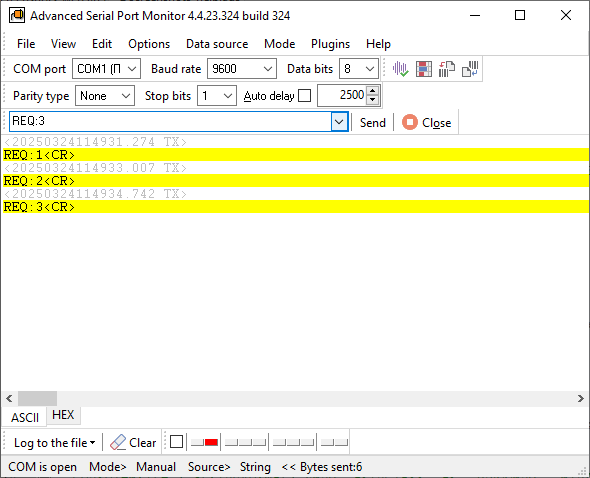
- Test with a known working app: Try Advanced Serial Port Monitor to verify basic send/receive before testing custom software.
- Use a loopback test: Short the TX and RX pins on the serial connector and send data to verify the COM port echoes correctly. The free online serial port tester runs this test in the browser at every common baud rate and also checks the handshake lines.
- High load: Use COM Port Stress Tool and check COM port device stability in various conditions and high load.
If the port opens but the data is unreadable rather than absent, the garbled serial data checklist goes through baud rate, framing, flow control, wiring, adapter and timing in order.
COM port number conflicts or changes
Problem: The COM port number changes after a reboot, a driver update or a different USB socket, or two devices claim the same number, and the application opens the wrong port.
Solutions
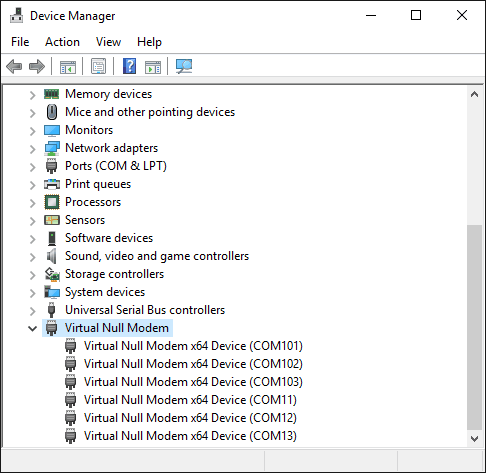
- Assign a static COM number: In Device Manager, right-click the COM device → Properties → Port Settings → Advanced → COM Port Number and choose an unused number.
- Remove unused virtual COM ports: Show hidden devices and uninstall phantom COM ports that cause high COM numbers.
- Reserved low COM numbers: Avoid using very high COM numbers; many applications expect COM1-COM9.
USB-to-Serial adapters not working after Windows update or on newer Windows versions
Problem: Adapters that worked previously stop working after an OS update or are incompatible with the current Windows version.
Solutions
- Download signed drivers: Obtain updated, digitally signed drivers from the adapter chipset vendor (FTDI, Prolific, SiLabs) rather than generic drivers.
- Use compatibility mode: If only older drivers exist, install them in compatibility mode or look for community-updated drivers that support newer Windows builds.
- Disable driver signature enforcement temporarily: Only as a last resort for trusted drivers - boot Windows with driver signature enforcement disabled to install unsigned drivers, then re-enable enforcement.
- Replace adapter: If the adapter's chipset is obsolete or counterfeit (common with Prolific clones), replacing it with a modern, supported adapter often resolves issues.
- If the Prolific adapter does not work after upgrading to Windows 11. If you see the driver loading error #39, you'll need to replace the adapter with a modern, supported adapter.
Additional tips
- Run Windows Troubleshooter for Hardware and Devices.
- Check BIOS/UEFI serial settings: Enable onboard serial ports or set USB settings to full legacy support if required.
- Test the device on another PC to isolate whether the problem is the device or the Windows system.
See also
COM Port Scanner
5 Common Errors with COM Port Operations on Windows
COM Ports: Used & Full List
COM Port Not Working in Windows
How to Test a COM Port in Windows
Garbled Serial Data on a COM Port: 7 Checks in Order
5 Ways To Send Data To COM Port From Command Line in Windows
Related topics: Advanced Serial Port Monitor
hereRS232 monitor RS232 analyzer COM Port Debug RS232 terminal Serial port sniffer Serial port spy UART monitor RS232 pinout and signals Data monitor cables.