
How to Add a COM Port in Windows 11 (USB, Virtual, PCIe)
This FAQ explains 5 practical methods to add COM ports in Windows (including Windows 11 & Windows 10) so your serial devices can communicate with a PC or laptop. Each method covers purpose, required hardware/software, and steps like install, configure, and verify using Device Manager.
Method 1 - Create Virtual COM Ports (software)
Q: What is a virtual COM port?
A: A virtual COM port (virtual serial port) is software that emulates RS-232/RS-422/RS-485 serial ports on a Windows computer so applications can open COM ports without physical hardware.
Q: When to use these software applications?
A: Use virtual serial ports when you need several COM ports for testing or to redirect serial communication over USB or Ethernet without extra hardware.
How to set up
- Download and install a virtual serial port driver or virtual serial port software application.
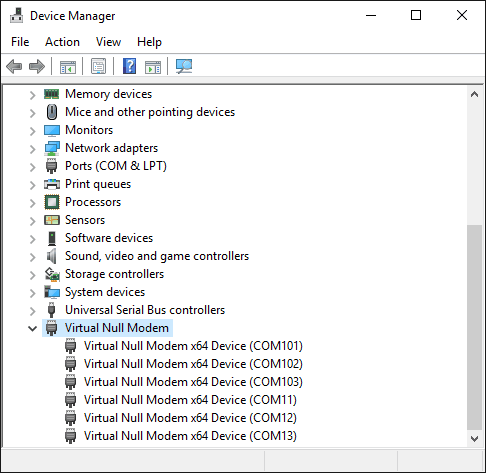
- Open the application's configuration or settings, create a new virtual COM pair, and assign a port number (for example, COM4, COM5).
- Verify in Device Manager: click Start, right-click the Windows menu, select Device Manager, expand Ports (COM & LPT), and confirm the new virtual COM appears.
- Optionally, change parameters (baud, parity) via the port's Properties in Device Manager.
Method 2 - USB to Serial (USB-COM) Adapter
Q: What is a USB-to-serial adapter?
A: A USB-to-serial adapter is a small hardware COM converter that converts a USB port on your PC or laptop into an rs-232 serial interface so legacy serial devices can connect.
How to install
- Buy a supported USB to serial adapter or USB to serial cable from a reputable vendor (look for chipset support: FTDI, Prolific, Silicon Labs).
- Plug the adapter into an available USB port. Windows 10, 11 often auto-install a driver via Windows Update; if not, download the driver from the manufacturer and install it.
- Open Device Manager, expand Ports, and find the new COMx entry. If it's hidden, enable View → Show hidden devices.
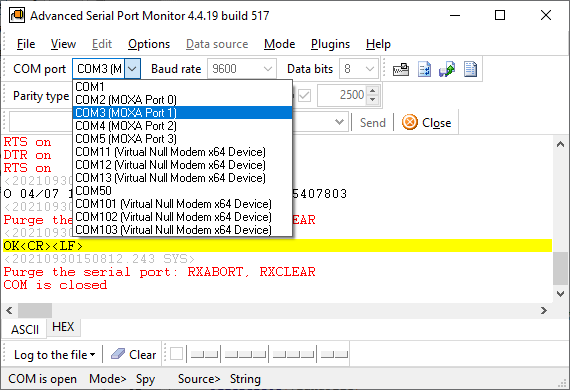
- If you need a specific port number, right-click the port → Properties → Port Settings → Advanced → COM Port Number → select or add COM ports on the computer.
- Tip: Avoid outdated Prolific chipsets because they do not have a driver for modern OS.
Troubleshooting
If the device is not recognized or communication fails, install the latest driver, try another USB port (connect directly to a motherboard or laptop without USB hubs), or use Device Manager to update the driver. For multiport adapters, install the multiport driver provided.
Method 3 - PCIe or ISA Serial Card (Add Hardware RS-232, RS-485, RS-422 Ports)
Q: Why use a PCIe serial card?
A: Use a PCIe or legacy ISA serial card to add multiple hardware COM ports to a desktop PC for reliable, low-latency or high-speed (1+ Mbps) serial communication with RS-232/RS-422/RS-485 interfaces.
Installation steps
- Power off the pc, open the case, and insert a serial card into an available PCIe or legacy slot (ISA buses for older PCs).
- Secure the card and reconnect power. Boot Windows and install the driver from the card manufacturer.
- Open Device Manager → Ports and expand to see the new hardware serial ports. Configure port numbers and parameters as needed.
Notes
For industrial use, when more than a few COM ports are required, choose a multiport serial card or rs-485 interfaces from known brands. Some cards include jumpers or configuration software to set IRQ/addresses; modern Windows typically manages resources automatically.
Method 4 - Serial-to-Ethernet (Ethernet to COM) Servers
Q: What is a serial-to-ethernet server?
A: An Ethernet server (serial device server) converts serial to Ethernet so remote serial devices can be accessed over the network (wired Ethernet or WiFi access point). It lets a Windows computer communicate with RS-232/RS-485 devices via TCP/IP.
How to connect
- Install the serial-to-ethernet converter software or hardware (Ethernet connector) and connect the serial device to its COM port (RS-232/RS-485).
- Connect the converter to your network via Ethernet cable or WiFi, depending on the model.
- Install the vendor's software or virtual serial port driver (vendors provide software to create a new virtual COM linked to the remote device).
- In the software, add a new virtual COM and point it to the converter's IP address and port (serial to Ethernet settings). The Windows computer will then open COM ports that forward to the remote serial device.
Use cases
Good for connecting multiple remote instruments, RTU devices, or legacy hardware over an existing network. For industrial protocols and servers, ensure support for the required protocol and security features.
Method 5 - Wireless / WiFi / Bluetooth Serial (Virtual COM over Wireless)
Q: Can I add COM ports wirelessly?
A: Yes. Bluetooth SPP or third-party WiFi serial servers create virtual COM ports so a Windows computer can open COM ports to communicate wirelessly with serial devices.
Setup overview
- Pair the Bluetooth serial device with your Windows computer via Settings → Bluetooth & other devices or the manufacturer's pairing/app.
- Windows will create a virtual COM port for the Bluetooth SPP. Check Device Manager → Ports to see the new COM entry.
- For WiFi serial servers, install the vendor software that creates a virtual COM mapped to the device's IP address (similar to serial-to-ethernet servers).
Limitations
Wireless adds latency and may not suit time-critical serial protocols. All wireless devices are characterized by poor resistance to electromagnetic noise. Interference can appear unexpectedly and lead to random failures. Ensure the wireless server supports required RS standards and security.
Error: There is no COM port on this computer
Problem: The application throws an error stating that it cannot function because there is no COM port on this computer.
Solutions
This error usually occurs for the following reasons:
- There truly isn't a single COM port on your computer. This is a very common situation with modern computers, especially laptops. The solution would be to add a port using one of the methods described above.
- A port exists, but it was installed with an error, there is a device conflict, etc.
- The application is very old and can only work with ports ranging from COM1 to COM9. In this case, you can reassign the COM port number in the system for an existing port.
General Tips & Troubleshooting
- Always check Device Manager → expand Ports (COM & LPT) to confirm installed COM ports on the computer.
- If a port is missing, enable View → Show hidden devices, update or reinstall the driver, and run Windows Update if using Windows 11, 10.
- To change the port number: Device Manager → right-click the serial port → Properties → Port Settings → Advanced → COM Port Number.
- Use the manufacturer's support pages to download drivers and configuration software. If using virtual serial port driver software, select a reputable product.
- For multiport needs, use a multiport PCIe card, multiport USB adapter, or multiple virtual serial ports created by software.
- When mixing hardware and virtual solutions, ensure no port number conflicts and that the application opens the intended COMx.
FAQ - Quick Answers
How do I open a COM port in my software?
In your application, select the COMx name shown in Device Manager and configure baud, parity, data bits, and stop bits to match the serial device.
Can I convert USB to COM?
Yes - use a USB to serial adapter or converter to convert USB to COM on a Windows computer.
Is a driver always required?
Usually, yes. Windows OS may auto-install drivers via Windows Update, but sometimes you must download and install the manufacturer's driver.
Can I add several COM ports?
Yes - with virtual serial port software, multiport PCI/USB cards, or multiple USB-to-serial adapters, you can add several COM ports to a PC.
Conclusion
Whether you need legacy rs-232 support, several COM ports, or networked serial access, you can add COM ports on the computer by creating virtual COM ports, using USB-to-serial adapters, installing PCI/PCIe serial cards, deploying Serial-to-Ethernet servers, or using Bluetooth/wireless serial solutions. Choose the method that fits your hardware, protocol (rs-232/rs-422/rs-485), and performance needs.
See also
How to Test a COM Port in Windows
Garbled Serial Data on a COM Port: 7 Checks in Order
5 Ways To Send Data To COM Port From Command Line in Windows
How To Add COM Port Device On Windows Computer
6 Best Serial Port Monitor Tools (Guide & Comparison)
2 common reasons why applications failed to open serial port
How to Reset, Delete, or Restore a COM Port in Windows 11
Related topics: Advanced Serial Port Monitor
hereRS232 monitor RS232 analyzer COM Port Debug RS232 terminal Serial port sniffer Serial port spy UART monitor RS232 pinout and signals Data monitor cables.