
Fix slow receipt printing from remote accounting software
Why receipts print slowly through a remote session
The driver of a receipt, POS or fiscal printer sends tiny data packets, often one for every line of text, and waits for an acknowledgment after each of them. When the accounting software runs on a remote server, every one of these exchanges crosses the network. The COM port redirection that is built into Windows remote desktop sessions is not optimized for small packets, so the delay grows with the length of the receipt. A short receipt prints at once; a long one may take minutes.
TCP COM Bridge replaces that channel with a dedicated TCP connection between the server and the computer with the printer.
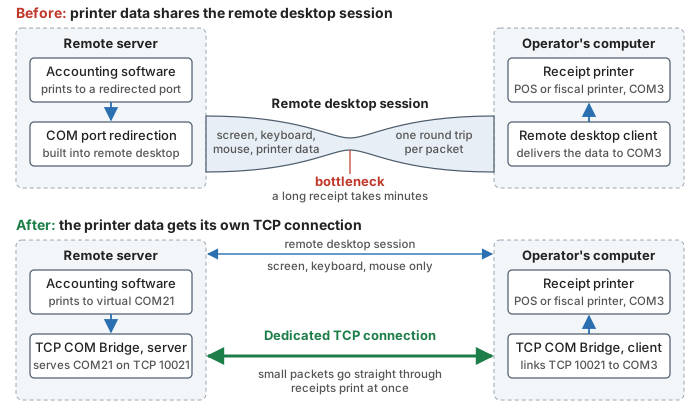
Before, the printer data waits inside the remote desktop session; after, it has a TCP connection of its own
Problem description:
1. The accounting software is installed and used on a remote server.
2. Operators connect to the accounting software through a web browser or terminal client session.
3. A receipt, POS, or fiscal printer is locally connected to the operator's computer.
Solution:
Windows Workstation does not redirect COM port devices over the network, and Windows Terminal Server may do it slowly. You may have seen this happening when you print on a receipt, POS, or fiscal printer, and your remote app is responding slowly, or sometimes it does not respond at all. TCP COM Bridge (download) for Windows Workstations or Windows (Terminal) Servers redirects the COM port through its own TCP connection, separate from the remote desktop channel.
1. Install TCP COM Bridge on the server and configure it to work in the TCP server mode using a virtual COM port (Menu → Devices → Add). Please, note you should re-configure your accounting software to use the new virtual COM port.

Fig. 1. COM port
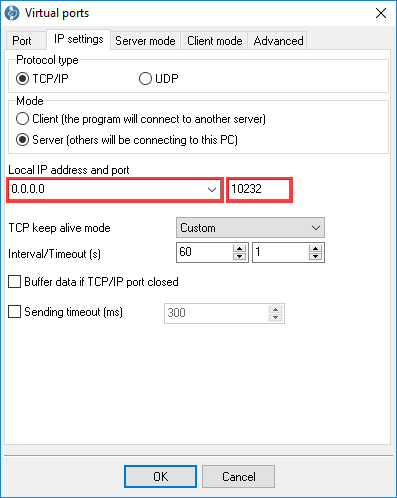
Fig. 2. Network connection
2. Allow the selected TCP port in your firewall and/or router. For multiple clients, you should use a separate TCP and virtual COM port. For example, you can use sequential TCP ports and virtual COM ports like 10021 → COM21, 10022 → COM22, etc. We recommend using TCP ports above 2000 and COM ports above 10 in your applications.
3. Configure TCP COM Bridge as a Windows service (Professional edition). It allows our software to start with Windows and before a user logs in.

Fig. 3. Service mode
4. Install TCP COM Bridge on a client computer with a shareable real hardware COM port (COM-USB, COM-Ethernet converters are OK too).

Fig. 4. Configuring a COM port on a client computer
5. Configure the program as a TCP client. The IP address and the port number should match the selected address on the server. The client will automatically connect to a server and redirect COM port data when the computer starts.
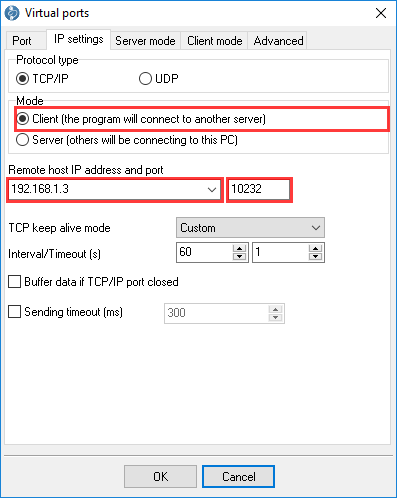
Fig. 5. Configuring a network connection on a client computer
6. In this usage scenario, we recommend using the "keep-alive" option (Professional edition) on the client and server. If this option is enabled, the server or client can quickly detect and restore a broken connection (see. fig. 2).

Fig. 6. Keep-alive mode parameters
FAQ:
What's your licensing policy. How many licenses do I need?
You need a license for each computer where you use our software. The server needs the Professional license: it runs as a Windows service and uses one connection for each client. A client computer with one COM port can use the Standard license. The additional keep-alive packets recommended in step 6 are a Professional feature, so choose the Professional license for a client too if you want them there. The full feature matrix is here.
Printing on a receipt, POS, or fiscal printer is slow after installing your software. Can I do something else?
1. Ensure that you selected the "Optimize for small data packets" options (fig. 6) on the server and client sides.
2. Check your connection between the server and the client. Start cmd.exe on a client computer and execute the ping command on the server's IP address (e.g., ping 192.168.100.1). A response time to a ping command should be less than 50 ms.
3. Windows XP and older systems may also need system-level tuning of TCP acknowledgements, for example with the free TCP Optimizer from speedguide.net. Start with the client computers and reboot after the change.
Do I need to use the same COM port number on the server and client computers?
You can use different COM port numbers. Note that COM port numbers less than 10 are often in use by the operating system or other devices. Therefore, your attempt to add a virtual COM port with the same number will fail. You can see most COM port numbers in Devices Manages. If you see a COM port device with an asterisk, you can try to create a port with a higher number like 20, 30, 40, etc.
I cannot establish a network connection between a client and a server. What should I check?
1. Check your firewall settings on the server and client. Allow incoming and outgoing connections for TCP COM Bridge.
2. If you send data through the Internet, you should use the server's public IP address on the Internet. Such IP address cannot start with "192.", "172.", "10.". Please, note that VPN networks may use special addresses.
3. If you send data through the Internet, probably, your server is behind a router. It would be best if you redirected a TCP port on your router to a physical server. Ask your network or system administrator if you do not have access to these settings. Also, you may try to activate the "Enable UPnP" option on the "Server mode." tab (note, UPnP can be disabled in your network).
When it will not help
- The server and the printer are far apart, for example on different continents. The network delay itself stays.
- The printer is connected through proprietary hardware or in a non-standard way, not through a COM port.
- You cannot change the COM port number in the settings of your accounting software.
See also
Install TCP COM Bridge: setup, driver, first connection
Serial port splitter: one COM port for two or more programs
Serial device server: many COM ports on one Windows PC
Share a COM port over the network
COM port redirector: a virtual COM port to a TCP/IP address
Redirect COM ports to a terminal Windows server
Serial over Ethernet: how it works
Connect two COM ports on the same computer
Printing on one receipt, POS or fiscal printer from two computers
Fix slow receipt printing from remote accounting software
Serial to TCP/IP converter software
Best serial over Ethernet tools by situation
TCP COM Bridge vs tcp2com: when the free tool is enough
TCP COM Bridge troubleshooting
Related topics: TCP COM Bridge
hereSerial over Ethernet | Serial to TCP/IP converter | COM port redirector | Serial port splitter | COM port sharing | Serial device server | Serial port monitor | RS232 pinout and signals | Virtual Null Modem | COM Port Emulation