
Serial Port Splitter: One COM Port for Two or More Programs
A COM port belongs to one program at a time. A serial port splitter gives every program its own COM port and feeds all of them from the same device. TCP COM Bridge builds one on a single computer with three connections: a server connection that holds the real port, and one client connection per program, each with its own virtual COM port. Every program receives everything the device sends; which programs may send to the device is a setting. Nothing leaves the computer, the connections meet on the local address 127.0.0.1, and on a modern computer the added delay is too small to measure.
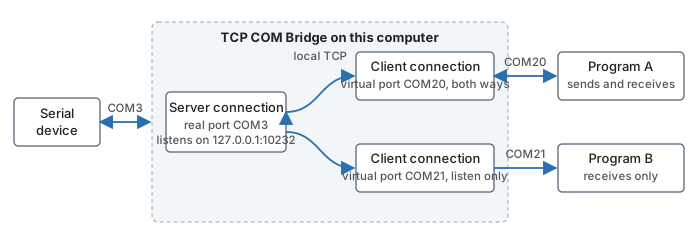
One real port, one virtual port per program, all inside one computer
The example below splits a scale on COM3 for two programs: program A on COM20 may send commands, program B on COM21 only listens.
Video
The video from 2026 shows the same steps in the program.
Connection 1: the real port
- Add a connection ("Devices → Add new", Ctrl+N). On the "Port" tab select COM3, leave "Create virtual serial port" unchecked and set the baud rate, data bits, parity and stop bits of the device. They are set here only; the virtual ports change nothing at the device.
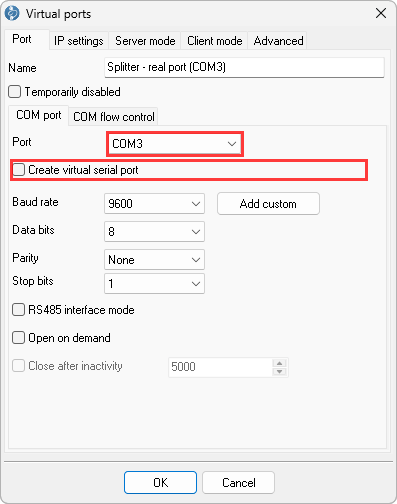
Fig. 1. The real port stays a real port
- Make it a local server. On the "IP settings" tab select "Server (others will be connecting to this PC)", enter 127.0.0.1 and a free port number, 10232 here. With 127.0.0.1 the server accepts connections from this computer only.
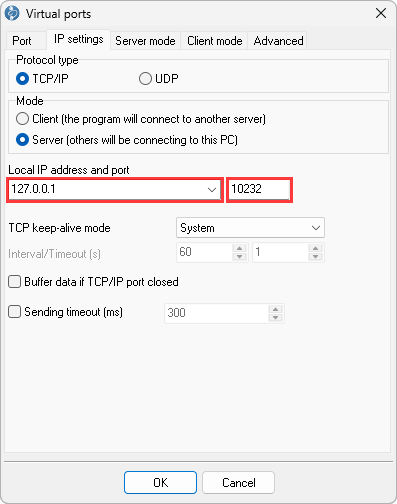
Fig. 2. A server that listens on the computer itself
- Decide who may send. On the "Server mode" tab "COM → IP: Send all data to all clients" delivers the device's data to every virtual port. "IP → COM" rules what the virtual ports may send back to the device: all of them, only the first one connected, none, or the last active one for the number of seconds in "Timeout". Click "OK".
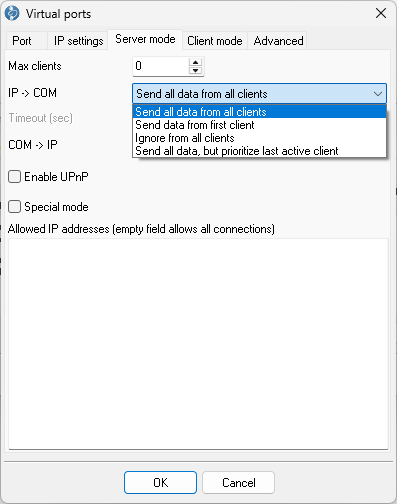
Fig. 3. The four rules for data that goes to the device

Connection 2: the first virtual port
- Add a connection, and on the "Port" tab check "Create virtual serial port" and select a free number, COM20. Name it after the program that will use it.
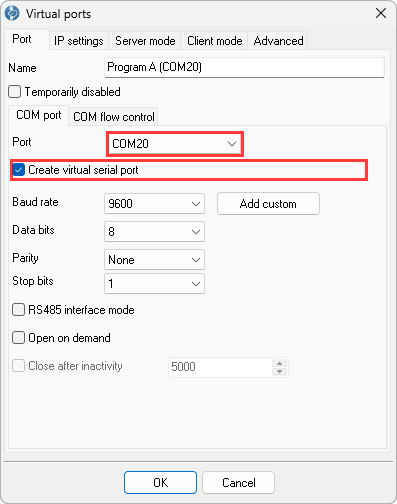
Fig. 4. The first virtual port
- Connect it to the server. On the "IP settings" tab select "Client (the program will connect to another server)" and enter 127.0.0.1 and 10232.
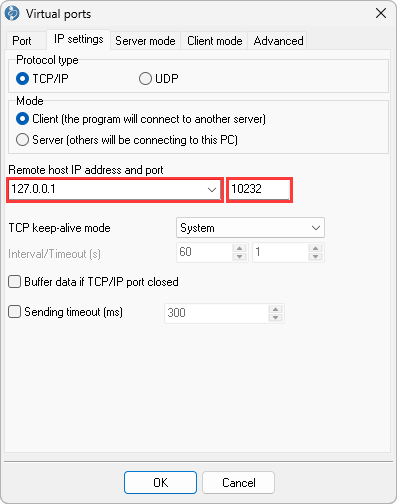
Fig. 5. The client side points at the local server
- Both directions. On the "Client mode" tab leave "IP → COM" (device to program) and "COM → IP" (program to device) checked. Click "OK".

Connection 3: the second virtual port, listen-only
Repeat connection 2 with COM21, and on the "Client mode" tab uncheck "COM → IP": program B receives everything but cannot send anything to the device. One more connection of this kind for every further program.

Fig. 6. A virtual port that only listens
The result
The main window lists the three connections: the server with "Net: Opened (clients: 2)", the two clients with "Net: Opened", and the byte counters show the device's data going out to both virtual ports. Windows lists COM20 and COM21 in Device Manager under "Virtual Serial Port TCP COM". Two terminal programs, one on COM20 and one on COM21, show the same readings.

Fig. 7. Three connections, one device

Fig. 8. The virtual ports in Device Manager

Fig. 9. The same data on both virtual ports
Who may talk to the device
Two settings control this. Per virtual port, "COM → IP" on the "Client mode" tab decides whether that port may send at all. For the ports that may, the "IP → COM" rule of the server connection decides what reaches the device when more than one of them sends: "Send all data from all clients" passes everything, "Send data from first client" listens to the port that connected first, "Ignore from all clients" makes the whole split read-only, and "Send all data, but prioritize last active client" lets the port that sent most recently keep the device for the seconds in "Timeout", useful when two programs both poll the device now and then.
The safe layout is one program that sends and all others listen-only. When two programs must both send, use the prioritize rule with a timeout of a few seconds; otherwise the device receives mixed commands and each program may read the reply meant for the other one.
Start the split before the programs
The virtual ports exist only while TCP COM Bridge runs. Select "Windows registry (all users)" as the start-up mode to start it with Windows, or "Windows service (before user login)" so that the ports exist before anyone logs on; the device server guide describes the service mode.
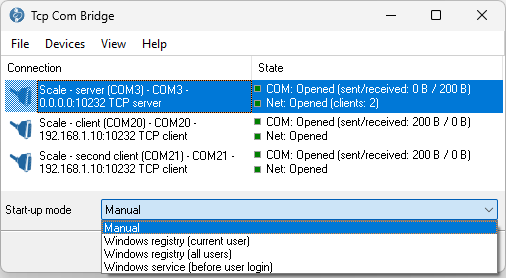
Fig. 10. Start-up modes
Programs on other computers
The same server connection serves other computers as well when it listens on 0.0.0.0 instead of 127.0.0.1; each of those computers then runs its own client connection. That is the COM port sharing setup, and the two can be combined: local virtual ports and remote clients on one server.
Which edition do I need?
A splitter takes three connections at least, one for the real port and one per virtual port, so it needs the Professional edition. The Standard edition is limited to two connections and cannot split a port. The Standard version is enough if you need to split or share COM port over network (one virtual port is used on this computer, the second one on another computer). The trial version allows three connections for 21 days, enough to test a split into two virtual ports (each work session is limited to 128 KB of data or two hours). Compare editions.
Limits
- The device sees one stream. Replies go to every virtual port; commands from several ports arrive mixed unless the rules above prevent it.
- The serial parameters belong to the real port. A program that sets another baud rate on its virtual port changes nothing at the device.
- A virtual port does not mirror the RTS, DTR, CTS and DSR lines of the real port unless "Transmit RTS and DTR state" on the "Advanced" tab is on for the server connection and for that virtual port (Professional edition). A program that waits for a handshake line should be set to no flow control.
- TCP COM Bridge sends the raw data stream and does not convert protocols.
Questions
Can I split a USB-to-serial adapter or a Bluetooth COM port?
Yes. Any port that Windows lists in Device Manager can be the real port of the split.
Do I need a null-modem cable or another driver?
No. The virtual ports come with TCP COM Bridge, and the real port is used as it is.
Can I test it before buying?
Yes. The trial's three connections are exactly a split into two virtual ports; only the session limits apply.
Does a program on the virtual port notice a difference?
Only in the port number. The byte stream is the same as on the real port; a program that measures pauses between bytes (Modbus RTU, for example) can use "Sending timeout" on the server connection to keep frames together.
Video transcript
Narration of the video "Serial port splitter" (September 2026).
A COM port belongs to one program at a time. With TCP COM Bridge, one device can feed two or more programs: a server connection holds the real port, and every program gets its own virtual COM port. Everything stays inside one computer. The example: a scale on COM3. Program A will use COM20 and may send commands; program B on COM21 only listens.
Connection 1: the real port. Connection one holds the real port. Devices, Add new. Name it, select COM3, leave "Create virtual serial port" unchecked, and set the baud rate and the other parameters of the device. They are set here only; the virtual ports change nothing at the device. On IP settings choose Server, address 127.0.0.1 and a free port, 10232. With 127.0.0.1 the server accepts connections from this computer only. The Server mode page decides who may send to the device. "Send all data from all clients" passes everything; we come back to this at the end. OK.
Connection 2: the first virtual port. Connection two is the first virtual port: check "Create virtual serial port" and pick a free number, COM20. Name it after the program that will use it. On IP settings select Client, and enter 127.0.0.1 and port 10232: the client connects to the local server. On Client mode both directions stay checked: program A receives the scale and may send commands. OK.
Connection 3: listen only. Connection three is the same with COM21, except that "COM to IP" is unchecked on the Client mode page: program B receives everything but cannot send. One more connection like this for every further program.
The result. The main window lists the three connections. The server shows two clients, and the counters show the scale's data going out to both virtual ports. Two terminal programs, one on COM20 and one on COM21, show the same readings.
Who may send. Back to who may talk to the device. "Send data from first client" listens to the port that connected first. "Ignore from all clients" makes the whole split read-only. "Prioritize last active client" lets the program that sent most recently keep the device for the seconds in Timeout. The safe layout is one program that sends and all others listen-only. The virtual ports exist only while TCP COM Bridge runs. Start it with Windows, or as a Windows service, so that the ports exist before anyone logs on. A splitter takes three connections, so it needs the Professional edition. The trial allows exactly three, enough to test a split into two virtual ports. The written guide with screenshots is on aggsoft.com. Thanks for watching.
See also
Install TCP COM Bridge: setup, driver, first connection
Serial port splitter: one COM port for two or more programs
Serial device server: many COM ports on one Windows PC
Share a COM port over the network
COM port redirector: a virtual COM port to a TCP/IP address
Redirect COM ports to a terminal Windows server
Serial over Ethernet: how it works
Connect two COM ports on the same computer
Printing on one receipt, POS or fiscal printer from two computers
Fix slow receipt printing from remote accounting software
Serial to TCP/IP converter software
Best serial over Ethernet tools by situation
TCP COM Bridge vs tcp2com: when the free tool is enough
TCP COM Bridge troubleshooting
Related topics: TCP COM Bridge
hereSerial over Ethernet | Serial to TCP/IP converter | COM port redirector | Serial port splitter | COM port sharing | Serial device server | Serial port monitor | RS232 pinout and signals | Virtual Null Modem | COM Port Emulation