
Share a COM Port over the Network with TCP COM Bridge
COM port sharing means that a serial device stays on one computer and other computers use it over the network. TCP COM Bridge does it with one server connection on the computer that owns the device and one client connection, with a virtual COM port, on every computer that needs it. Every client receives what the device sends; which clients may send to the device is a setting on the server. A typical case from our helpdesk: a scale on the main PC of a store, and an outdoor kiosk PC that needs the same weight after hours.
The example below uses computer A (192.168.1.10) with the scale on COM3, an office PC with virtual port COM20 and a kiosk PC with virtual port COM21, all on TCP port 10232. In the screenshots both clients run on one computer; in real life each client is its own computer with its own copy of TCP COM Bridge.
Video
The video from 2026 shows the same steps in the program.
Computer A: serve the port
- Add a connection ("Devices → Add new", Ctrl+N). On the "Port" tab select the COM port of the device, leave "Create virtual serial port" unchecked and set the baud rate and the other parameters of the device. They are set here only: the clients cannot change them over the network.
- Make it a server. On the "IP settings" tab keep "TCP/IP", select "Server (others will be connecting to this PC)", enter 0.0.0.0 to listen on every network adapter (or the address of one adapter) and a port number above 1000, 10232 here. The serial to TCP/IP guide shows these two tabs.
- Decide who may send. On the "Server mode" tab:
- "IP → COM" says what happens with data that clients send to the device: "Send all data from all clients" (default), "Send data from first client" (only the client that connected first is heard), "Ignore from all clients" (a read-only share) or "Send all data, but prioritize last active client". With the last choice the client that sent data most recently keeps the device to itself for the number of seconds in "Timeout"; after that pause another client may send.
- "COM → IP: Send all data to all clients" delivers everything the device sends to every connected client.
- "Max clients" limits the number of clients at the same time; 0 means no limit.
- "Allowed IP addresses" takes one address per line; connections from other addresses are rejected. Leave it empty to accept everyone.
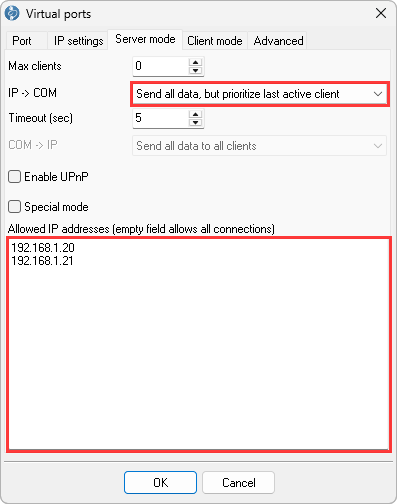
Fig. 1. Who may send, for how long, and from which addresses
- Save. Click "OK". The connection shows "COM: Opened" and "Net: Opened (clients: 0)". Allow the program in the Windows firewall when Windows asks.
Every other computer: a virtual COM port
- Add a connection and on the "Port" tab check "Create virtual serial port". Select a free number, COM20 here, and name the connection after the computer or the program.
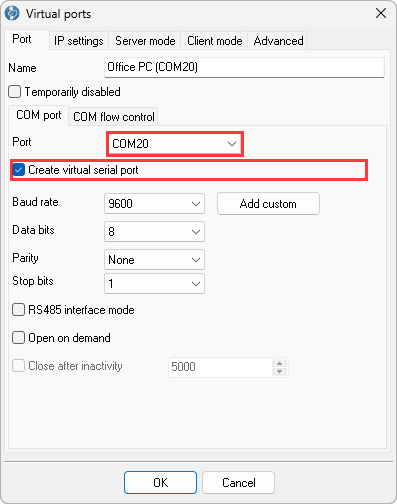
Fig. 2. The client side gets a virtual port
- Point it at computer A. On the "IP settings" tab select "Client (the program will connect to another server)" and enter the address and the port of computer A. "Buffer data if TCP/IP port closed" keeps what the program writes while the link is down; "TCP keep-alive mode: Custom" (Professional edition) notices a dead link and reconnects.
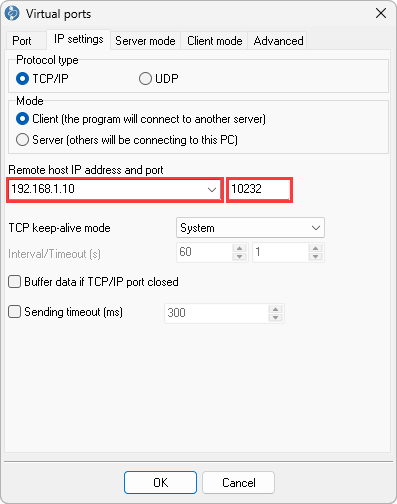
Fig. 3. Client mode: the address of computer A
- Leave the "Advanced" tab off unless TCP COM Bridge Professional runs on both ends and you want the RTS and DTR lines or the communication parameters carried over; the settings must then be identical on both sides.
- Save and open the port. Click "OK". The client shows "Net: Opened", computer A counts it: "Net: Opened (clients: 2)" with two clients. Open COM20 in the program that needs the device.
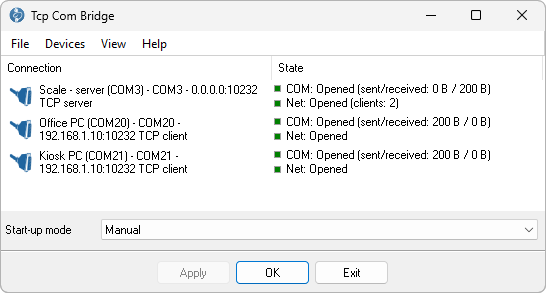
Fig. 4. The server line counts the connected clients


Sharing on the same computer
A program on computer A cannot open COM3 while the server connection holds it. Give that program a virtual port too: a second connection on computer A, client mode, address 127.0.0.1 and the same port. Two connections on computer A fit the Standard edition. With two or more virtual ports on one computer this becomes the serial port splitter setup, which takes three connections or more and the Professional edition.
Over the Internet
A client only needs the public address of computer A. Computer A, as the server, must be reachable from outside: forward the TCP port on the router to the local address of computer A, or check "Enable UPnP" on the "Server mode" tab so that the program asks the router to do it. Restrict the server with "Allowed IP addresses". For anything beyond a test, put both ends into a VPN: the program's own "Encrypt network data" option (Professional edition, both ends) uses an algorithm whose details we do not publish, and we do not recommend it as the only protection on a public network.
Options that keep a share running
- Start without a user. Select "Windows service (before user login)" as the start-up mode on computer A (Professional edition); the port is served before anyone logs on. The device server guide describes the service mode in detail.
- Dead links. Keep-alive on the client connections, buffering on both sides. The troubleshooting guide explains what the state lines show when a share stops.
- The device stays at one baud rate. The serial parameters live on computer A. A client that sets another baud rate on its virtual port changes nothing at the device.
Limits
- The device sees one stream. When two clients send commands at the same time, it receives them mixed and each client may read the other one's reply. Use the "IP → COM" rule to let one client send, or make the others read-only.
- TCP COM Bridge sends the raw data stream; it does not implement RFC 2217 (Telnet COM port control).
- Every request and reply crosses the network. Check the round trip with ping before you rely on a share for a protocol with short timeouts.
Which edition do I need?
Each computer runs its own copy. One shared port takes one connection on computer A and one on each client, so the Standard edition (two connections) is enough everywhere, also when computer A needs a virtual port for its own program. The Windows service mode, the keep-alive mode, UDP and encryption need the Professional edition. Compare editions. The Standard edition also enough if you need to share a COM port over IP for other computer.
Questions
Can two computers use the scale at the same time?
Both receive the weight at the same time. Commands should come from one of them at a time: "Send all data, but prioritize last active client" with a timeout of a few seconds lets the computer that asked last get its answer, then frees the device for the other one.
Does a client have to run Windows?
Only a client that needs a COM port. Any program or system that can open a TCP connection reads the shared port directly from computer A, without a virtual port; see the serial to TCP/IP guide.
How do I share a printer instead of a scale?
The same way, with the printer's port on the server. The receipt printer guide shows the two-computer setup step by step.
Video transcript
Narration of the video "Share a COM port over the network" (September 2026).
COM port sharing: a serial device stays on one computer, and other computers use it over the network. One server connection on the computer with the device, and one client connection, with a virtual COM port, on every computer that needs it. The example: computer A with a scale on COM3, an office PC and a kiosk PC that need the same weight. In this video both clients run on one computer; in real life each client is its own computer with its own copy of TCP COM Bridge.
Computer A: serve the port. Computer A. Devices, Add new: select the port of the device, leave "Create virtual serial port" unchecked, and set the baud rate. These parameters are set here only; the clients cannot change them over the network. IP settings: Server, address 0.0.0.0 to listen on every network adapter, and port 10232. Server mode decides who may send. "Send all data, but prioritize last active client", with a timeout of 5 seconds, lets the computer that asked last get its answer, then frees the device for the other one. "Max clients" limits how many may connect, and "Allowed IP addresses" rejects everyone else. OK. COM: Opened, Net: Opened, clients: zero. Allow the program in the Windows firewall if Windows asks.
Every other computer: a virtual COM port. Every other computer: Add new, check "Create virtual serial port", pick a free number, COM20, and name the connection after the computer or the program. IP settings: Client, the address of computer A and port 10232. "Buffer data if TCP/IP port closed" keeps what the program writes while the link is down, and keep-alive mode Custom notices a dead link and reconnects. OK. The kiosk PC gets COM21 the same way.
The result. The server line counts its clients: two. The scale's data goes to both virtual ports. Open COM20 or COM21 in the program that needs the scale. Two terminals on the two virtual ports show the same readings.
Over the Internet. Over the Internet a client needs the public address of computer A and a forwarded port on its router, or "Enable UPnP", so that the program asks the router itself. Restrict the server with "Allowed IP addresses", and prefer a VPN for anything beyond a test. One shared port takes one connection on computer A and one on each client, so the Standard edition is enough everywhere. The service mode, keep-alive, UDP and encryption need the Professional edition. The written guide with screenshots is on aggsoft.com. Thanks for watching.
See also
Install TCP COM Bridge: setup, driver, first connection
Serial port splitter: one COM port for two or more programs
Serial device server: many COM ports on one Windows PC
Share a COM port over the network
COM port redirector: a virtual COM port to a TCP/IP address
Redirect COM ports to a terminal Windows server
Serial over Ethernet: how it works
Connect two COM ports on the same computer
Printing on one receipt, POS or fiscal printer from two computers
Fix slow receipt printing from remote accounting software
Serial to TCP/IP converter software
Best serial over Ethernet tools by situation
TCP COM Bridge vs tcp2com: when the free tool is enough
TCP COM Bridge troubleshooting
Related topics: TCP COM Bridge
hereSerial over Ethernet | Serial to TCP/IP converter | COM port redirector | Serial port splitter | COM port sharing | Serial device server | Serial port monitor | RS232 pinout and signals | Virtual Null Modem | COM Port Emulation