
Serial Device Server Software: Many COM Ports on One Windows PC
A serial device server (some makers say terminal server) puts serial devices on the network: each device gets a TCP port, and any computer on the network can talk to it. TCP COM Bridge does the same with a Windows computer and its COM ports, whether they come from a multi-port card, USB-to-serial adapters or the mainboard. One server connection per COM port, each on its own TCP port, and the computer keeps doing its other work. Compared with a hardware box, the PC version can be watched from its main window, accepts several clients per port, reconnects and buffers data, and grows to 255 COM ports.
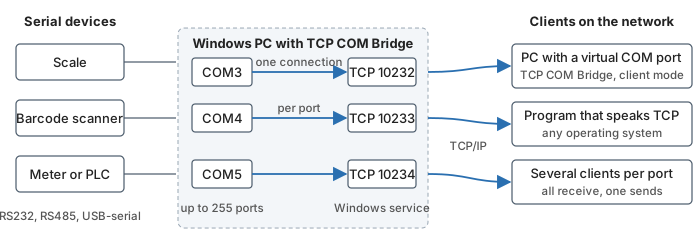
One TCP port per COM port; clients are PCs with virtual COM ports or any program that opens a TCP connection
Video
The video from 2026 shows the same steps in the program.
Set up the first port
- Add a connection ("Devices → Add new", Ctrl+N). On the "Port" tab select the first COM port, leave "Create virtual serial port" unchecked and set the baud rate, data bits, parity and stop bits of the device on that port. Name the connection after the device.
- Server mode. On the "IP settings" tab keep "TCP/IP", select "Server (others will be connecting to this PC)", enter 0.0.0.0 (all network adapters) or the address of one adapter, and a port number above 1000. Give every COM port its own TCP port: 10232 for the first, 10233 for the second, and so on. The serial to TCP/IP guide shows the tabs with all options.
- Who may connect and send. On the "Server mode" tab set "Max clients" (0 = no limit), the "IP → COM" rule for the case that several clients send to one device, and "Allowed IP addresses", one per line, for a server that is reachable from outside your network.
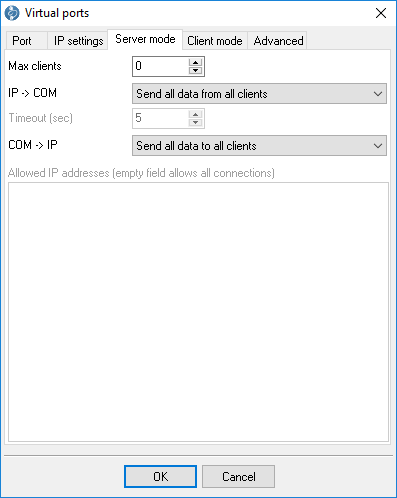
Fig. 1. Server options of one port
- Save. Click "OK". The connection shows "COM: Opened" and "Net: Opened (clients: 0)".

Add the other ports quickly
Select the finished connection and choose "Devices → Clone": the copy has the same settings, so only the name, the COM port and the TCP port need a change. Repeat for every port. "View → Table" shows many connections in one list with their states and counters.
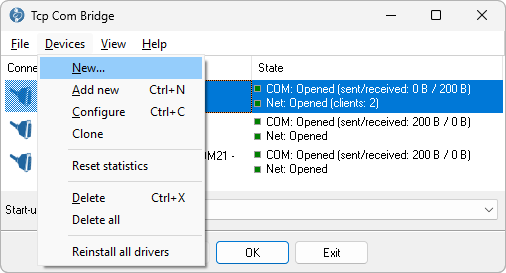
Fig. 2. Clone copies a configured connection

Fig. 3. Eight ports served, one TCP port each
Run it as a Windows service
A device server must not depend on someone logging on. The Professional edition runs as a Windows service that creates the connections as soon as Windows starts:
- Configure and test all connections in the main window.
- Select "Windows service (before user login)" in the "Start-up mode" list at the bottom of the main window.
- Click "Exit" and agree to close the active connections. From the next reboot the service starts on its own; to start it now without a reboot, start "Tcp Com Bridge" in the Windows Services console. Task Manager then lists tcpcom.exe among the processes.

Fig. 4. The service mode starts the ports before anyone logs on
To change a connection later, start the program from its icon and agree to the restricted mode (the service keeps running in the background), change the settings, then restart the "Tcp Com Bridge" service in the Services console. To leave the service mode, stop the service there and set its start-up type to "Manual".
Connect the clients
- A program that needs a COM port on another computer gets a virtual COM port from a second copy of TCP COM Bridge in client mode: the COM port redirector guide. One client connection per device.
- A program that can open a TCP connection talks to the device's TCP port directly, from any operating system. PuTTY in "Raw" mode is the quickest test: see the serial to TCP/IP guide.
- Several clients on one port all receive the device's data; the "IP → COM" rule of the port decides who may send. The sharing guide explains the four rules.
- Modbus TCP clients need a protocol conversion, which TCP COM Bridge does not do; use MODBUS Gateway for Modbus RTU devices.
A server that stays up
- "TCP keep-alive mode: Custom" on each connection (Professional edition) closes a dead client connection after the timeout you set, so the port is free for the client's reconnect.
- "Buffer data if TCP/IP port closed" keeps the device's data while no client is connected and delivers it when one connects.
- "Sending timeout" collects the bytes that arrive within the given milliseconds into one network packet, useful for devices that send many short pieces.
- The troubleshooting guide covers the state lines, USB adapters that go to sleep and links that stop after hours.
Over the Internet
Clients need the public address of the server computer and one forwarded port per COM port on the router, or "Enable UPnP" on each connection so that the program requests the forwarding itself. Fill "Allowed IP addresses" for every port that faces the Internet, and prefer a VPN: the program's "Encrypt network data" option (Professional edition, both ends) uses an algorithm whose details we do not publish, and we do not recommend it as the only protection on a public network.
How many ports, which edition
- Windows numbers COM ports from 1 to 255, and one computer can serve all of them, each with its own TCP port. Beyond that, use a second computer.
- Up to two connections work with the Standard edition; a device server with more ports, the Windows service mode, UDP, the keep-alive mode and encryption need the Professional edition, which has no connection limit. Compare editions.
- The trial version allows three connections, so a larger server cannot be tested with it. Write to us for an evaluation of a bigger setup.
Questions
Do USB-to-serial adapters work as server ports?
Yes. Any port that Windows lists in Device Manager under "Ports (COM & LPT)" can be served: mainboard ports, PCI or PCI Express cards, USB adapters. Keep the adapter's power management off; the troubleshooting guide shows where.
Can the server computer use its own ports at the same time?
Not directly: a served COM port belongs to the server connection. A program on the same computer gets a virtual port through a client connection to 127.0.0.1 and the port's TCP number.
I am replacing a discontinued serial-over-IP server product. How does the setup map?
One server connection per physical COM port on the server, one client connection per virtual port on each application server. Keep the TCP port numbers of the old product if the clients cannot be changed.
Video transcript
Narration of the video "Serial device server" (September 2026).
A serial device server puts serial devices on the network: every device gets a TCP port, and any computer can talk to it. TCP COM Bridge turns a Windows PC with COM ports into one: a server connection per port, each on its own TCP port.
The first port. The first port. Devices, Add new: select the COM port of the device, leave "Create virtual serial port" unchecked, set the device's baud rate, and name the connection after the device. On IP settings keep TCP/IP, choose Server, and listen on 0.0.0.0, that is on every network adapter, port 10232. Every COM port gets its own TCP port: 10232, 10233, and so on. Server mode: "Max clients", zero means no limit. The "IP to COM" rule, for the case that several clients send to one device. And "Allowed IP addresses", one per line, for a server that faces the outside. OK. The connection opens: COM: Opened, Net: Opened, no clients yet. Allow the program in the Windows firewall if Windows asks.
Add the other ports. The other ports go faster with Clone: the copy has the same settings, so only the name, the COM port and the TCP port change. Repeat for every port. One computer can serve all 255 COM numbers that Windows allows, each on its own TCP port. The main window shows every port with its state and its counters.
Connect the clients. Any program that can open a TCP connection reads a device directly: a plain TCP client on port 10232 shows the meter's data. A program that needs a COM port on another computer gets a virtual port from TCP COM Bridge in client mode; that is the COM port redirector guide.
A server that stays up. Three options keep a server up. TCP keep-alive mode Custom closes a dead client connection after your timeout, so the port is free for its reconnect. "Buffer data if TCP/IP port closed" keeps the device's data until a client connects. "Sending timeout" collects the bytes that arrive within the given milliseconds into one packet.
Run it as a Windows service. A device server must not depend on someone logging on. Select "Windows service, before user login" in the Start-up mode list, click OK and agree to close the connections. From the next start the service creates the ports before anyone logs on. The service, Tcp Com Bridge, is running. To change a connection later, start the program from its icon, agree to the restricted mode, change the settings, and restart the service. Up to two connections work with the Standard edition. A device server with more ports, the service mode, UDP and keep-alive need the Professional edition. The trial allows three connections. The written guide with screenshots is on aggsoft.com. Thanks for watching.
See also
Install TCP COM Bridge: setup, driver, first connection
Serial port splitter: one COM port for two or more programs
Serial device server: many COM ports on one Windows PC
Share a COM port over the network
COM port redirector: a virtual COM port to a TCP/IP address
Redirect COM ports to a terminal Windows server
Serial over Ethernet: how it works
Connect two COM ports on the same computer
Printing on one receipt, POS or fiscal printer from two computers
Fix slow receipt printing from remote accounting software
Serial to TCP/IP converter software
Best serial over Ethernet tools by situation
TCP COM Bridge vs tcp2com: when the free tool is enough
TCP COM Bridge troubleshooting
Related topics: TCP COM Bridge
hereSerial over Ethernet | Serial to TCP/IP converter | COM port redirector | Serial port splitter | COM port sharing | Serial device server | Serial port monitor | RS232 pinout and signals | Virtual Null Modem | COM Port Emulation