
TCP COM Bridge Troubleshooting: Dropped Links, Missing Ports, No Data
Most problems with TCP COM Bridge show up in the main window before anyone reports them: every connection has two state lines and two byte counters, and together they say which side of the link is broken. This page starts with how to read them, then goes through the problems that reach our helpdesk, from a link that stops after hours to a virtual port a program cannot find.
Read the state lines first
Each connection shows a COM line for the serial side and a Net line for the network side. A green square means open, a red one means an error, and the text after it is the reason Windows gave. "COM: Opened (sent/received: 320 B / 0 B)" counts the bytes written to the COM port and read from it since the connection was opened.
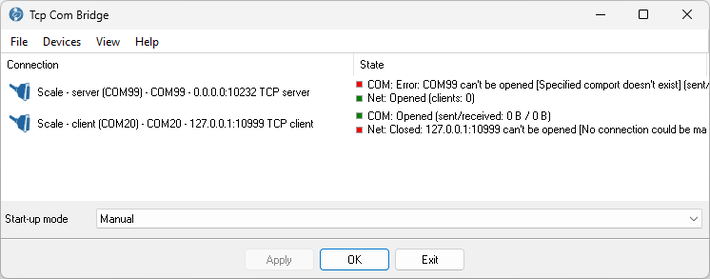
Fig. 1. One connection with a COM port that does not exist, one whose server does not answer
Two questions locate a fault:
- Which line is red? A red COM line is a serial problem on this computer (port missing, busy, adapter unplugged). A red Net line is a network problem: the far end is not listening, or nothing reaches it.
- Which counter stops? Send something from the application. If the counter on the side where the data enters grows and the other does not, the data is lost between the two sides: read on under "The link works for hours, then stops".
"Net: Closed: 192.168.1.10:10232 can't be opened"
A client connection could not reach the server. The program keeps trying, and the virtual port stays open for the application meanwhile. Check, in this order:
- The server computer runs TCP COM Bridge with a server connection on that port, or the device server is in its raw TCP server mode. On the server computer the Net line must read "Net: Opened (clients: 0)".
- The Windows firewall on the server computer allows tcpcom.exe, or the port. Test from the client with a plain TCP tool: PuTTY in "Raw" mode to the same address and port, as shown in the serial to TCP/IP guide. If PuTTY cannot connect either, the problem is not in TCP COM Bridge.
- The address and the port. "Actively refused" means the computer answered but nothing listens on that port; a timeout means nothing answered at all (wrong address, firewall, wrong network).
"COM: Error: COM3 can't be opened"
- "Specified comport doesn't exist". The port number is not in Device Manager. USB-to-serial adapters get a new number when they are plugged into another USB socket; check "Ports (COM & LPT)" and correct the number on the "Port" tab.
- "Access denied" or "port is busy". Another program holds the port. A COM port belongs to one program at a time. Close the other program, or, if it needs the port only now and then, check "Open on demand" on the "Port" tab so that TCP COM Bridge opens the real port only while a network client is connected, and "Close after inactivity" to release it after a pause (Fig. 4).
- The port opens but no data arrives. Wrong cable or wrong parameters. The baud rate, data bits, parity and stop bits on the "Port" tab must match the device; they are not taken from the far end. A device on RS485 needs "RS485 interface mode" when the converter switches its driver with the RTS line.
The link works for hours, then stops
Two of the cases behind this page: a laboratory analyser whose results arrive at another computer through a virtual port "sometimes for hours, sometimes not", and warehouse scales on USB-to-serial cables that stop answering a weighing application after a few hours, where a restart of the service or a replug of the cable brought them back. The counters tell the two cases apart.
The network side: connections that die silently
A TCP connection that carries no data for a long time can be dropped by a router, a firewall or a VPN without either end noticing; both ends still show "Opened". Three settings on the client connection handle this:
- "TCP keep-alive mode: Custom" on the "IP settings" tab (Professional edition) sends a check packet every "Interval" seconds and gives up after "Timeout"; a dead link is closed and reconnected. Set the interval shorter than the idle timeout of the router or firewall in between.
- "Buffer data if TCP/IP port closed" keeps what the application writes while the link is down and sends it when the link is back.
- "Additional keep-alive data packets" on the "Advanced" tab, when TCP COM Bridge runs on both ends with the same settings: the program itself sends small packets, which also keep a NAT entry alive. With a device server at the far end leave it off.

Fig. 2. Keep-alive and buffering on the client connection

Fig. 3. The program's own keep-alive packets, for links between two copies of TCP COM Bridge
The serial side: a USB adapter that goes to sleep
When the network is fine but the "received" counter of the server connection stops growing, the COM port itself has stopped delivering. With a USB-to-serial cable this is almost always power management or the adapter's driver, and a replug "fixes" it because the port is opened again. What helps:
- In Device Manager open the adapter under "Ports (COM & LPT)" and its "USB Root Hub" or "Generic USB Hub" under "Universal Serial Bus controllers", and on the "Power Management" page clear "Allow the computer to turn off this device to save power".
- In the power plan (Control Panel → Power Options → Change advanced power settings → USB settings) disable "USB selective suspend".
- Use the maker's current driver for the adapter's chip, not the one Windows Update installs, and try a cable with another chip if the fault stays.
- Let the program reopen the port for every session: "Open on demand" and "Close after inactivity" on the "Port" tab. An adapter that has stalled often works again once its port is closed and opened.
- Rule out the application: connect to the server's TCP port with a plain TCP tool while the fault is present. If the tool sees no data either, the application is not the cause.

Fig. 4. Clear this box for the adapter and for the hub it hangs on

Fig. 5. Open the real port only while a client needs it
The application cannot find or open the virtual port
- The port is not in the application's list. Virtual ports have their own group in Device Manager, "Virtual Serial Port TCP COM", not "Ports (COM & LPT)". An application that builds its list from the "Ports" group alone does not show them; type the name, COM20 for example, by hand.
- "Unable to open COM port" although the port exists. The port exists only while the connection that creates it is running. Look at the COM line of that connection; if the whole main window shows no connections and a message about a restricted mode, the desktop program was started while the TCP COM Bridge service was running. Stop the service in the Services console, close the program and start it again, or leave the service alone and manage the connections through the service.
- The port appears with a warning sign or not at all after a Windows upgrade. Choose "Devices → Reinstall all drivers" in the main window; Windows may ask to confirm the driver installation.

Fig. 6. Where the virtual ports are in Device Manager
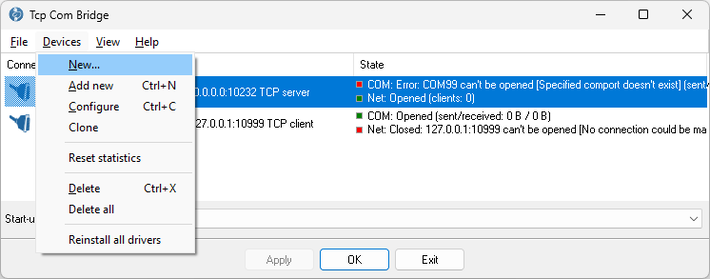
Fig. 7. Reinstall all drivers from the Devices menu
Data arrives, but garbled or in pieces
- Wrong characters. The baud rate, data bits, parity or stop bits of the real port do not match the device. TCP COM Bridge sends the bytes as they are and does not carry these parameters over the network (no RFC 2217), so set them where the real port is: on the "Port" tab of the server computer, or in the device server.
- Frames split in two. A protocol that recognises a frame by the silence after it, Modbus RTU for example, may reject a frame that arrives in two network packets. On the sending side check "Sending timeout" on the "IP settings" tab and set a few milliseconds: bytes that arrive within that time go out in one packet.
- Replies for another program. When two applications or two client computers send commands to one device, the device answers to a single stream and each program may read the other one's reply. Let one side send and make the other links one-way; see the sharing guide and the splitter guide.
Still stuck?
Write to us with the state lines and counters of the affected connections, the "IP settings" of both ends, and what is at the far end (another copy of TCP COM Bridge, a device server, a program). The program's help describes every option of the "Virtual ports" dialog.
See also
Install TCP COM Bridge: setup, driver, first connection
Serial port splitter: one COM port for two or more programs
Serial device server: many COM ports on one Windows PC
Share a COM port over the network
COM port redirector: a virtual COM port to a TCP/IP address
Redirect COM ports to a terminal Windows server
Serial over Ethernet: how it works
Connect two COM ports on the same computer
Printing on one receipt, POS or fiscal printer from two computers
Fix slow receipt printing from remote accounting software
Serial to TCP/IP converter software
Best serial over Ethernet tools by situation
TCP COM Bridge vs tcp2com: when the free tool is enough
TCP COM Bridge troubleshooting
Related topics: TCP COM Bridge
hereSerial over Ethernet | Serial to TCP/IP converter | COM port redirector | Serial port splitter | COM port sharing | Serial device server | Serial port monitor | RS232 pinout and signals | Virtual Null Modem | COM Port Emulation