
COM Port Redirector: Virtual COM Port to a TCP/IP Address
A COM port redirector gives a program a COM port that does not end in a cable. The program opens COM20 like any other port; TCP COM Bridge takes every byte written to COM20, sends it to an IP address and a TCP port, and returns what comes back as if the device were plugged into this computer. The far end can be a hardware device server, an Ethernet or Wi-Fi gateway with a serial port, or another Windows computer that runs TCP COM Bridge as a serial to TCP/IP server.
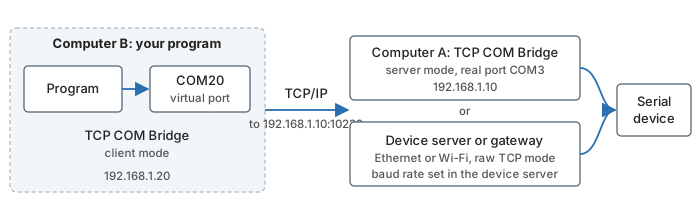
How a redirected COM port reaches the device
Before you start
You need the IP address and the TCP port of the far end:
- A hardware device server or gateway. Switch it to its raw TCP server mode (some makers call it "TCP server" or "socket" mode) and note the port number. Set the baud rate, data bits, parity and stop bits of the device in the device server: these values do not travel over the network (see "What travels over the network" below).
- Another Windows computer. Install TCP COM Bridge there and set up a server connection on the real COM port; the serial to TCP/IP guide walks through its three tabs. In the example below that computer is 192.168.1.10 and listens on port 10232.
The computer with the program needs a free COM port number. Windows allows COM1 to COM255; take one that no hardware uses, for example COM20.
Set up the virtual COM port
- Add a connection. Start TCP COM Bridge and choose "Devices → Add new" (Ctrl+N).
- Create the virtual port. On the "Port" tab check "Create virtual serial port" and select the number, COM20 here. Give the connection a name that says what it is for. The baud rate and the other parameters on this tab belong to the virtual port itself; they are not sent to the far end.
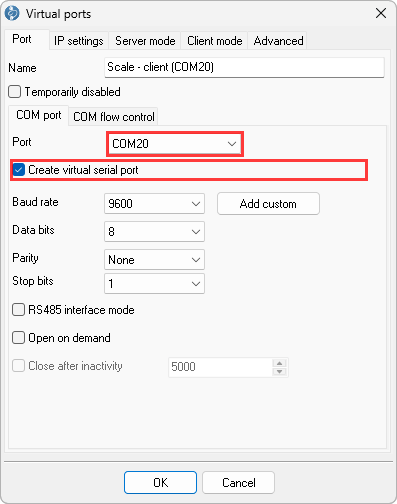
Fig. 1. A virtual port instead of a real one
- Point it at the far end. On the "IP settings" tab keep "TCP/IP", select "Client (the program will connect to another server)" and enter the IP address and the port of the device server or of the server computer. Two options pay off on a permanent link: "TCP keep-alive mode: Custom" (Professional edition) notices a dead connection within the interval you set and reconnects, and "Buffer data if TCP/IP port closed" keeps what the program writes while the link is down and sends it when the link is back.
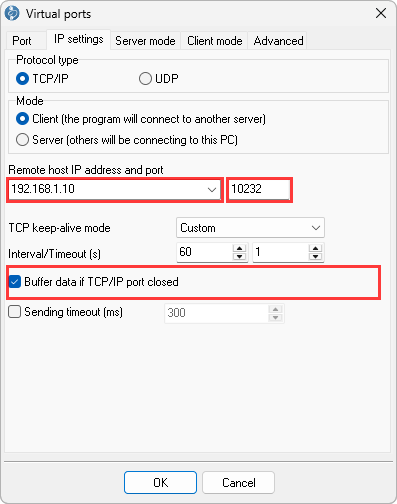
Fig. 2. Client mode: the address of the far end
- Leave the "Advanced" tab off. Its options (transmit RTS and DTR state, transmit communication parameters, encryption, additional keep-alive packets, optimization for small packets) work only when TCP COM Bridge runs on both ends with identical settings. With a device server or any other program at the far end they must stay off.
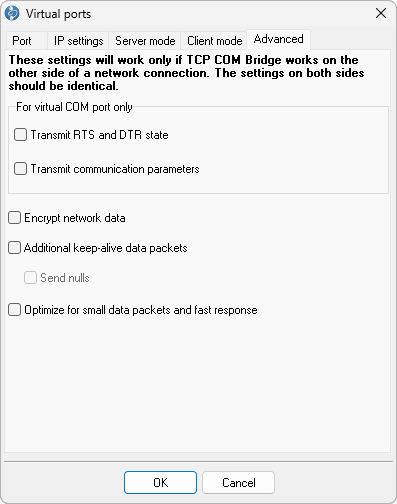
Fig. 3. The Advanced tab stays off unless TCP COM Bridge runs on both ends
- Save. Click "OK". The main window lists the connection with two state lines: "COM: Opened" means the virtual port exists, "Net: Opened" means the far end accepted the connection. The counters show the bytes that passed in each direction.
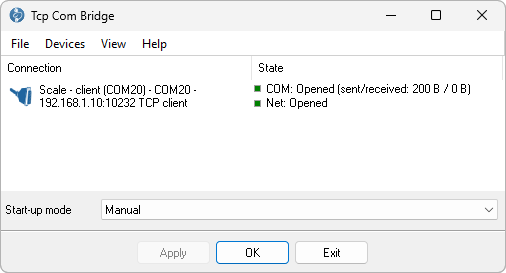
Fig. 4. The redirector is up: virtual port created, far end connected
- Open COM20 in your program. The program sees a normal COM port. Select COM20 in its port list. Whatever parameters the program sets on COM20 stay local; the device gets what the device server or the server computer is set to.
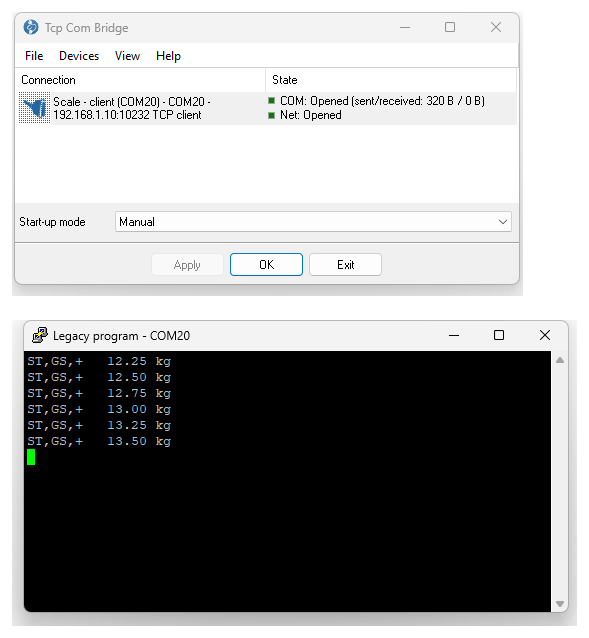
Fig. 5. A COM-only program reads the network device through COM20


Windows lists the new port in Device Manager under "Virtual Serial Port TCP COM", not under "Ports (COM & LPT)". A program that builds its port list from the "Ports" group alone will not show COM20; type the name by hand in that case.

Fig. 6. Virtual ports have their own group in Device Manager
Start the redirector before the program
The virtual port exists only while TCP COM Bridge runs. "Start-up mode" at the bottom of the main window decides when that is: by hand, together with Windows for the current user or for all users, or as a Windows service before anyone logs on (Professional edition). Take the service mode for a redirector that a program needs right after a reboot, on a server or a kiosk PC for example.
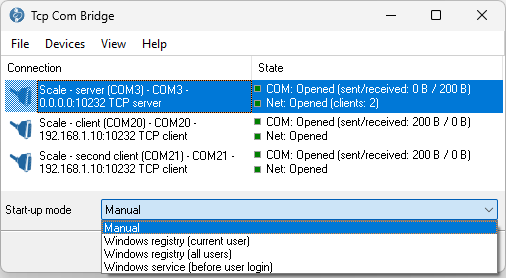
Fig. 7. The four start-up modes
When the far end does not answer
If the device server is off, the address is wrong or a firewall blocks the port, the state changes to "Net: Closed" with the reason Windows reports, and the program keeps trying to connect. The virtual port stays open, so your program does not lose COM20; what it writes in the meantime is kept when "Buffer data if TCP/IP port closed" is on.
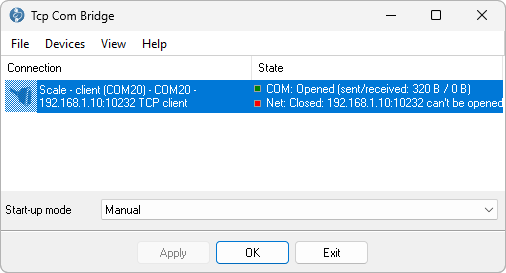
Fig. 8. The far end is unreachable: the state line names the address and the error
The usual causes are a firewall on the server computer, a wrong port number, or a device server that is still in its default mode instead of raw TCP. More states and their fixes: TCP COM Bridge troubleshooting.
What travels over the network, and what does not
- The data bytes, unchanged, in both directions. TCP COM Bridge adds no protocol layer and does not implement RFC 2217 (Telnet COM port control).
- Not the baud rate, parity or flow control. They stay local to each end. Set the real port's parameters where the real port is: in the device server, or on the "Port" tab of the server computer.
- Not the RTS, DTR, CTS and DSR lines, unless TCP COM Bridge Professional runs on both ends and "Transmit RTS and DTR state" is on at both.
- Time. Every request and reply crosses the network. A protocol that measures the silence between bytes, Modbus RTU for example, can misread a frame that arrives in two network packets; "Sending timeout" on the "IP settings" tab of the sending side collects the bytes that arrive within the given milliseconds into one packet. Check the round trip with ping before you rely on a link for a protocol with short timeouts.
UDP instead of TCP
A gateway that sends datagrams needs "UDP" as the protocol type on the "IP settings" tab; the address fields change accordingly. UDP has no connection and no delivery guarantee, so it suits devices that broadcast readings rather than command-and-reply protocols. UDP requires the Professional edition.
Which edition do I need?
One redirected port is one connection, so the Standard edition with its two connections covers one or two devices. The Windows service mode, the keep-alive mode, UDP and encryption need the Professional edition, which has no connection limit. One computer can hold up to 255 COM ports. Compare editions.
Questions
Can two programs open COM20 at the same time?
No. A COM port, real or virtual, belongs to one program at a time. To feed two programs from one device, set up a serial port splitter: one virtual port per program.
Does the device server have to be from a particular maker?
No. Any device server, gateway or converter with a raw TCP mode works; the program only needs an IP address and a port. If the gateway can act only as a TCP client, select "Server" instead of "Client" on the "IP settings" tab and let the gateway connect to the PC.
How much delay does the redirector add?
The program itself adds a delay too small to measure on a modern computer. What you notice is the network round trip: a few milliseconds on a wired LAN, more over Wi-Fi or the Internet.
Can the redirected port be used inside a Remote Desktop session?
Yes. A virtual port created on the terminal server is visible to every session there. The terminal server guide shows the setup, and the receipt printer guide the most common use of it.
Video
The video from 2013 shows the same steps in the old interface of the program.
See also
Install TCP COM Bridge: setup, driver, first connection
Serial port splitter: one COM port for two or more programs
Serial device server: many COM ports on one Windows PC
Share a COM port over the network
COM port redirector: a virtual COM port to a TCP/IP address
Redirect COM ports to a terminal Windows server
Serial over Ethernet: how it works
Connect two COM ports on the same computer
Printing on one receipt, POS or fiscal printer from two computers
Fix slow receipt printing from remote accounting software
Serial to TCP/IP converter software
Best serial over Ethernet tools by situation
TCP COM Bridge vs tcp2com: when the free tool is enough
TCP COM Bridge troubleshooting
Related topics: TCP COM Bridge
hereSerial over Ethernet | Serial to TCP/IP converter | COM port redirector | Serial port splitter | COM port sharing | Serial device server | Serial port monitor | RS232 pinout and signals | Virtual Null Modem | COM Port Emulation