
Identify Active Nodes: MODBUS Device Scan Plugin Guide
The Challenge of Unknown MODBUS Slaves
In industrial environments, finding the address of a specific MODBUS device on a busy RS485 bus can be a time-consuming task. Documentation is often lost, or labels on the hardware are unreadable.
The MODBUS Device Scan plugin for Advanced Serial Port Monitor solves this by automating the "polling" process. It sends a standard request to a range of addresses and listens for a response. If a device answers, it is officially "discovered."
Apart from a web version of the MODBUS device scanner, the plugin can work with different MODBUS protocol types (RTU, ASCII, Enron).
Tutorial: Scanning RS485 Devices using USB or RS232
Modern laptops and PCs rarely feature native RS485 ports. To scan industrial hardware, you must bridge the physical layer.
1. Hardware Preparation
Since RS485 uses differential two-wire signaling (A and B lines) and RS232/USB uses single-ended multi-wire signaling, you need a converter:
- USB to RS485: The most common method. High-quality converters (like those using FTDI and SiliconLabs chips) are recommended for stability.
- RS232 to RS485: This converter type is required if you have a legacy serial port or a high-end industrial PC with a built-in PCIe multi-port board.
Wiring Tip: Connect the 'A+' line of the converter to 'A+' on the device, and 'B-' to 'B-'. Ensure a 120-ohm termination resistor is present at the end of the line for long distances to prevent signal reflection.
2. Software Setup
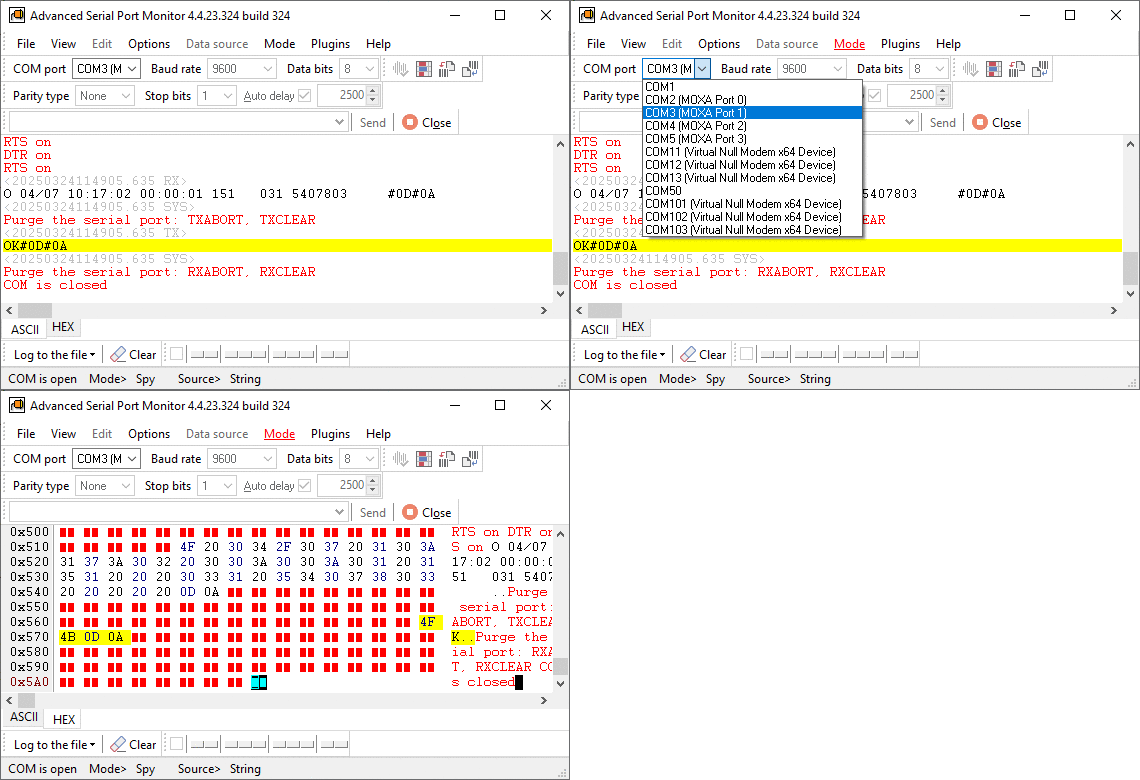
- Open Advanced Serial Port Monitor and select the COM port assigned to your converter.
- Select the baud rate and communication parameters. For example, you can start from 4800 and 8N1.
- Navigate to the Plugins menu and open the MODBUS Device Scan module.
3. Configuring the Scan
In the plugin interface window:
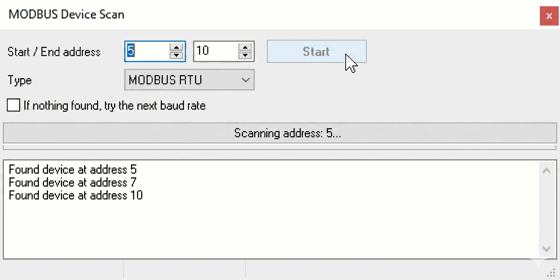
- Start / End address: Set the range you wish to scan. For a full scan, use 1 to 255.
- Type: Select MODBUS RTU (the widely used industry standard for serial communications).
- Auto-Baud Search: If you are unsure of the bus speed, check the box "If nothing found, try the next baud rate". This is a handy feature that cycles through standard speeds (9600, 19200, 38400, etc.) automatically.
4. Execution
Click Start. The plugin will begin sending requests. Discovered devices will appear in the result log below, showing their Device Address.
Typical Usage Scenarios
1. Commissioning New Installations
When setting up a new cabinet with dozens of power meters or sensors, you can quickly verify that every device is wired correctly and addressed properly before the SCADA system goes live. If a device doesn't appear in the scan, you likely have a wiring fault or a duplicate address.
2. Troubleshooting "Silent" Networks
If a PLC suddenly loses communication with its slaves, use the plugin to perform a health check. By scanning the bus, you can determine if the issue is software-related (PLC configuration) or hardware-related (a failed device or a broken RS485 wire).
3. Reverse Engineering & Legacy Audits
When taking over an existing facility with no documentation, the MODBUS Device Scan plugin is your primary investigative tool. It allows you to map out the network architecture and identify the IDs of every controller on the bus without having to open every electrical enclosure.
Expert Perspective: Why Logic Matters
In a simple terminal, a user can send a MODBUS packet, but the software is not able to wait for a response or manage timeouts. It is a feature of the MODBUS Device Scan plugin that it recognizes the "Request-Response" timing that the protocol requires. As specified by the RTU standard, the plugin maintains the period of silence that must occur between characters.
By the automation of the process to cycle through baud rates and addresses, the plugin can simplify testing operations. For a person who types manually, the discovery process is a task that lasts for many hours, but it is completed in a few minutes when the plugin is used.
With its comprehensive range of useful tools integrated into a single app, Serial Port Monitor is ideal for everyday use with any RS232, COM, UART, or similar hardware.
See also
Automated Hardware Validation
Identify Active Nodes: MODBUS Device Scan Plugin Guide
ASCII and Binary Device Emulation: Advanced Serial Port Monitor Plugins
Advanced Scripting and Macros
MODBUS Slave Emulator: Advanced Serial Port Monitor Plugin Guide
RS232 Analyzer from Advanced Serial Port Monitor
RS232 Monitor
Related topics: Advanced Serial Port Monitor
hereRS232 monitor RS232 analyzer COM Port Debug RS232 terminal Serial port sniffer Serial port spy UART monitor RS232 pinout and signals Data monitor cables.