
Change, Reset or Delete a COM Port Number in Windows 11
How to Reset or Delete an Unused COM Port in Windows
Freeing a COM Port Number Using the COM Name Arbiter Tool
When a new COM port is installed in the system, Windows looks for the first number that has never been used before. This is done to prevent conflicts if two devices are connected simultaneously.
This problem often occurs when connecting various USB-to-COM converters or devices with built-in interface converters, such as Arduino. The COM port numbers continue to grow, and reserved ports are not released even if you delete the device in "Device Manager."
This issue usually affects older operating systems like Windows 7, 8, and some versions of Windows 10. In Windows 11, this problem is no longer relevant as the OS itself periodically frees unused ports.
You can resolve this problem using the COM Name Arbiter Tool:
- Download the program archive and extract it to your disk.
- Run the utility as an administrator (right-click the program icon in File Explorer).
- If you are using the utility for the first time, we recommend creating a restore point via the menu: File → Create System Restore Point.
- The "Clear unused reservations" button on the toolbar removes the "reserved" flag for all ports that are not currently connected to the computer. You can also manually uncheck boxes in the left column for specific ports.
- The "Remove non-present devices" button deletes the "assignment" of a missing (even if temporarily) device to the specified COM port number.
- Please note that all changes take effect immediately. There will be no additional confirmation prompts.
Note that this program does not free a port that is currently being used by another application.
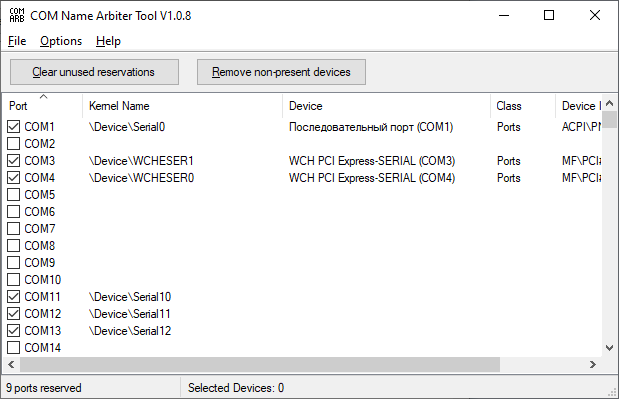
Deleting a COM Port from Device Manager
Another useful utility, Device Cleanup Tool, allows you to quickly find and delete devices missing from the system. While this can be done in Device Manager (View → Show hidden devices), this program makes it faster and more convenient, especially for multiple devices at once.
- Download the program archive and extract it to your disk.
- Run the utility as an administrator (right-click the program icon in File Explorer).
- If you are using the utility for the first time, we recommend creating a restore point via the menu: File → Create System Restore Point.
- Find your COM port in the list or select multiple devices if necessary. Press "Del" on your keyboard or select the menu item Devices → Remove selected.
- Please note that all changes take effect immediately. There will be no additional confirmation prompts.
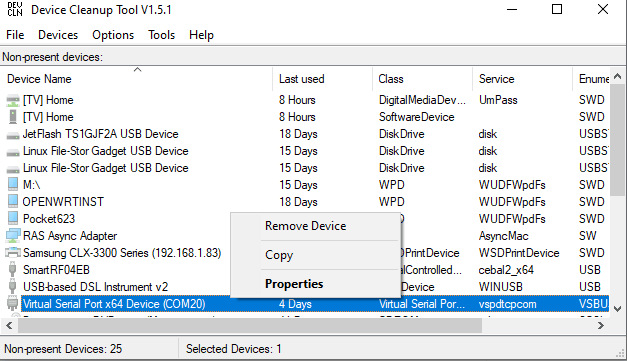
I manually deleted a COM port from Device Manager; how do I restore it?
To restore a COM port, you need to:
- Reconnect the device (e.g., a USB-to-COM converter).
- In Device Manager, select the root node with your computer's name.
- Select the main menu item Action → Scan for hardware changes.
- Windows should detect the device automatically and install the driver for it. You may need to assign the desired port number manually (see below), as Windows will likely assign the first available number.
If you need to restore a software virtual port:
- Run the virtual port manager in the application that creates them (e.g., Virtual Null Modem).
- Click OK or Apply.
- The manager will recreate the virtual ports defined in its configuration.
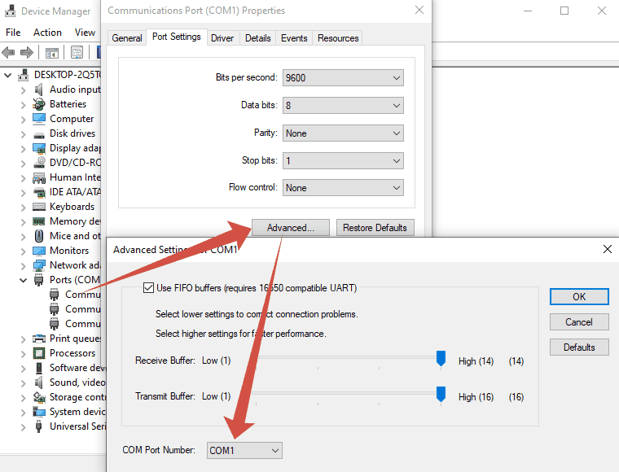
How to assign a COM port number in Device Manager?
To assign a COM port number, you need to:
- Open Device Manager (for example, press Win+R, type devmgmt.msc, and press Enter).
- In Device Manager, go to the Ports (COM & LPT) group.
- Select the device whose number you want to change, right-click on it, and select "Properties."
- Then select Port settings → Advanced, and at the bottom of the window, choose the desired port from the dropdown list.
- Click OK in all dialog boxes to save the settings.
- Note that if the port was being used by a program at that moment, the new port will only appear after a computer restart.
See also
How To Add COM Port Device On Windows Computer
6 Best Serial Port Monitor Tools (Guide & Comparison)
2 common reasons why applications failed to open serial port
How to Reset, Delete, or Restore a COM Port in Windows 11
Advanced Serial Port Monitor vs. 232analyzer
HyperTerminal Alternative for Windows 11 & 10
Docklight vs. Advanced Serial Port Monitor for Windows 11 & 10
Related topics: Advanced Serial Port Monitor
hereRS232 monitor RS232 analyzer COM Port Debug RS232 terminal Serial port sniffer Serial port spy UART monitor RS232 pinout and signals Data monitor cables.