
Failed to execute 'open' on 'SerialPort': How to Fix
Common Reasons For Failed Serial Port Opening
Failed to execute 'open' on 'serialport'.
The error "failed to open serial port" occurs when an application cannot establish a connection to a specific serial port. This issue frequently appears on web pages using the WebSerial API to interface with hardware devices.
In the Windows operating system, serial ports work in exclusive mode. This means only one program can access a port at a time, preventing other applications from using the same connection at the same time.
Review the following common causes if your application cannot open a serial port:
- WebSerial API Permission: You must explicitly grant access to the serial port through the browser's system dialog. This prompt appears before the application can establish a connection with the COM port. You cannot skip this dialog.
- Physical connection: Verify that the device is securely connected to your computer.
- Power status: Confirm the device is powered on. Most hardware has a green power LED indicator.
- Cable compatibility: Ensure you use a data-transfer USB cable rather than a power-only charging cable.
- Driver installation: Confirm that the correct, up-to-date drivers are installed for your specific hardware.
- Port contention: Another application may be using the port. This could be a background service, a minimized app, or a hung process. Refer to our guide on identifying and terminating these processes. We recommend restarting your computer after killing a hung process.
- Driver interference: In rare cases, system drivers (such as ancient serial mouse drivers) may incorrectly lock the port.
To find out whether the fault is in the port or in the web application, open the same port in our free Serial Port Tester. It uses the same Web Serial API, explains in plain words why the port refused to open, and names the adapter chip, with a warning for Prolific PL2303 adapters, whose old and counterfeit chips current Windows drivers refuse.
The Advanced Serial Port Monitor program can help you identify the name of the process occupying the port.
- Download Serial Port Monitor (the first link) and install it on your computer.
- Right-click on the program icon and select "Run as Administrator".
- Select the Manual mode in the Mode menu.
- Select the necessary serial port from the list and click Open.
- The program will not be able to open the port, just like another application, but it will show the name of the process.
- If the name appears as "System", then the port is used by some device driver, and it is not possible to determine more precisely.
- Using the process name, you can find it in the detailed view in Task Manager and stop or kill the process.
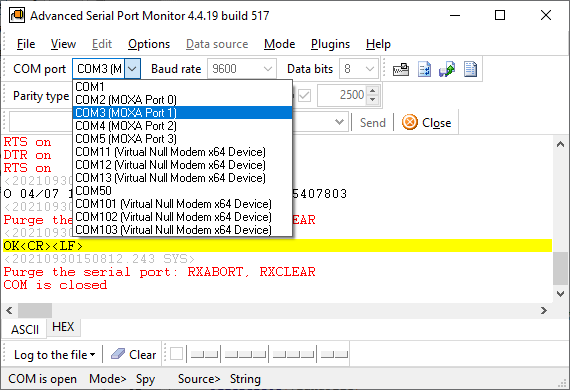
Error: unable to open port COM3 for programmer Arduino
This error is similar to the failed to execute 'open' issue. Additionally, you should verify that you have selected the correct COM port number.
- Download the Serial Port Monitor (standard version) and install it on your system.
- Right-click the application icon and select "Run as Administrator" to ensure that the program can enumerate all hardware devices. But the program can also start in the normal user mode.
- Open the "Ports" drop-down list to verify your COM port is listed. For Arduino-compatible boards using CH340 or CH341 chips for USB-to-serial emulation, the description should include "USB SERIAL CH34x".
- Switch the program to the Mode menu and select Manual mode.
- Try to open the port within Serial Port Monitor. The software may provide specific error details about why the port is currently inaccessible.
See also
5 Ways To Send Data To COM Port From Command Line in Windows
How To Add COM Port Device On Windows Computer
6 Best Serial Port Monitor Tools (Guide & Comparison)
2 common reasons why applications failed to open serial port
How to Reset, Delete, or Restore a COM Port in Windows 11
Advanced Serial Port Monitor vs. 232analyzer
HyperTerminal Alternative for Windows 11 & 10
Related topics: Advanced Serial Port Monitor
hereRS232 monitor RS232 analyzer COM Port Debug RS232 terminal Serial port sniffer Serial port spy UART monitor RS232 pinout and signals Data monitor cables.