
Garbled Serial Data on a COM Port: 7 Checks in Order
Garbled serial data means one side is not reading what the other side wrote. The bytes are usually still there; the framing, the wiring or the adapter is turning them into ÿ, question marks, box characters or half a MODBUS frame. This page gives the checks in the order that finds the fault fastest, from the two-minute ones to the ones that need a second adapter, and shows where a serial port monitor shortens each step.
What the garbage looks like, and what it usually means
The shape of the garbage narrows the search before you touch a setting. Match your case in the table, then start with the check it names; the rest of the page goes through all seven in order.
| What you see | Most likely cause | Start with |
|---|---|---|
| Only ÿ (0xFF), 0x00 or the same few symbols, whatever the device does | Baud rate far from the device's rate; every byte fails framing | Check 1 |
| Readable text with a wrong character every few words | Parity or stop bits differ from the device, or noise on a long or unshielded line | Checks 1 and 4 |
| Text is right but lines run together, or every line is followed by a blank one | Line ending: the device sends CR, LF or both and the viewer expects the other | Check 6 |
| Binary junk where you expected text | The protocol is binary; nothing is wrong yet | Check 6 |
| Half bytes are junk where you expected text | The protocol uses another encoding (non-ASCII, for example, UTF8 or Unicode); nothing is wrong yet | Check 6 |
| MODBUS frames arrive incomplete, or the master reports CRC errors | Framing, termination, missing common ground, two slaves on one address, or a converter that switches direction late | Checks 1, 4 and 7 |
| Clean for minutes or hours, then garbage or silence until you reconnect | Adapter, its USB power management, the cable or the socket | Check 5 |
| Clean on one PC, garbage on another with the same device | Different adapter or driver, different default settings | Checks 1 and 5 |
The seven checks, in order
Check 1: Match the baud rate and framing on both sides
Four values must agree: baud rate, data bits, parity and stop bits. The device manual wins. If the manual is gone, 9600 8N1 is the usual factory default, followed by 19200 and 115200; some meters and PLCs ship with even parity, and a device set to 8E1 read at 8N1 produces exactly the "wrong character every few words" pattern.
The trap is the settings dialog of your own program. What it shows is not always what it sends: an application can change any of the four values after it opens the port, and a wrong profile, a default it fell back to or a driver's own default can override the dialog. Two ways to see the truth:
- Watch the application in Spy mode with system events enabled. The first lines of the capture are the open request and the baud rate, data bits, parity and stop bits the application really asked for. The serial port sniffer page shows where to switch this on.
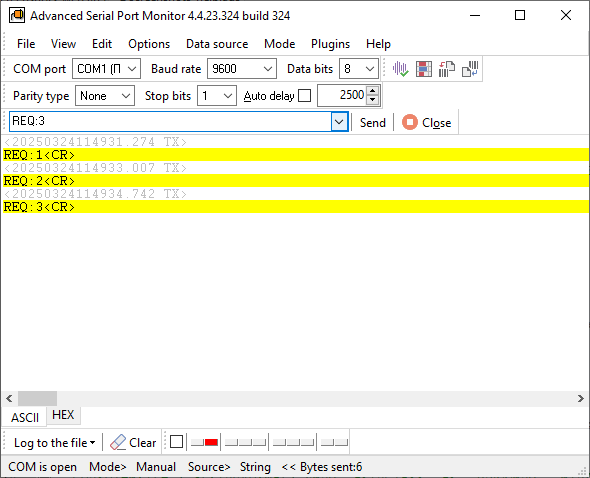
- Talk to the device yourself in Manual mode. All four values can be changed while the port is open, so you can step through the standard rates while the device keeps sending and stop at the one where the text becomes readable. For a MODBUS device with an unknown speed, the device scan plugin cycles through the standard rates for you.
Check 2: Make sure it is the right port and the right device
Garbage that never changes when the device is switched off is not coming from the device. USB adapters change their COM number after a reboot or a driver update, two adapters look alike in a port list that shows only numbers, and on many PCs COM1 belongs to the management engine on the motherboard rather than to a connector. Open the port list in Advanced Serial Port Monitor: it shows every port with its device name, for example "COM7 - USB Serial Port (FTDI)", so the adapter and the number are matched at a glance. Find the COM port an application uses explains the other ways. If the port opens but nothing arrives at all, that is a different fault; see COM port not working.
Check 3: Turn off flow control unless the device needs it
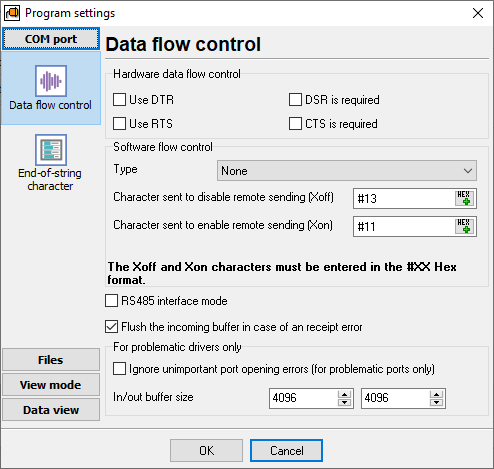
Flow control does not scramble bytes; it removes them. Hardware flow control (RTS/CTS) on a cable that does not carry those lines makes the PC or the device wait for a signal that never comes, so data arrives in bursts with gaps, or not at all. Software flow control (XON/XOFF) is worse with binary protocols: the bytes 0x11 and 0x13 are swallowed as control characters, so a binary frame arrives one or two bytes short and its checksum fails. Set flow control to None first, then add back only what the device manual requires. The monitor shows the state of the control lines and lets you toggle RTS and DTR by hand, which settles whether the device is waiting on a line.
Check 4: Wiring, ground and the bus
When the settings are right and the data is still wrong, the fault is on the wire, and no software setting will fix it. Check in this order:
- RS232: crossed or straight. A PC to a device usually needs a straight cable; two computers, or two devices that both act as terminals, need a null-modem cable with TX and RX crossed. The wrong one gives silence or echoes rather than garbage, but a partly wired cable can give both. Pin 5 (signal ground) must be connected; without it the receiver has no reference and reads noise. See RS232 pinout and signals.
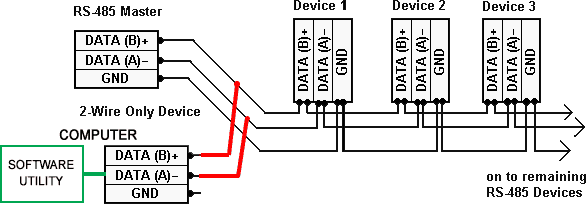
- RS485: A and B, termination and ground. Swapped A and B lines invert the signal. Long lines need a 120-ohm terminator at each end, not in the middle. A missing common ground between converter and device is the classic cause of errors that come and go with the weather or with a motor starting; run a third wire for ground even if the bus "works" without it.
- One device at a time. Take every device but one off the bus. Two slaves with the same address answer at once and corrupt each other's frames, and one faulty transmitter holds the whole bus. If the single device reads cleanly, add the others back one by one.
- Length and noise. RS232 is specified for about 15 metres; beyond that, lower the baud rate or move to RS485. Keep serial cables away from mains cables and frequency drives, and use shielded cable with the shield grounded at one end.
The RS485 software page shows the wiring for a PC on a two-wire bus and for tapping a bus that is already running.
Check 5: The adapter, its driver and its cable
Most PCs reach a serial device through a USB-to-serial adapter or a USB-to-RS485 converter, and the adapter is the part most often at fault when data is clean for a while and then breaks. What to do:
- Swap it. The quickest test of all. If a second adapter with a different chip reads the same device cleanly, you have found the fault. Adapters built on FTDI, Silicon Labs CP210x or WCH CH340 chips with the maker's own driver are the reliable choices; the current Prolific driver refuses counterfeit PL2303 chips, which is why an adapter that worked on an old PC stops on a new one.
- Stop Windows from powering it down. In Device Manager, open the adapter's USB hub and the port, and untick "Allow the computer to turn off this device to save power" on the Power Management tab. A device that goes quiet after a pause and comes back after a reconnect is often this.
- Bypass hubs and long USB cables. Plug the adapter into the PC directly. Unpowered hubs and thin extension cables drop the voltage and reset the adapter under load.
- Check the driver. A yellow mark in Device Manager, or a port that appears and disappears, needs the vendor's driver package rather than the generic one. USB-to-serial adapters not working after a Windows update covers the driver side.
- Loop-test it. Put a loopback plug, or a wire between pins 2 and 3, on the adapter's DB9 and run the free online serial port tester. It sends test data at every rate from 1200 to 921600 baud and reports the highest rate that comes back unchanged. An adapter that garbles its own loop will garble every device.
- Load it. If the fault appears only under sustained traffic, run the port through the COM port stress test and see at what rate errors begin.
Check 6: Text, binary and line endings
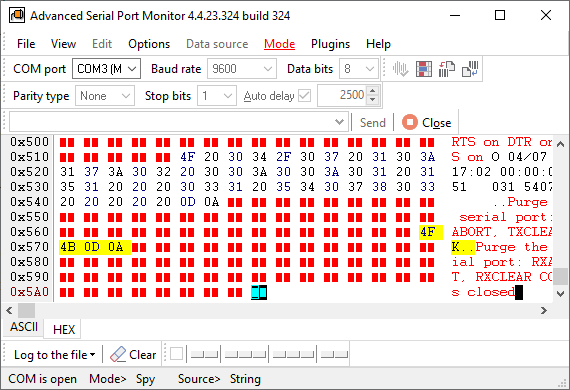
Some garbage is not garbage. Switch the monitor to the HEX view. If the bytes repeat in a pattern, start with the same header, or form valid MODBUS frames with a correct CRC, the data is binary and the only thing wrong was reading it as text. To check a suspected MODBUS frame, copy its bytes into the MODBUS CRC calculator. If the text is readable but the layout is odd, the line ending is the issue: devices send CR, LF or CR LF, and a viewer that expects the other joins lines or doubles them. The ASCII view shows control characters, and the popup menu sends CR, LF or both, so you can test what the device wants to receive. Two more cases: a device that uses 7 data bits shows every byte above 127 as a wrong character, and non-English text needs the device's code page to display correctly.
Check 7: Timing and half frames
Frames that arrive cut in two, or with the first bytes missing, are a timing fault, not a data fault. The usual causes:
- Direction switching on RS485. A half-duplex converter must turn its transmitter off before the reply begins. A converter that needs the PC to do the switching clips the first bytes of every reply unless the program drives RTS at the right moment; Advanced Serial Port Monitor has an RS485 mode for exactly these converters. Converters with automatic direction control avoid the problem.
- Inter-frame silence. MODBUS RTU needs a pause of 3.5 character times between frames. A master that sends the next request before the reply has ended, or a slave that answers too fast for the converter, merges frames.
- Adapter buffering. FTDI adapters hand data to Windows every 16 ms by default (the latency timer in the port's advanced settings), so a frame can be split at the buffer boundary or two short frames delivered together. The bytes are intact; the application must reassemble by length or delimiter, not by read call.
Timestamps settle which of these it is. Every packet in the monitor carries the time with millisecond precision and the time elapsed since the previous packet, so a split frame shows as two packets a few milliseconds apart and a late direction switch shows as a reply that starts a byte short. For MODBUS, the MODBUS plugin shows the raw request and response next to the decoded values and flags the CRC.
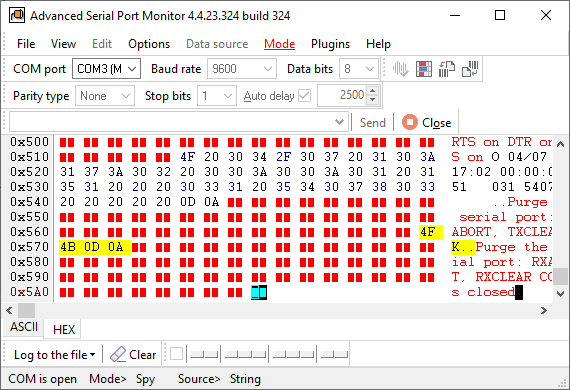
Is it the software or the wire?
One test separates the two. Open the device in Manual mode of Advanced Serial Port Monitor with the settings from check 1 and read it for a minute.
- The monitor reads it cleanly. The device, the adapter and the wire are fine. The fault is in the application: watch the application in Spy mode and compare the parameters it requests and the frames it sends with what worked in Manual mode. A wrong baud rate in a config file, a flow control setting left on, or a read routine that splits frames at the buffer boundary will show up in the first screen.
- The monitor sees the same garbage at every setting. The fault is below the bytes. Go back to checks 4 and 5: a second adapter, a ground wire, a terminator. When those are exhausted, the next instrument is a logic analyzer or an oscilloscope on the line, which shows the waveform that software cannot.
Keep a log of the session with the Write to file button while you test. A log with timestamps is what a device vendor's support will ask for, and it lets you compare before and after a change without relying on memory.
FAQ
Why does my serial port show only ÿ or strange symbols?
A byte received at the wrong baud rate fails its framing check, and the receiver reports it as 0xFF, shown as ÿ, or as another fixed value. When every byte comes out the same, the rate is far off, for example 9600 against 115200. Step through the standard rates while the device is sending; the text becomes readable at the right one. If the symbols change with the data but are never right, the rate is close and the parity or stop bits are wrong.
Can the baud rate be right and the data still be garbled?
Yes. Parity and stop bits produce single wrong characters; a missing signal ground or a noisy line produces errors that come and go; software flow control removes bytes from binary data; a failing adapter produces clean data for a while and then junk. Checks 3 to 5 cover those in order.
Why do I get garbage on RS485 but not on RS232?
RS485 adds a shared half-duplex bus to the same bytes. Swapped A and B lines, a missing terminator on a long run, no common ground between the converter and the devices, two slaves with the same address, or a converter that switches direction late each produce errors that RS232 point-to-point never sees. Reduce the bus to one device and one converter, then add devices back one at a time.
Why are bytes missing from binary data?
Software flow control is the first suspect: with XON/XOFF enabled, the bytes 0x11 and 0x13 are treated as control characters and never reach the application. Hardware flow control on a cable without the RTS and CTS lines causes gaps rather than losses. If neither is enabled, compare the monitor's HEX view with what the application receives; when the monitor shows the bytes and the application does not, the application's read routine is dropping them.
Does Windows change serial port settings on its own?
No. The values on the Port Settings tab in Device Manager are defaults for programs that do not set their own; most programs set the baud rate and framing every time they open the port. What Windows does change is the COM number of a USB adapter after a driver update or a different USB socket, which sends your program to the wrong device. Check 2 covers that.
Related pages: five common COM port errors when the port will not open at all, the serial port sniffer when you need to see what another program sends, and the product page for the full feature list and the 14-day free trial.
See also
COM Ports: Used & Full List
COM Port Not Working in Windows
How to Test a COM Port in Windows
Garbled Serial Data on a COM Port: 7 Checks in Order
5 Ways To Send Data To COM Port From Command Line in Windows
How To Add COM Port Device On Windows Computer
6 Best Serial Port Monitor Tools (Guide & Comparison)
Related topics: Advanced Serial Port Monitor
hereRS232 monitor RS232 analyzer COM Port Debug RS232 terminal Serial port sniffer Serial port spy UART monitor RS232 pinout and signals Data monitor cables.